Skip to content
TechBone
Samsung

Samsung: Reset Camera Settings to Default

If your Samsung camera keeps producing odd results after tweaking resolution, filters, grid lines or shooting modes, restoring the default configuration usually clears the mess fastest. Custom settings like exposure values, watermark options or scene assist can silently stack up and cause blurry, oversaturated or oddly cropped shots. Resetting the camera app wipes every custom option but leaves photos and videos you already captured untouched.

3 min4 steps
Version

Step by step

1 / 4

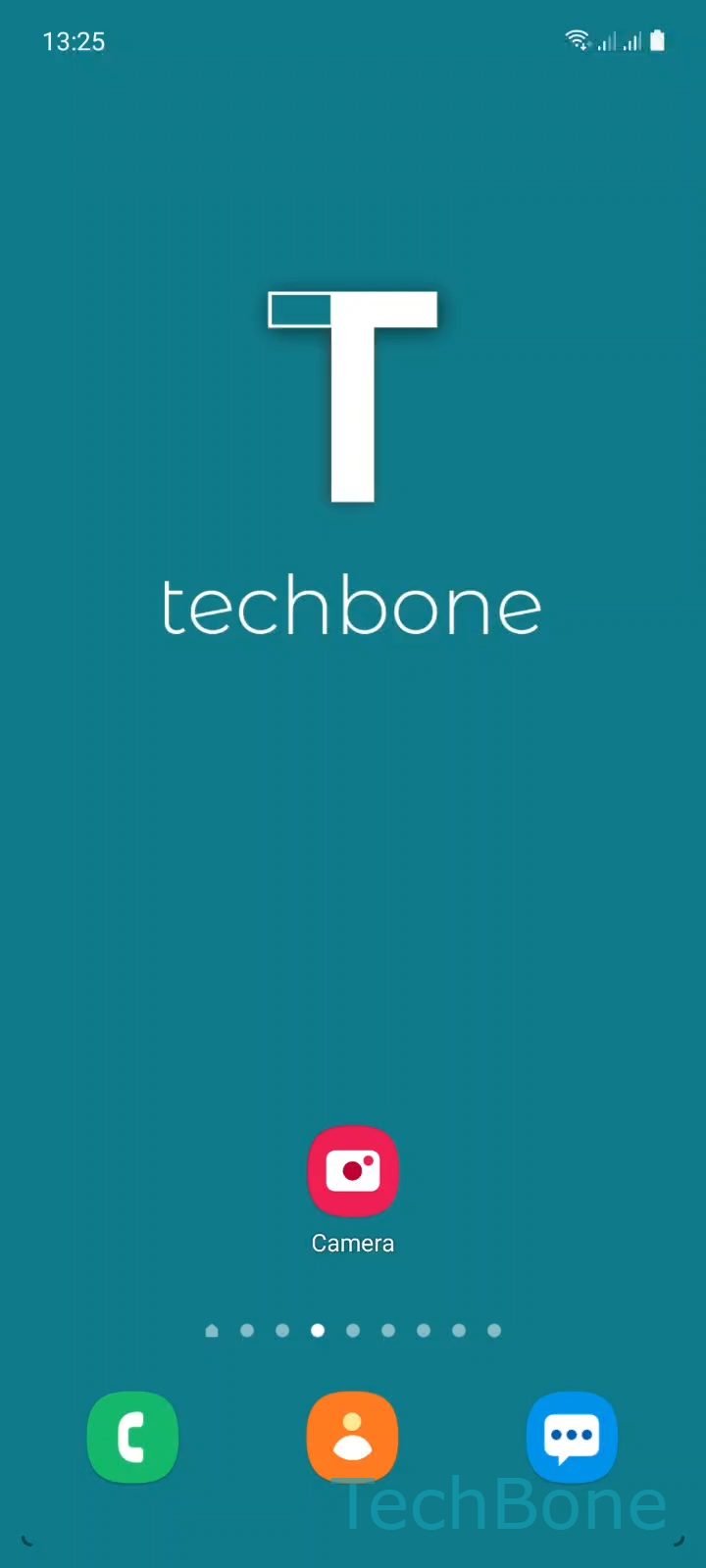
Step 1 of 4: Tap on **Camera**

1

Tap on Camera

Live simulator

Android 11 · One UI 3
Reset Camera Settings – One UI 3: step 1 – Tap on Camera
Tap on Camera
1 / 4

Scroll or use the buttons for the next step

Feedback

Was the guide correct?

Help others: confirm the path or report a problem.

11

Confirmations

Forum verified this path

Samsung

Reset Camera Settings auf Samsung

When photos or videos from your Samsung camera look wrong, the cause is rarely the sensor. It is usually a stack of custom settings such as resolution, HDR behavior, grid overlays, watermark text or scene optimization that no longer match what you actually need.

Instead of hunting through every submenu to undo each change manually, the camera app has a dedicated reset function. It restores all photo, video and media settings to their original state in one step.

To reset the camera settings, open Tap on CameraTap on SettingsTap on Reset settingsTap on Reset.

This action only affects the camera app configuration. Existing photos and videos in your gallery are not deleted or altered.

If the camera app itself crashes, freezes or shows a black preview, a settings reset usually will not help. In that case, clearing the camera app cache or checking for a system update is the better first step.

After the reset, options like flash behavior, grid lines, timer and shooting mode default back to standard values. You will need to reapply any custom setup, such as a specific aspect ratio or watermark, manually afterward.

Frequently asked questions

No. The reset only affects the camera app configuration, such as resolution or shooting modes. Everything already saved in your gallery stays exactly where it is.

Compatible devices

Tap your device — opens its hub with matching guides.

Android 11 · One UI 3

No compatible devices are listed for this version.