Skip to content
TechBone
Samsung

Samsung: How to Reset All Settings to Default

If your ringtone, keyboard behavior, or display options feel wrong after some tweaking, a full settings reset can undo the mess without touching your files. Samsung's Reset all settings option restores default values for sound, language, security, and other system menus while keeping apps, photos, and contacts exactly where they are. It is the safer alternative when you do not want to go through a complete factory reset.

5 min6 steps
Version

Step by step

1 / 6

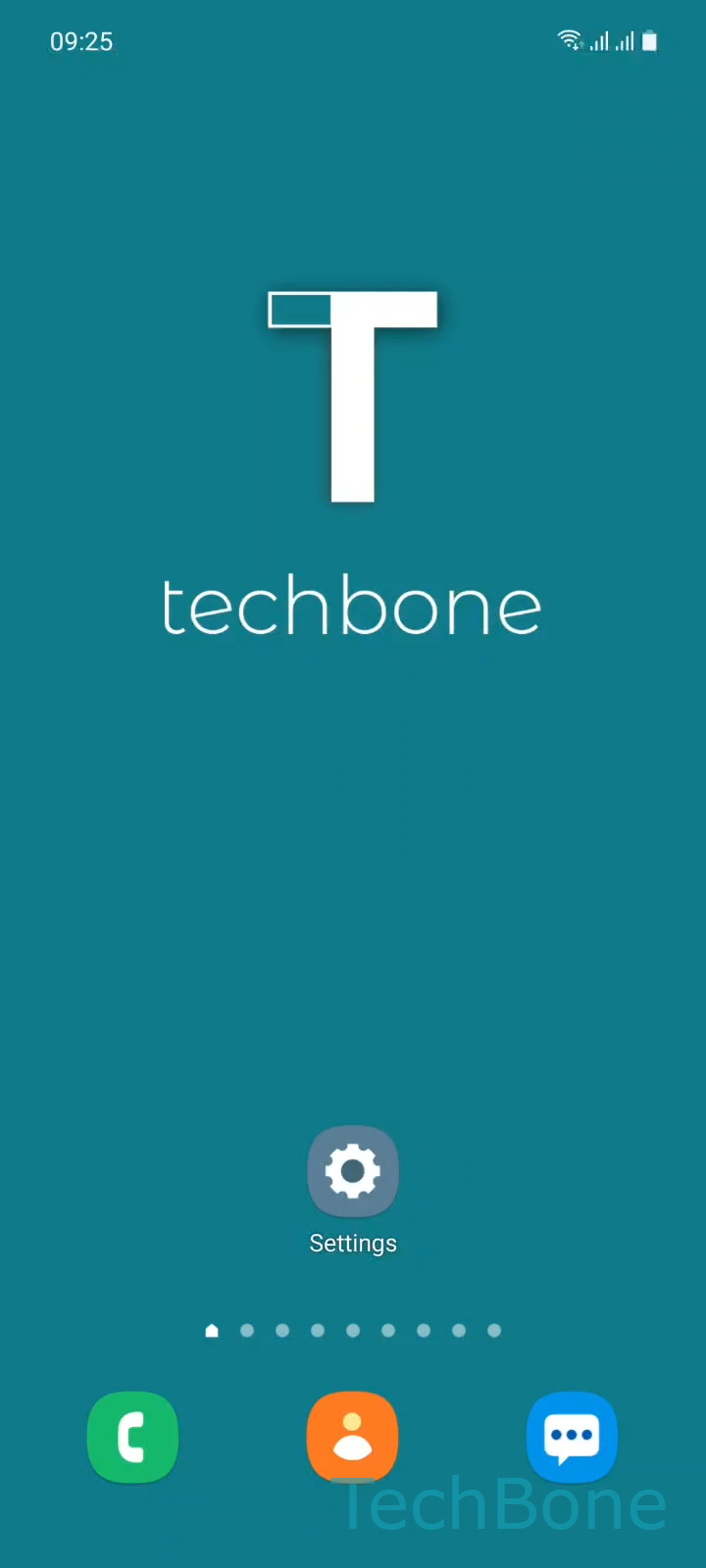
Step 1 of 6: Tap on **Settings**

1

Tap on Settings

Live simulator

Android 11 · One UI 3
Reset All Settings – One UI 3: step 1 – Tap on Settings
Tap on Settings
1 / 6

Scroll or use the buttons for the next step

Feedback

Was the guide correct?

Help others: confirm the path or report a problem.

29

Confirmations

Forum verified this path

Samsung

Reset All Settings auf Samsung

Resetting all settings on a Samsung phone brings sound, display, keyboard, language, and security options back to their factory state. Apps, photos, contacts, and other personal content stay exactly where they are. This is different from a full factory reset, which wipes the entire device.

Use this option when a setting you changed earlier is causing problems and you cannot remember which one it was. It is also useful before selling a phone in a limited way, though a full factory reset is still recommended for that purpose since app data and accounts are not removed here.

To reset all settings, open Tap on SettingsTap on General managementTap on ResetTap on Reset all settingsTap on Reset settingsTap on Reset. Confirm the action when prompted.

After the reset, security settings such as app permissions and lock screen preferences return to their defaults, so some apps may ask for permissions again. Sound profiles, keyboard dictionaries you added manually, and language preferences also reset. If the goal is to remove everything before handing the device to someone else, choose a factory reset instead.

Frequently asked questions

No. Apps, their data, photos, and contacts stay untouched. Only system-level settings like sound, display, and security return to default.

Compatible devices

Tap your device — opens its hub with matching guides.

Android 11 · One UI 3

No compatible devices are listed for this version.