Skip to content
TechBone
Samsung

Samsung: Schedule Do Not Disturb Automatically

Turning Do Not Disturb on and off by hand every night or before every meeting gets old fast, and it is easy to forget switching it back off. Samsung phones let you set fixed days and times so the mode activates and deactivates on its own. A custom schedule name also helps when you want more than one routine, like work hours and sleep.

5 min6 steps
VersionAndroid 11 · One UI 3

Step by step

1 / 6

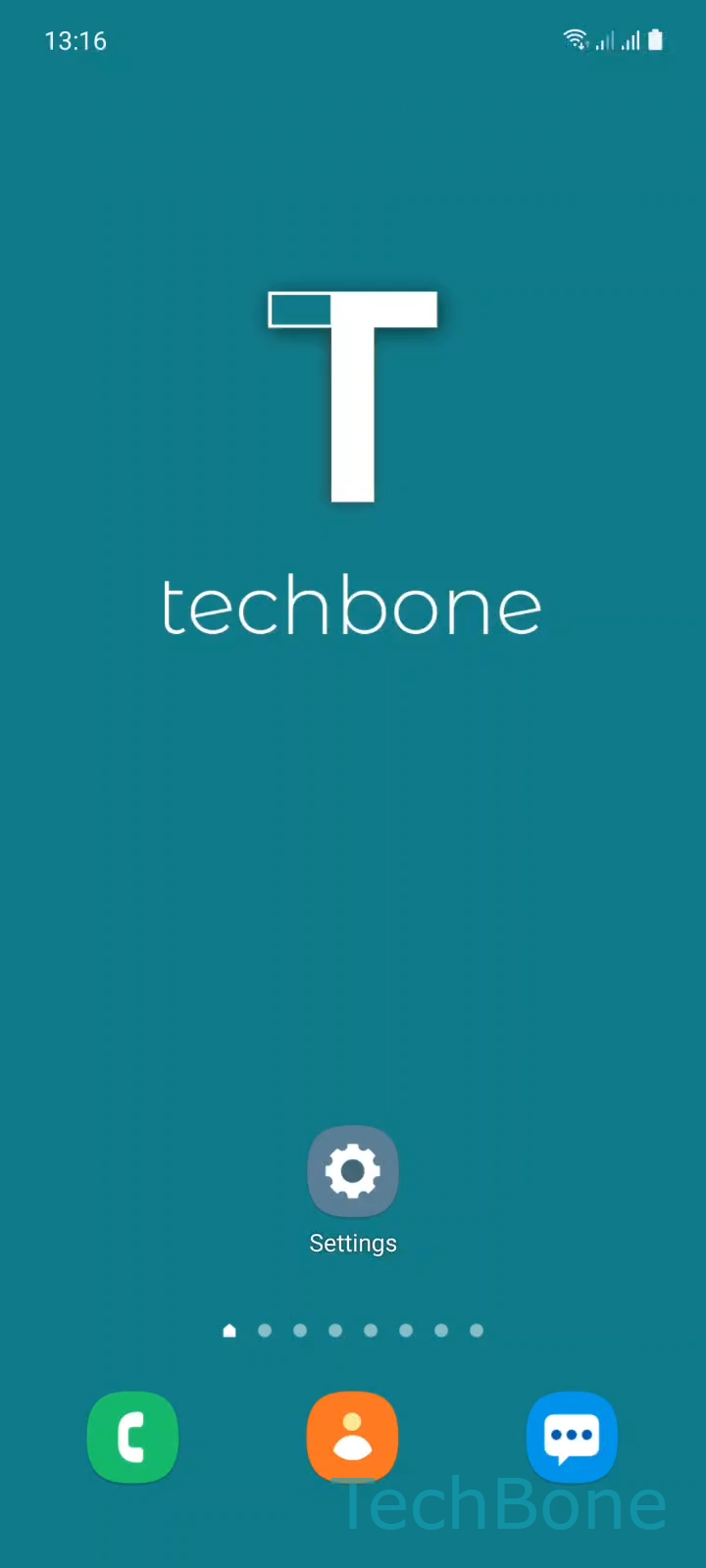
Step 1 of 6: Tap on **Settings**

1

Tap on Settings

Live simulator

Android 11 · One UI 3
Schedule Do Not Disturb Automatically – One UI 3: step 1 – Tap on Settings
Tap on Settings
1 / 6

Scroll or use the buttons for the next step

Feedback

Was the guide correct?

Help others: confirm the path or report a problem.

46

Confirmations

Forum verified this path

Samsung

Schedule Do Not Disturb Automatically auf Samsung

Manually toggling Do Not Disturb only works if you remember to switch it back off. On Samsung phones running Android with One UI, a schedule handles both the start and the end automatically, based on days and times you define once.

Where the schedule lives

The setting sits inside the notification settings, not in Quick Panel controls. That is why many users only find the manual toggle and miss the option to automate it.

To create one: Tap on SettingsTap on NotificationsTap on Do not disturbTap on Add scheduleEnter a NameSet the Days and Start/End time and tap Save.

The name field matters if you plan more than one schedule, for example a work-hours block and a separate overnight block. Each schedule runs independently once saved.

A scheduled Do Not Disturb still follows whatever exceptions you already configured, such as allowed calls or apps. If notifications still come through during the scheduled window, check those exception lists rather than the schedule itself.

Frequently asked questions

Yes. Repeat the same steps under Do not disturbAdd schedule and give each one a different name, for example separate schedules for work hours and sleep.

Compatible devices

Tap your device — opens its hub with matching guides.

Android 11 · One UI 3

No compatible devices are listed for this version.