Skip to content
TechBone
Samsung

Samsung: Allow or Block Apps From Displaying Over Other Apps

When a chat bubble or floating icon from an app like Facebook Messenger keeps covering your screen no matter what you open, that app has permission to draw over other apps. Some tools need this to work, like screen recorders or floating widgets, but many apps request it without a clear reason. If the overlay gets in the way or feels like a privacy risk, you can turn it off per app.

5 min6 steps
Version

Step by step

1 / 6

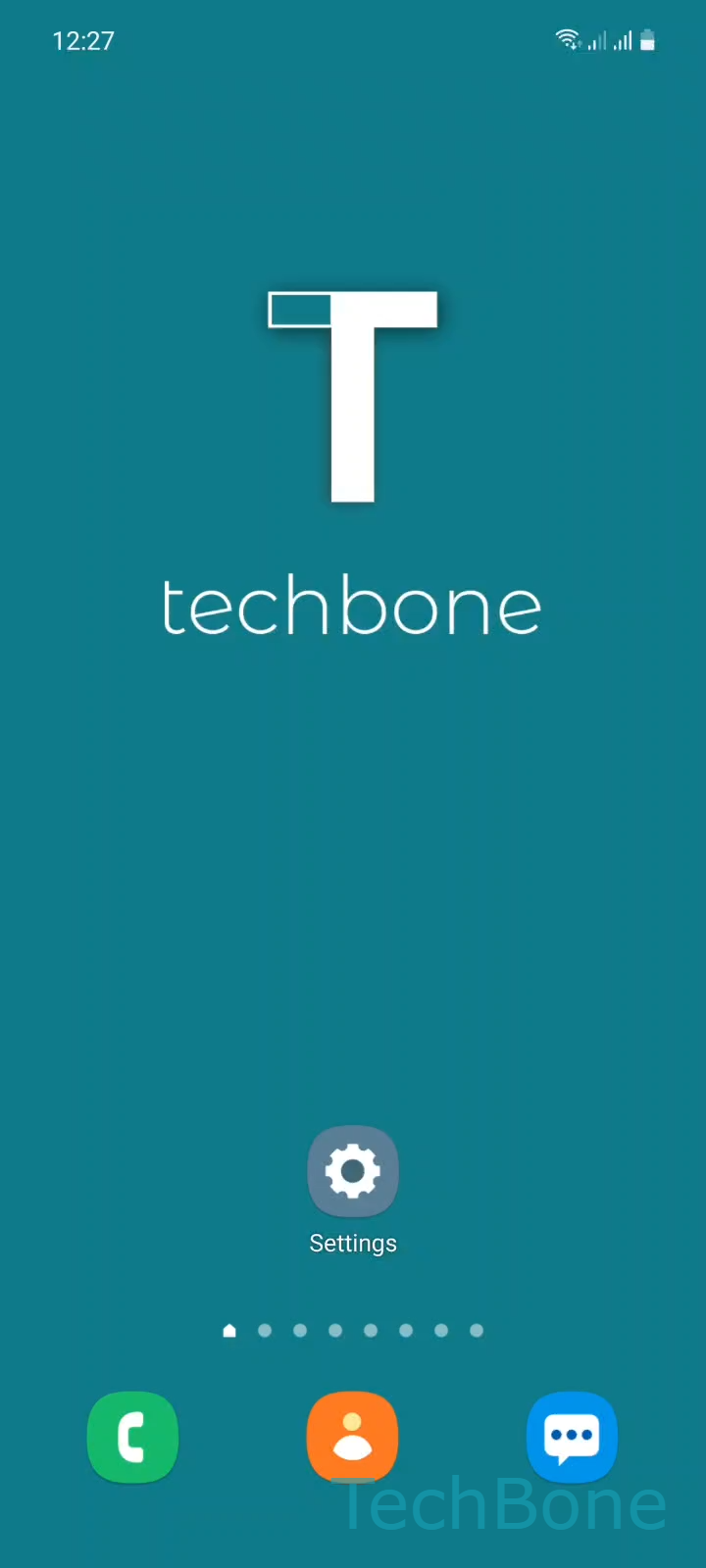
Step 1 of 6: Tap on **Settings**

1

Tap on Settings

Live simulator

Android 11 · One UI 3
Allow or Block Display Over Other Apps – One UI 3: step 1 – Tap on Settings
Tap on Settings
1 / 6

Scroll or use the buttons for the next step

Feedback

Was the guide correct?

Help others: confirm the path or report a problem.

82

Confirmations

Forum verified this path

Samsung

Allow or Block Display Over Other Apps auf Samsung

On Samsung phones, some apps request permission to draw content on top of everything else, even while you are using a different app. Samsung groups this under a permission usually labeled Appear on top. Facebook Messenger's chat bubbles are the most common example, but screen recorders, call blockers, and floating tool apps use it too.

This permission sits in a separate menu from regular app permissions because it affects what appears on your entire screen, not just inside the app itself. Leaving it enabled for apps you trust is fine and sometimes required for the feature to work at all. Leaving it enabled for apps you do not recognize can be a privacy concern, since an overlay can technically sit on top of sensitive screens.

To manage it, go to Tap on SettingsTap on AppsOpen the MenuTap on Special accessTap on Appear on top. You get a list of every app that has requested this permission. Tap the toggle next to any app to turn it On or Off.

If an app stops showing a floating widget or bubble after you disable this, that is expected. If a legitimate feature breaks, such as a screen-recording overlay control, turn the permission back on for that specific app.

Frequently asked questions

It is not listed with standard permissions like camera or location. It lives under Tap on SettingsTap on AppsOpen the MenuTap on Special accessTap on Appear on top because it affects the whole screen, not just the app itself.

Compatible devices

Tap your device — opens its hub with matching guides.

Android 11 · One UI 3

No compatible devices are listed for this version.