Skip to content
TechBone
Samsung

Samsung: Activate Secure Folder for Private Apps

Storing sensitive apps, photos, or documents in the regular gallery or app drawer means anyone who picks up your phone can open them. Secure Folder creates an encrypted, password-locked space that keeps selected apps and files separate from the rest of your device. Many Samsung owners never turn it on because the option sits buried inside the security settings and stays invisible until activated.

3 min4 steps
Version

Step by step

1 / 4

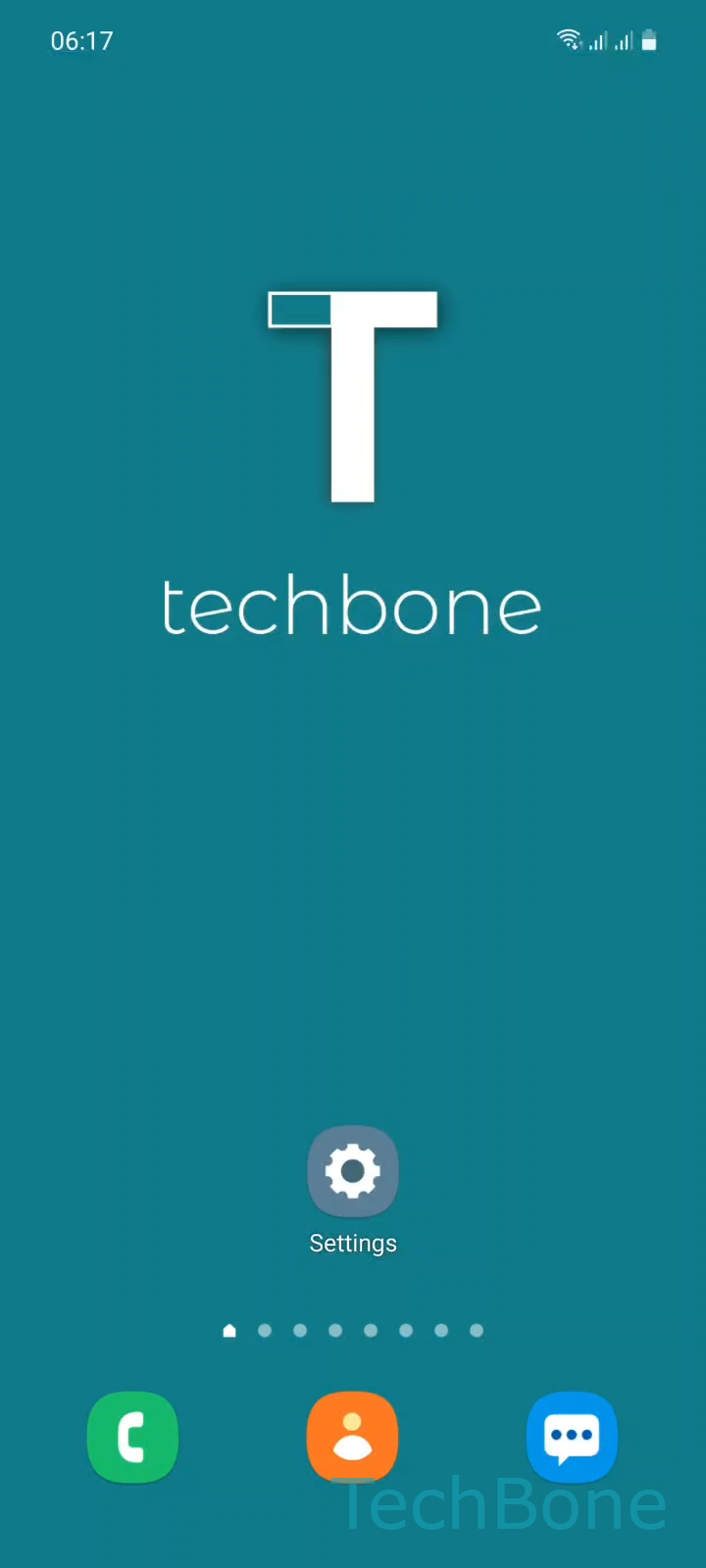
Step 1 of 4: Tap on **Settings**

1

Tap on Settings

Live simulator

Android 11 · One UI 3
Set Up Secure Folder – One UI 3: step 1 – Tap on Settings
Tap on Settings
1 / 4

Scroll or use the buttons for the next step

Feedback

Was the guide correct?

Help others: confirm the path or report a problem.

46

Confirmations

Forum verified this path

Samsung

Set Up Secure Folder auf Samsung

Secure Folder builds an encrypted container on your phone using Samsung Knox. Apps, photos, and documents placed inside stay separate from the rest of the system and open only after a separate password, PIN, pattern, or fingerprint check.

The feature ships pre-installed on Samsung phones with One UI, but it remains hidden until you set it up once. Open SettingsBiometrics and securitySecure FolderAgree, then follow the on-screen steps to sign in with your Samsung account and choose a lock type for the folder.

After setup, a Secure Folder icon appears on your home screen or in the app drawer. Apps you add inside run as separate installations with their own data, so they do not share history, files, or accounts with the regular version outside the folder.

If you only want to hide a handful of photos rather than build a full protected workspace, the lock option inside the Gallery app is faster and does not need a Samsung account. Secure Folder makes more sense when several apps or a mix of files need protection at once, since everything inside is encrypted as one unit and can be locked, hidden, or removed together.

Frequently asked questions

Yes. Inside the Secure Folder settings you can turn on an option that removes the icon from the home screen and app drawer, so the folder stays invisible until you search for it or unlock it through the security settings.

Compatible devices

Tap your device — opens its hub with matching guides.

Android 11 · One UI 3

No compatible devices are listed for this version.