
Skip to content
TechBone
Samsung

Samsung: Hide or Show Secure Folder Icon on Home Screen

If the Secure Folder icon vanished from your Home screen or Apps screen, you probably switched off a display toggle rather than deleted anything. While the icon is hidden, you cannot tap it open, and the only way back is through the folder's own settings. You will need your Secure Folder password, PIN, or pattern to get there.

3 min4 steps
Version

Step by step

1 / 4

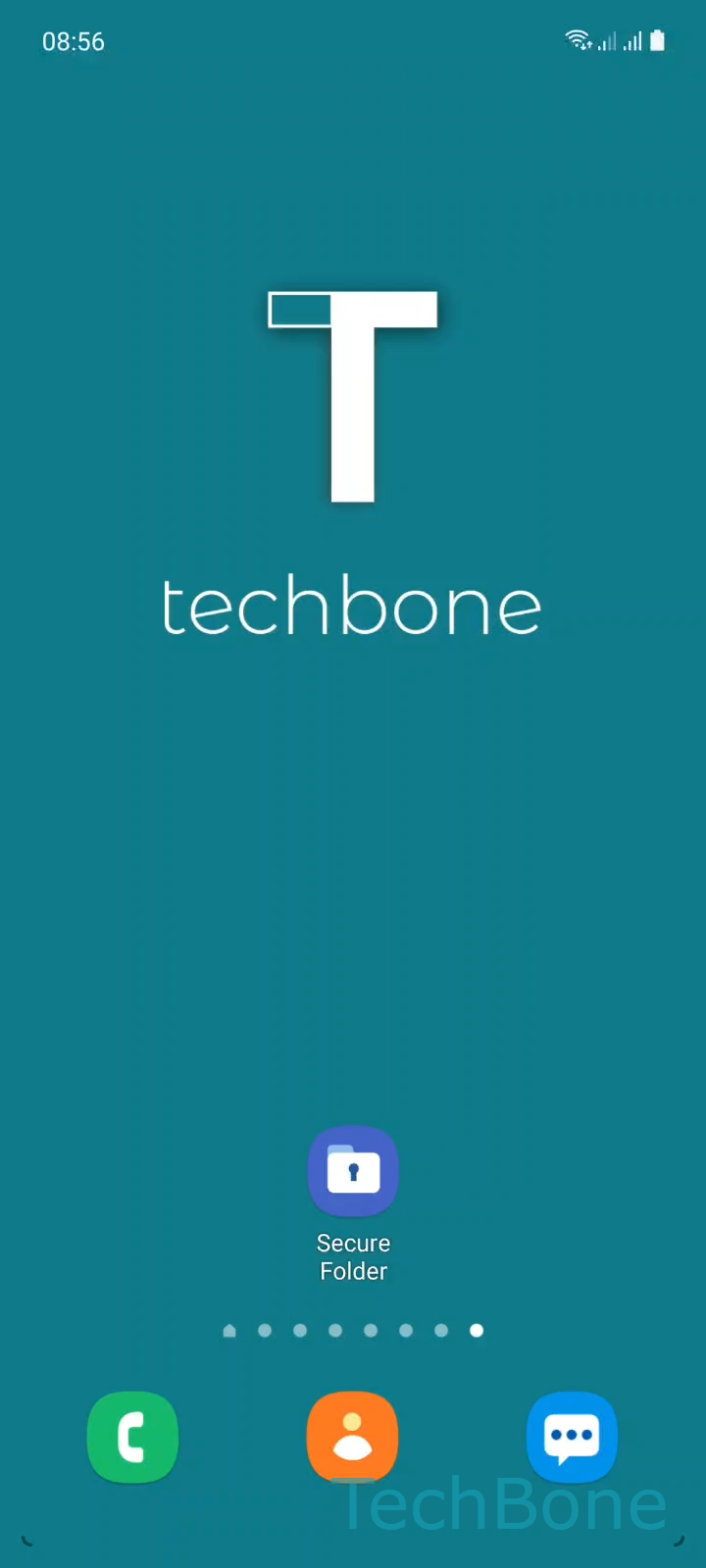
Step 1 of 4: Tap on **Secure Folder**

1

Tap on Secure Folder

Live simulator

Android 11 · One UI 3
Show or Hide Secure Folder Icon on Home Screen – One UI 3: step 1 – Tap on Secure Folder
Tap on Secure Folder
1 / 4

Scroll or use the buttons for the next step

Feedback

Was the guide correct?

Help others: confirm the path or report a problem.

40

Confirmations

Forum verified this path

Samsung

Show or Hide Secure Folder Icon on Home Screen auf Samsung

Samsung lets you hide the Secure Folder icon from both the Home screen and the Apps screen for privacy reasons. Once hidden, the icon disappears completely and you cannot tap your way back into it. This is intentional: the visibility switch sits inside Secure Folder itself, so unlocking it always requires your Secure Folder password, PIN, or pattern first.

To change the setting, open Secure Folder using your credentials. From there, go to Tap on Secure FolderOpen the MenuTap on SettingsEnable or disable Show icon on Apps screen. Turning this option on brings the icon back on the Apps screen, and depending on your Home screen layout it can appear there too.

Turning it off again removes the icon from view without touching any files stored inside. Your photos, apps, and documents in Secure Folder stay exactly where they are; only the shortcut disappears. This setting is useful if you share your phone temporarily and do not want Secure Folder visible to someone browsing your apps.

If you still cannot find the icon after enabling this option, check whether Secure Folder was hidden through a separate Home screen layout setting, since some launchers hide individual app icons independently of this toggle.

Frequently asked questions

If the icon was switched off under Enable or disable Show icon on Apps screen, it will not appear on the Home screen or Apps screen until you turn that option back on. Open Secure Folder with your password, PIN, or pattern first, since the toggle lives inside its own settings.

Compatible devices

Tap your device — opens its hub with matching guides.

Android 11 · One UI 3

No compatible devices are listed for this version.