Skip to content
TechBone
Samsung

Samsung: Enable Tap Screen to Take Photos

Holding your phone at arm's length for a selfie makes the shutter button hard to reach, especially with one hand. Samsung's camera offers a shooting method called Tap screen that turns the whole preview into a trigger area instead of relying on the small button. Without it switched on, you're stuck stretching your thumb across the screen every time.

3 min4 steps
VersionAndroid 10 · One UI 2

Step by step

1 / 4

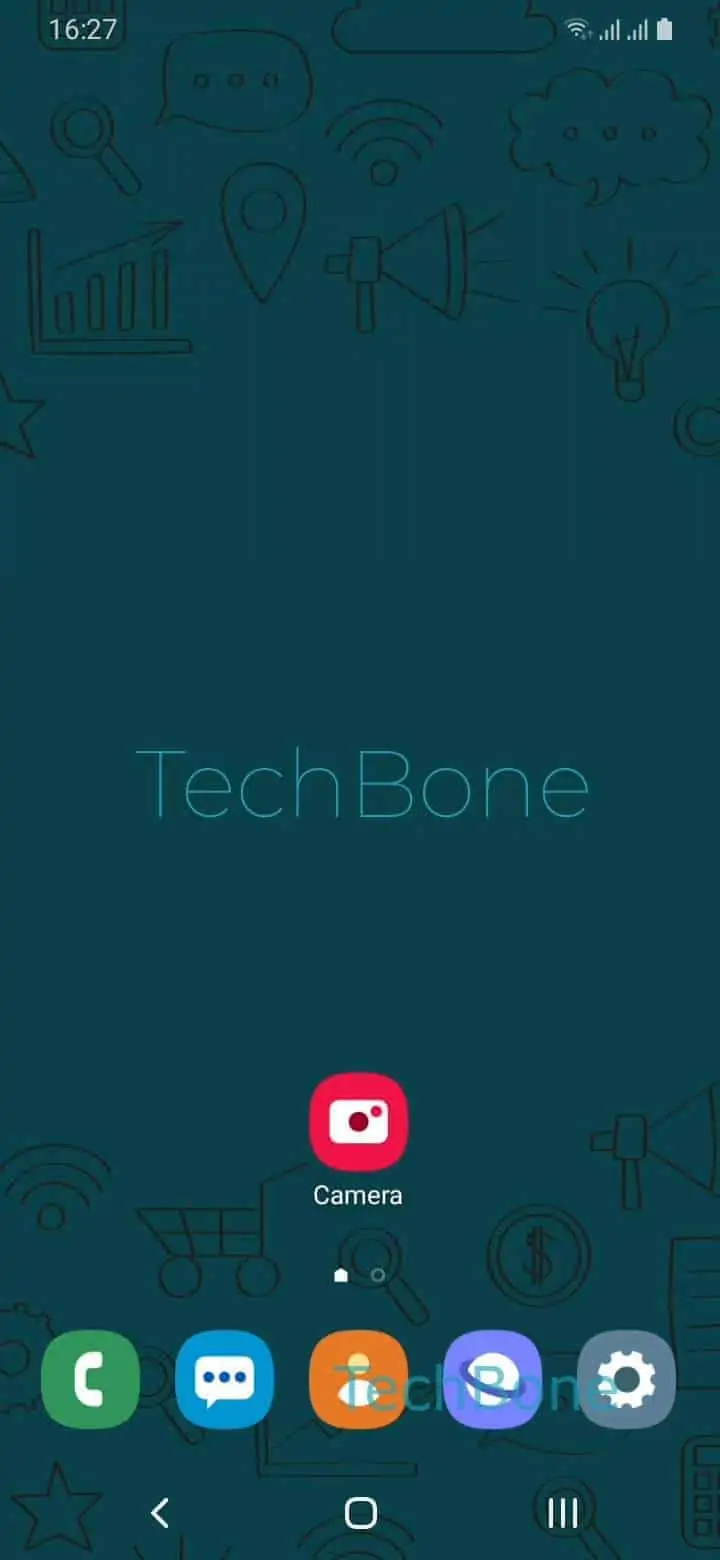
Step 1 of 4: Open the **Camera app**

1

Open the Camera app

Live simulator

Android 10 · One UI 2
Take Photos with a Tap on Screen – One UI 2: step 1 – Open the Camera app
Open the Camera app
1 / 4

Scroll or use the buttons for the next step

Feedback

Was the guide correct?

Help others: confirm the path or report a problem.

67

Confirmations

Forum verified this path

Samsung

Take Photos with a Tap on Screen auf Samsung

Reaching the shutter button while holding your phone at arm's length for a selfie is awkward, especially with one hand. Samsung's camera app includes a shooting method called Tap screen that solves this by turning the entire live preview into a trigger area.

Once enabled, tapping any empty spot on the screen takes a photo, no matter where your thumb lands. This works for both the front and rear camera, though it is most useful for selfies where the shutter button sits far from your natural grip.

The setting lives inside the camera's shooting methods menu, alongside other trigger options like voice control or a floating shutter button. To turn it on or off, go to Open the Camera appOpen the SettingsTap on Shooting methodsEnable or disable Tap screen.

Keep in mind that once active, any tap on the preview snaps a picture, so accidental touches while framing a shot also count as a shutter press. If you need to zoom, adjust focus, or switch modes without triggering the shutter, turn Tap screen off again and rely on the standard button or a floating shutter icon instead.

Frequently asked questions

Yes. Tap screen applies to whichever camera is active, front or rear, so you can use it for group shots too, not only selfies.

Compatible devices

Tap your device — opens its hub with matching guides.

Android 10 · One UI 2

No compatible devices are listed for this version.