Skip to content
TechBone
Samsung

Samsung: Manage Sleeping Apps in Background Usage Limits

If a messaging app suddenly stops pushing notifications or a tracking app won't sync overnight, One UI may have put it to sleep. Background usage limits on Samsung phones can pause individual apps completely, so they neither update nor notify until you open them again. Knowing whether an app sits in Sleeping, Deep sleeping, or Never sleeping explains a lot of missed alerts.

8 min10 steps
Version

Step by step

1 / 10

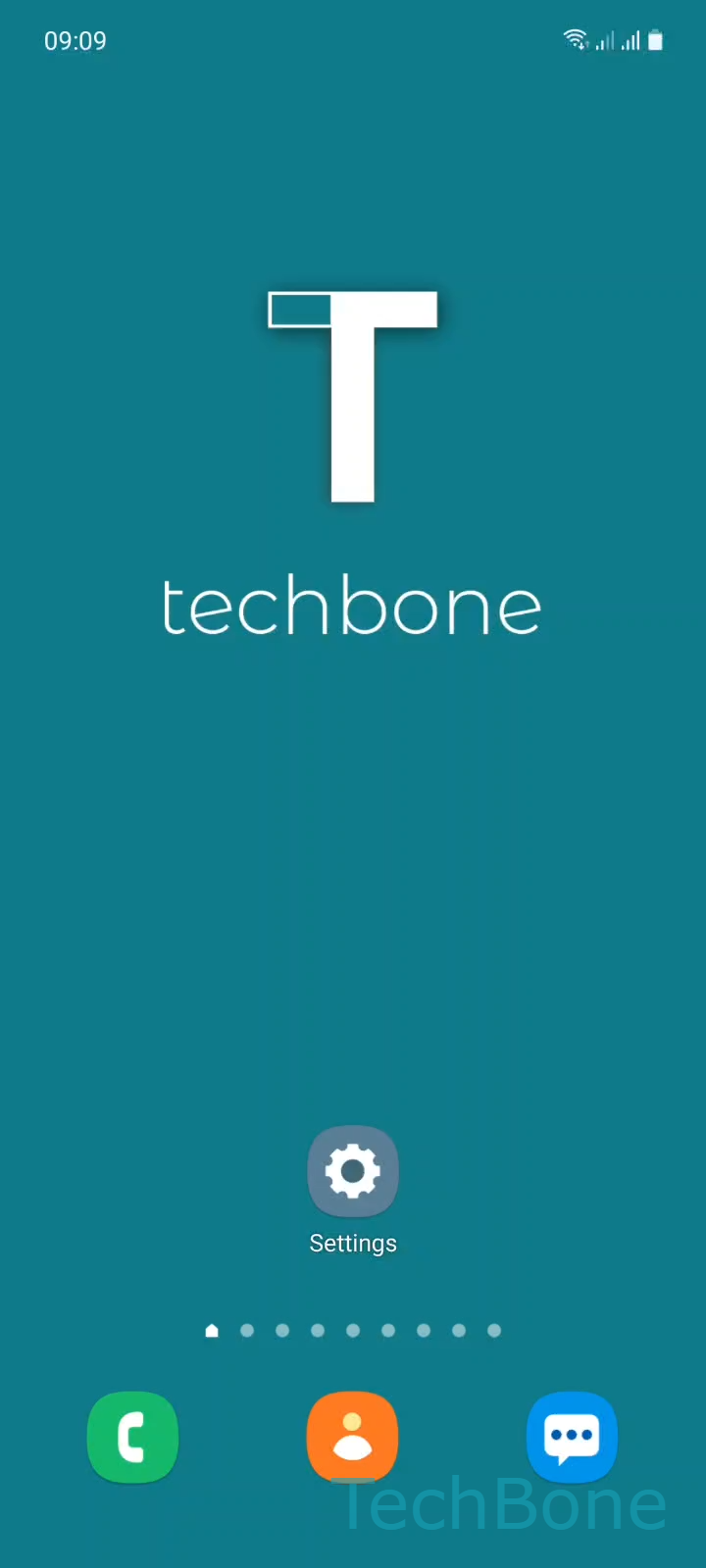
Step 1 of 10: Tap on **Settings**

1

Tap on Settings

Live simulator

Android 11 · One UI 3
Manage Sleeping Apps – One UI 3: step 1 – Tap on Settings
Tap on Settings
1 / 10

Scroll or use the buttons for the next step

Feedback

Was the guide correct?

Help others: confirm the path or report a problem.

84

Confirmations

Forum verified this path

Samsung

Manage Sleeping Apps auf Samsung

Samsung phones group apps into background usage categories to save battery. An app marked as sleeping stops running in the background entirely, so it will not update content or send notifications until you open it manually.

This behavior lives inside Battery and device care, not inside the app itself. That is why an app can look fine on the home screen while its notifications quietly stop arriving.

Where sleeping apps are managed

Open SettingsBattery and device careBatteryBackground usage limits. Here you choose between Sleeping apps, Deep sleeping apps, and Never sleeping apps.

To move an app onto one of these lists, open the matching category, tap Add, select one or more apps, and confirm with Add. The apps stay paused until you remove them again.

To reverse this, open the same category, tap the menu icon, choose Edit apps, select the apps you want to release, and tap Remove. They return to normal background behavior right away.

If an app still misbehaves after removing it from these lists, check its individual notification and battery permissions as well, since both systems can restrict background activity independently.

Frequently asked questions

Apps in Sleeping apps pause background activity but can still be opened normally and will briefly refresh. Apps in Deep sleeping apps are paused more aggressively and may take longer to resume full activity after you open them again.

Compatible devices

Tap your device — opens its hub with matching guides.

Android 11 · One UI 3

No compatible devices are listed for this version.