Skip to content
TechBone
Samsung

Samsung: Switch Between Front and Rear Camera

Jumping from a landscape shot to a quick selfie shouldn't mean closing the Camera app and reopening it. On Samsung phones the front and rear lenses share one interface, but the small switch icon is easy to miss if you're not looking for it. Knowing exactly where it sits saves you from fumbling mid-shot in both photo and video mode.

3 min3 steps
Version

Step by step

1 / 3

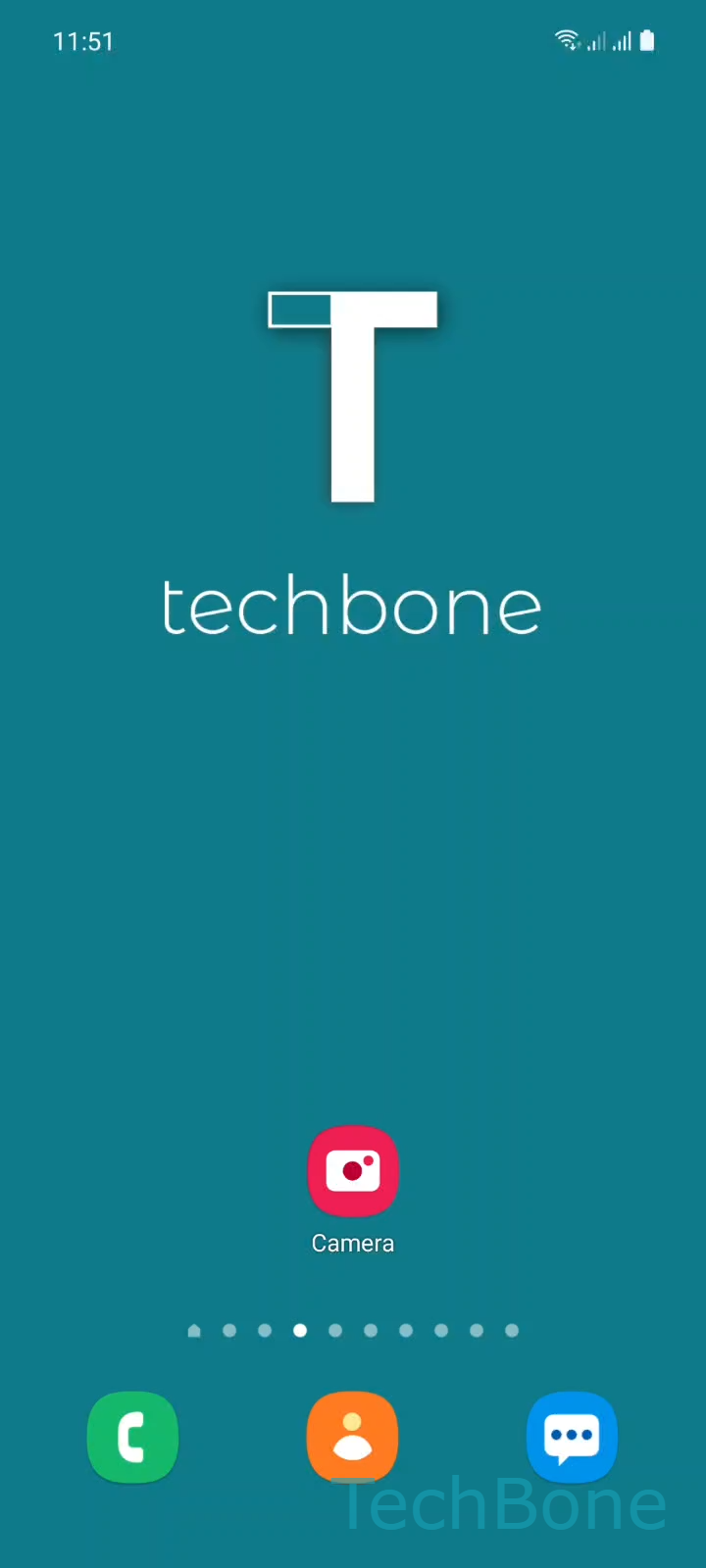
Step 1 of 3: Tap on **Camera**

1

Tap on Camera

Live simulator

Android 11 · One UI 3
Switch Between Front and Rear Camera – One UI 3: step 1 – Tap on Camera
Tap on Camera
1 / 3

Scroll or use the buttons for the next step

Feedback

Was the guide correct?

Help others: confirm the path or report a problem.

48

Confirmations

Forum verified this path

Samsung

Switch Between Front and Rear Camera auf Samsung

The front and rear cameras on a Samsung phone run inside the same Camera app, not as separate tools. Switching between them depends on a single icon that changes position slightly depending on whether you're in photo or video mode, which is why it sometimes gets overlooked.

To flip the view, open Tap on CameraSelect Photo/Video modeTap the Camera switch button. The switch button usually sits near the shutter, shown as two curved arrows. Tapping it swaps the live preview instantly, no reload or app restart needed.

Why the switch can feel hidden

Samsung keeps the camera interface minimal, so the switch icon is small compared to the shutter button. On some layouts it moves closer to the flash or settings icons depending on screen orientation, which adds to the confusion.

When this does not apply

If you are inside a third-party app like a messenger's built-in camera, the switch behaves the same way but its icon placement is controlled by that app, not by Samsung's Camera app. In that case, look for a similar curved-arrow icon within that app's own interface.

Frequently asked questions

Certain modes, like Pro or Single Take, rearrange the interface and can push the switch icon into a side menu. Swipe through the mode options at the bottom of the screen to bring the standard layout back.

Compatible devices

Tap your device — opens its hub with matching guides.

Android 11 · One UI 3

No compatible devices are listed for this version.