
Samsung
Take a Photo with the Camera Shutter auf Samsung
On most Samsung phones the Camera app opens in the mode you last used, not always Photo mode. If the last shot was a video or a portrait, the shutter icon on screen looks different and behaves differently too.
To take a standard photo, switch to Photo mode first. This mode uses the round shutter button and captures a single still image without extra processing steps like slow motion or panorama stitching.
Verified steps
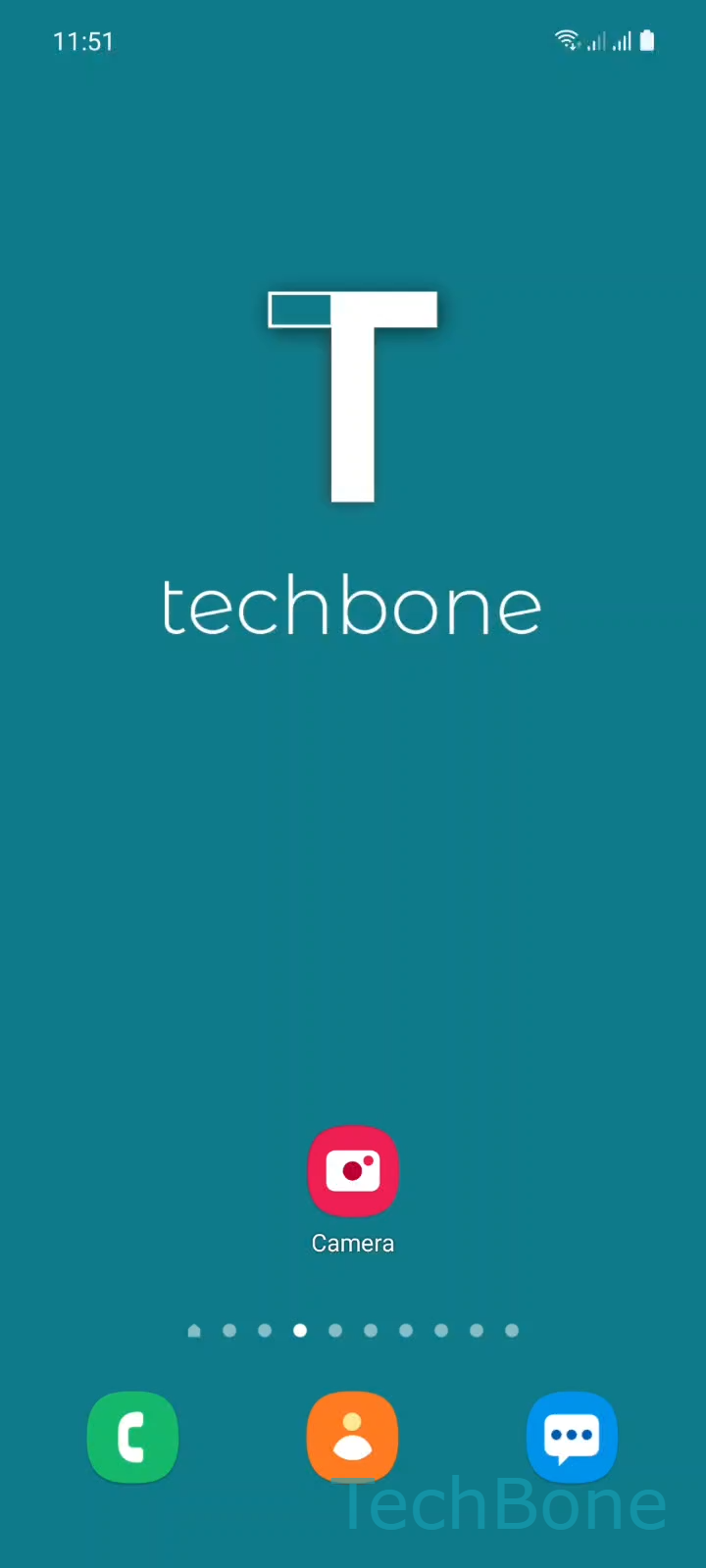
Tap on Camera ➔ Select Photo mode ➔ Tap the Camera shutter to take a photo
The mode selector sits just above or beside the shutter button and usually scrolls sideways. Photo mode is normally marked clearly among the other options, such as video or portrait shooting.
Once Photo mode is active, a single tap on the shutter captures the image immediately. Holding the shutter down instead can trigger burst shooting on some Camera app versions, so a short tap is usually enough for one clean photo.
If the shutter button is greyed out or unresponsive, the storage on the phone may be full, or the Camera app might still be loading the sensor. Restarting the Camera app usually resolves that without needing a phone restart.