Skip to content
TechBone
Samsung

Samsung: Change the Clock App Timer Sound

If the timer on your Samsung phone always plays the same tone, no matter which alarm or reminder you set, the Clock app is likely still using its default Timer sound. You can swap it for another preset tone or a custom sound file, but the option sits inside a separate sound menu that many people never open.

4 min5 steps
Version

Step by step

1 / 5

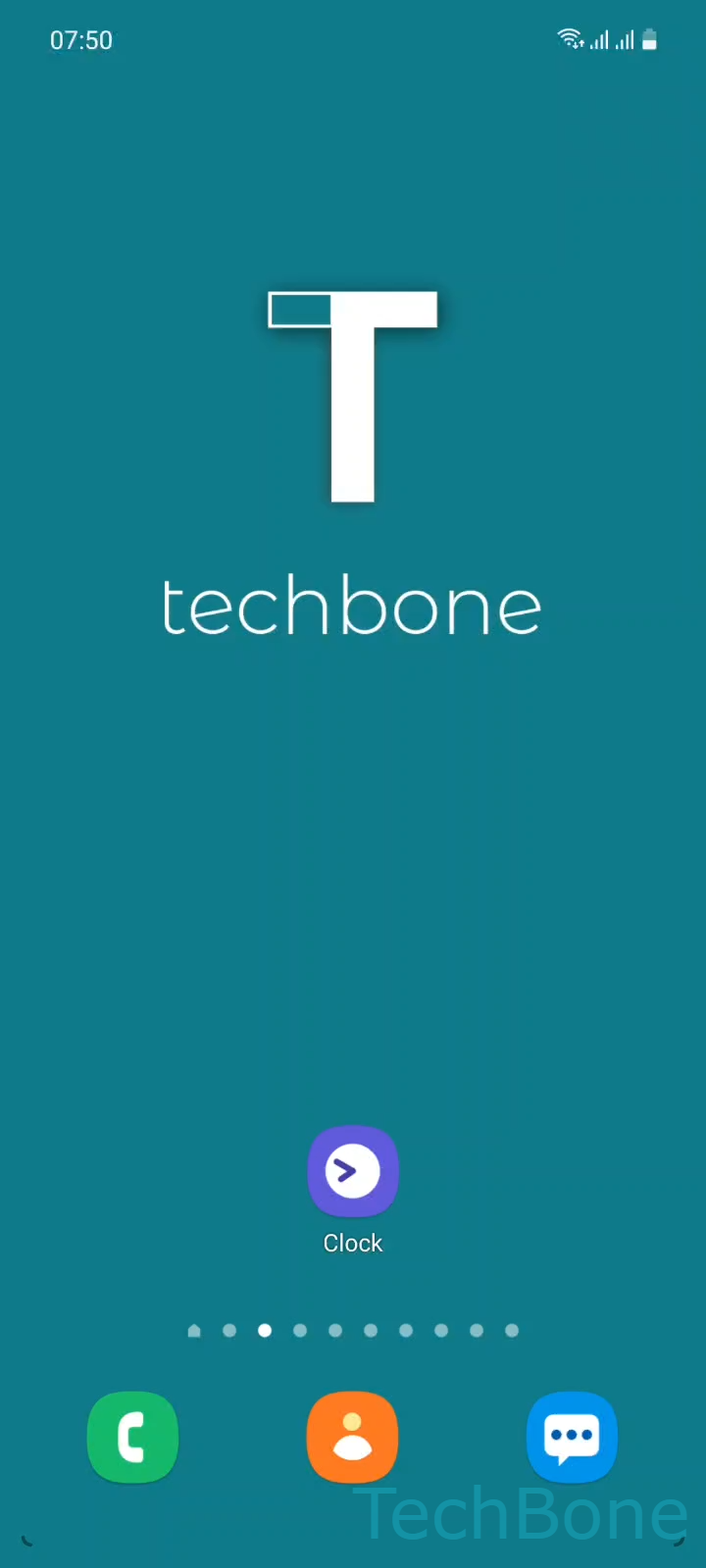
Step 1 of 5: Tap on **Clock**

1

Tap on Clock

Live simulator

Android 11 · One UI 3
Change Timer Sound – One UI 3: step 1 – Tap on Clock
Tap on Clock
1 / 5

Scroll or use the buttons for the next step

Feedback

Was the guide correct?

Help others: confirm the path or report a problem.

87

Confirmations

Forum verified this path

Samsung

Change Timer Sound auf Samsung

The Timer sound on Samsung phones is controlled separately from your ringtone and notification sound. It sits inside the Clock app itself, not in the general system sound settings, which is why many users cannot find it at first.

This setting only affects the tone that plays when a timer you started reaches zero. It does not change alarm tones or notification sounds for other apps.

Menu path to change the Timer sound

Open the setting with this path:

Tap on ClockOpen the MenuTap on SettingsTap on SoundSet a Timer sound

From the sound list you can pick one of the built-in tones or select a custom audio file stored on the device. The change applies to every timer you start afterward, until you pick a different tone again.

If the timer stays silent even after changing the tone, check that media volume is turned up and that Do Not Disturb is not muting app sounds. That is a separate volume issue, not a wrong tone selection.

Frequently asked questions

Yes. In Tap on Sound you can usually browse device storage and pick an audio file instead of one of the preset tones.

Compatible devices

Tap your device — opens its hub with matching guides.

Android 11 · One UI 3

No compatible devices are listed for this version.