Skip to content
TechBone
Samsung

Samsung: Uninstall Secure Folder and Remove All Its Content

Secure Folder can't just be deleted from your Samsung phone - it has to be uninstalled through its own settings menu. Confirming the uninstall wipes everything stored inside it, including apps, photos, contacts and documents. Once removed, you can set up a new Secure Folder from scratch later.

5 min6 steps
Version

Step by step

1 / 6

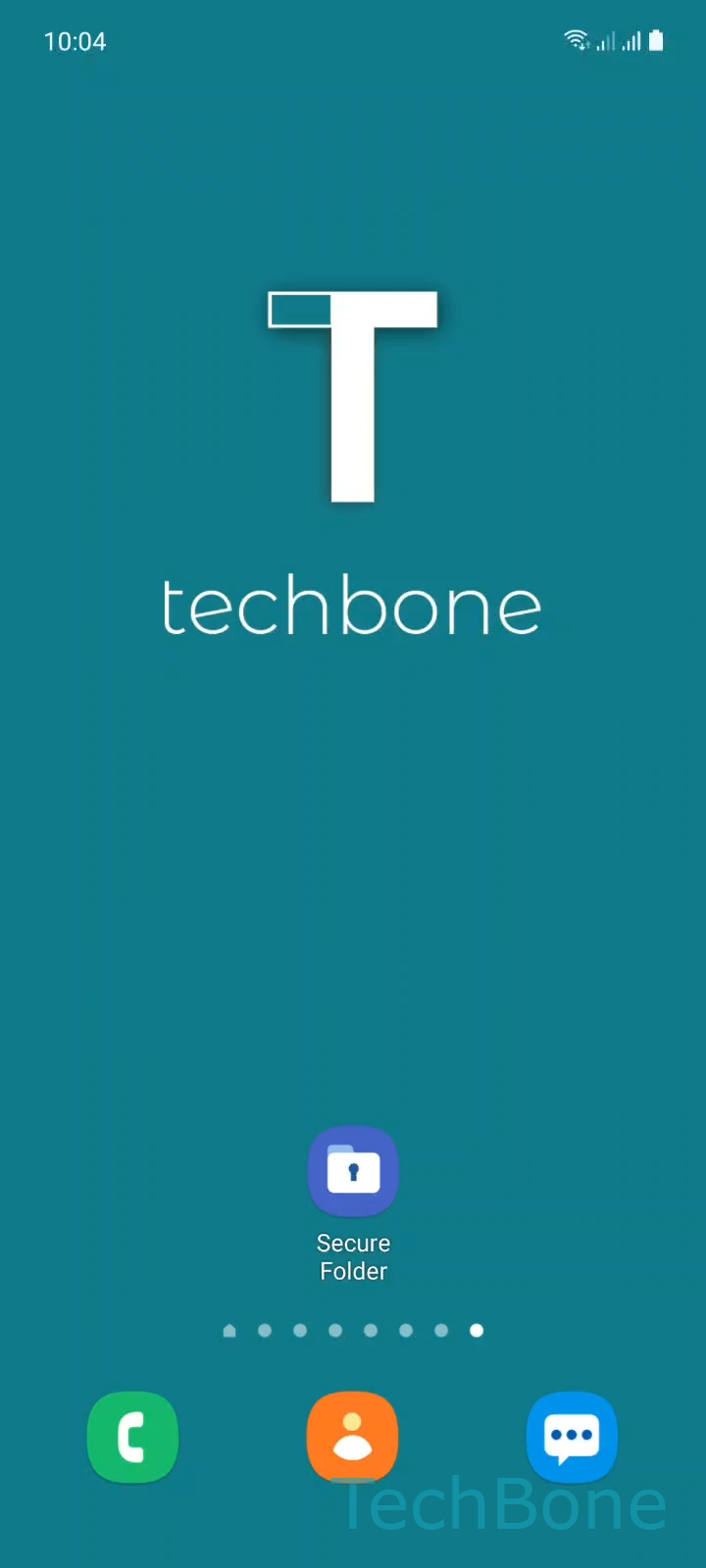
Step 1 of 6: Tap on **Secure Folder**

1

Tap on Secure Folder

Live simulator

Android 11 · One UI 3
Uninstall Secure Folder – One UI 3: step 1 – Tap on Secure Folder
Tap on Secure Folder
1 / 6

Scroll or use the buttons for the next step

Feedback

Was the guide correct?

Help others: confirm the path or report a problem.

41

Confirmations

Forum verified this path

Samsung

Uninstall Secure Folder auf Samsung

Secure Folder isn't a normal app you can long-press and remove from the home screen. It runs as an isolated Knox container, so Samsung only lets you remove it from inside its own settings menu, not from the app drawer.

To uninstall it, open Secure Folder, then tap Open the MenuTap on SettingsTap on More settingsTap on UninstallTap on Uninstall again to confirm.

Confirming the uninstall deletes every app, photo, contact, document and file stored inside Secure Folder. There's no partial removal - it's the whole container or nothing.

Back up anything you want to keep before confirming, since the action can't be undone once it finishes running.

After the uninstall completes, Secure Folder disappears from your app list. You can set it up again later from your device settings, starting with an empty, freshly created container.

Frequently asked questions

No. Your Samsung account and Knox license stay intact. Uninstalling only removes the Secure Folder container and its stored content, not your account setup.

Compatible devices

Tap your device — opens its hub with matching guides.

Android 11 · One UI 3

No compatible devices are listed for this version.