
Skip to content
TechBone
Samsung

Samsung: Unmount SD Card Before Removing It

Pulling the memory card out of your Samsung phone while it is still active can corrupt files or wipe data that has not finished syncing. The system needs to release the card first, otherwise apps that store data on it may crash or lose access. A software glitch on the phone can also block the card from unmounting cleanly, leaving you unsure if removal is safe.

6 min7 steps
Version

Step by step

1 / 7

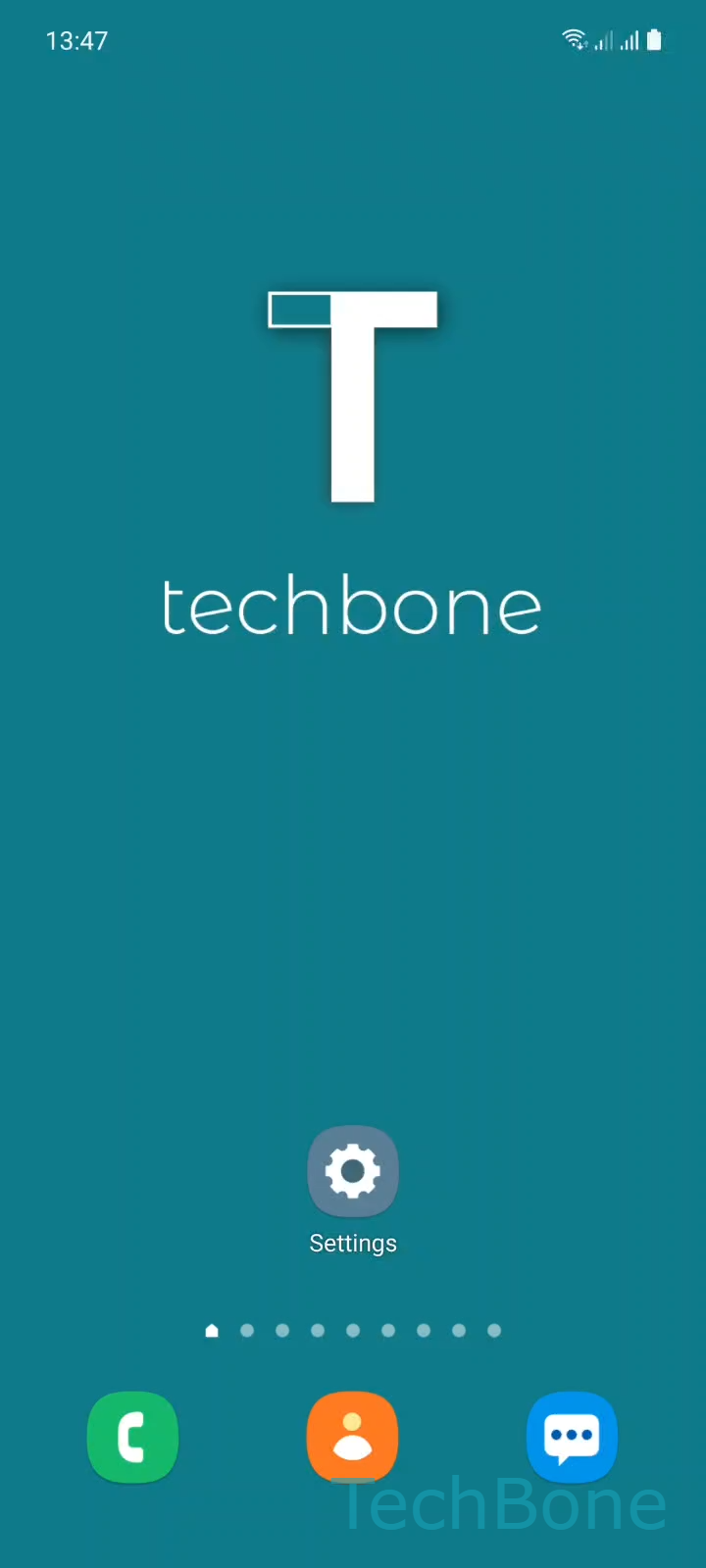
Step 1 of 7: Tap on **Settings**

1

Tap on Settings

Live simulator

Android 11 · One UI 3
Unmount SD Card Safely – One UI 3: step 1 – Tap on Settings
Tap on Settings
1 / 7

Scroll or use the buttons for the next step

Feedback

Was the guide correct?

Help others: confirm the path or report a problem.

103

Confirmations

Forum verified this path

Samsung

Unmount SD Card Safely auf Samsung

Samsung phones treat the SD card as active storage as long as apps or system processes are writing to it. Pulling the card out during a write operation can corrupt files, damage the card's file system, or cause data loss on both the card and connected apps. Unmounting tells the phone to close every open connection to the card before you physically remove it.

The unmount option sits inside the storage management tools on Samsung One UI. Once the card shows as unmounted, no app can read or write to it, and it is safe to eject.

Menu path to unmount the SD card

Tap on SettingsTap on Battery and device careTap on StorageOpen the MenuTap on AdvancedTap on SD cardTap on Unmount.

After tapping Unmount, wait for the confirmation before sliding the card out of the tray. If the option is greyed out or the phone freezes during the process, a background app may still be accessing the card. Closing running apps or restarting the phone before trying again usually clears that.

If you plan to reinsert the same card right after, unmounting is still required each time you remove it, since the phone does not remember a previous session.

Frequently asked questions

You risk file corruption on the card and, in rare cases, on data cached from the card. Photos, videos, or app data that were mid-transfer can become unreadable. Always confirm the Unmount step finished before pulling the card out.

Compatible devices

Tap your device — opens its hub with matching guides.

Android 11 · One UI 3

No compatible devices are listed for this version.