Skip to content
TechBone
Samsung

Samsung: Enable or Disable Vibrate When Answered

You accept a call but get no confirmation that the connection actually went through, especially with the phone in your pocket or away from your ear. On Samsung phones, a short vibration when you answer closes that gap, but it runs on a separate setting from your normal ringtone vibration. Many users only notice it is off after a settings reset or a new device setup.

4 min5 steps
Version

Step by step

1 / 5

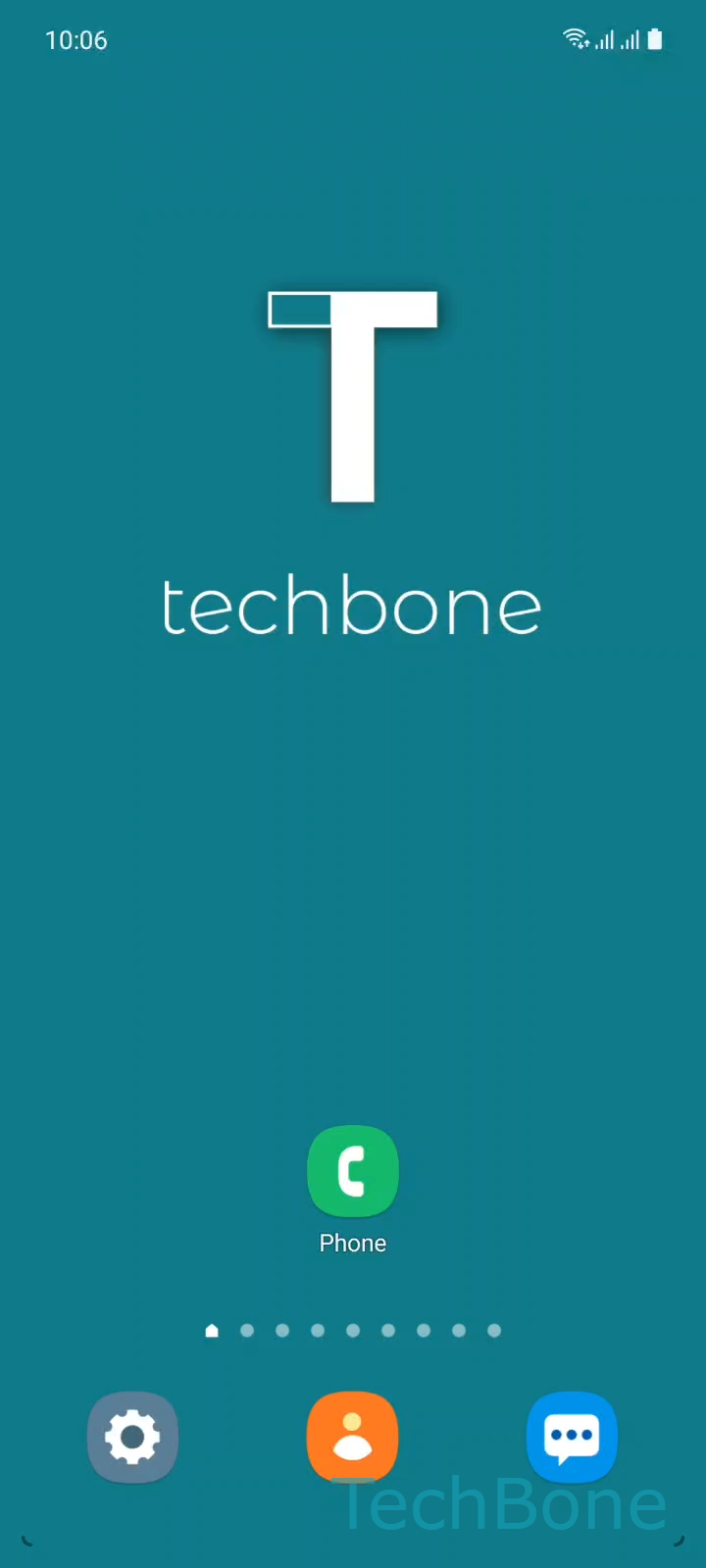
Step 1 of 5: Tap on **Phone**

1

Tap on Phone

Live simulator

Android 11 · One UI 3
Turn On/Off Vibrate When Answered – One UI 3: step 1 – Tap on Phone
Tap on Phone
1 / 5

Scroll or use the buttons for the next step

Feedback

Was the guide correct?

Help others: confirm the path or report a problem.

41

Confirmations

Forum verified this path

Samsung

Turn On/Off Vibrate When Answered auf Samsung

The Vibrate when answered feature gives you a short, one-time vibration the moment you tap Accept on an incoming call. It confirms the call actually connected, which is useful when the phone is in a pocket, a bag, or lying face down and you cannot see the screen change.

This setting is separate from your general ringtone vibration pattern. Turning off ring vibration does not affect this feedback, and turning off Vibrate when answered does not change how the phone vibrates while ringing.

To change it, go to PhoneOpen the MenuSettingsCall alerts and ringtone, then enable or disable Vibrate when answered.

Turn it off if you find the confirmation buzz distracting, for example during calls in meetings where even a brief vibration draws attention. Keep it on if you regularly answer calls without looking at the screen, such as while driving with the phone mounted or when using a case that muffles the display.

If you still cannot feel any vibration after enabling this option, check that overall vibration intensity is not set to the lowest level and that Do Not Disturb or a similar focus mode is not muting all haptics system-wide.

Frequently asked questions

Check if Do Not Disturb or a similar focus profile is active, since these can suppress all vibration and sound regardless of individual call settings. Also confirm the overall vibration intensity slider in sound settings is not set close to zero.

Compatible devices

Tap your device — opens its hub with matching guides.

Android 11 · One UI 3

No compatible devices are listed for this version.