Skip to content
TechBone
Samsung

Samsung: Set a Different Wallpaper for the Lock Screen

Your lock screen still shows the same picture as your home screen even though you picked a new photo? Samsung phones let you set the lock screen wallpaper separately from the home screen, and you can even queue up several images so a new one appears every time you wake the display. Missing that separate step is the usual reason the lock screen never updates.

5 min6 steps
Version

Step by step

1 / 6

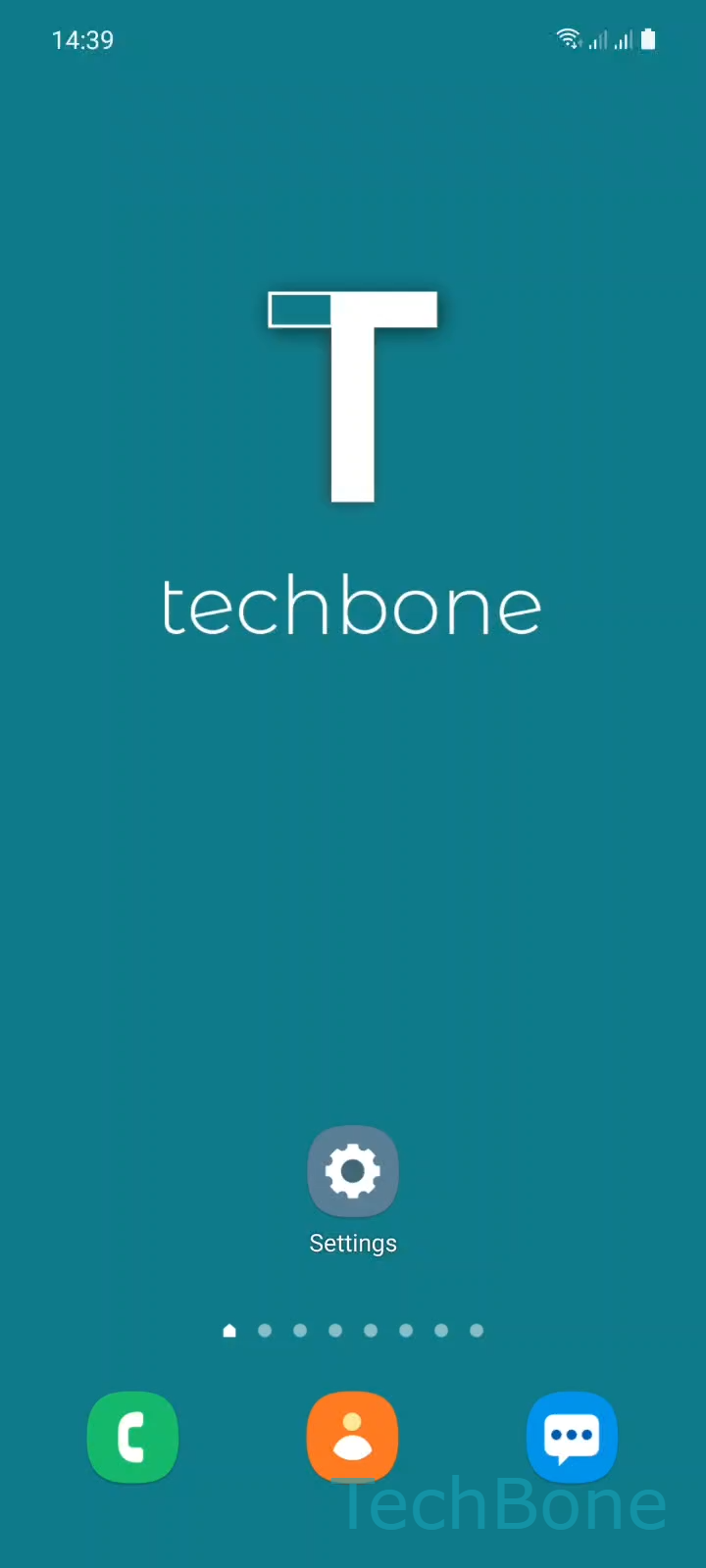
Step 1 of 6: Tap on **Settings**

1

Tap on Settings

Live simulator

Android 11 · One UI 3
Change Wallpaper on Lock Screen – One UI 3: step 1 – Tap on Settings
Tap on Settings
1 / 6

Scroll or use the buttons for the next step

Feedback

Was the guide correct?

Help others: confirm the path or report a problem.

90

Confirmations

Forum verified this path

Samsung

Change Wallpaper on Lock Screen auf Samsung

On Samsung phones the lock screen and home screen wallpapers are stored as two separate settings. Changing your home screen background does not automatically update the lock screen, which is why many users end up looking at an outdated photo every time they wake the display.

The wallpaper picker gives you a dedicated Lock screen option that lets you assign a photo only to that screen, independent of your home screen design. You can also select multiple images at once, so the system rotates through them each time the screen turns on instead of showing a single static picture.

Where the setting lives

Open Tap on SettingsTap on WallpaperTap on GallerySelect a Photo/ImageTap on DoneTap on Lock screen. Confirming with Lock screen instead of Home screen is the step that most users skip, which is why the change does not seem to apply.

If you only want to update the home screen background, choose Home screen at the same step instead. Both wallpapers can also be set to the same image from this menu if you prefer a matching look.

Frequently asked questions

You likely confirmed the image for Home screen instead of Lock screen. Repeat the steps and make sure you tap Lock screen at the final screen.

Compatible devices

Tap your device — opens its hub with matching guides.

Android 11 · One UI 3

No compatible devices are listed for this version.