Skip to content
TechBone
Samsung

Samsung: Change Mobile Hotspot Wi-Fi Band

When several devices crowd the same Wi-Fi channel, your Samsung hotspot connection can slow down noticeably. Switching the mobile hotspot band lets you pick a less congested frequency, but the option disappears if Wi-Fi sharing is turned on.

6 min8 steps
Version

Step by step

1 / 8

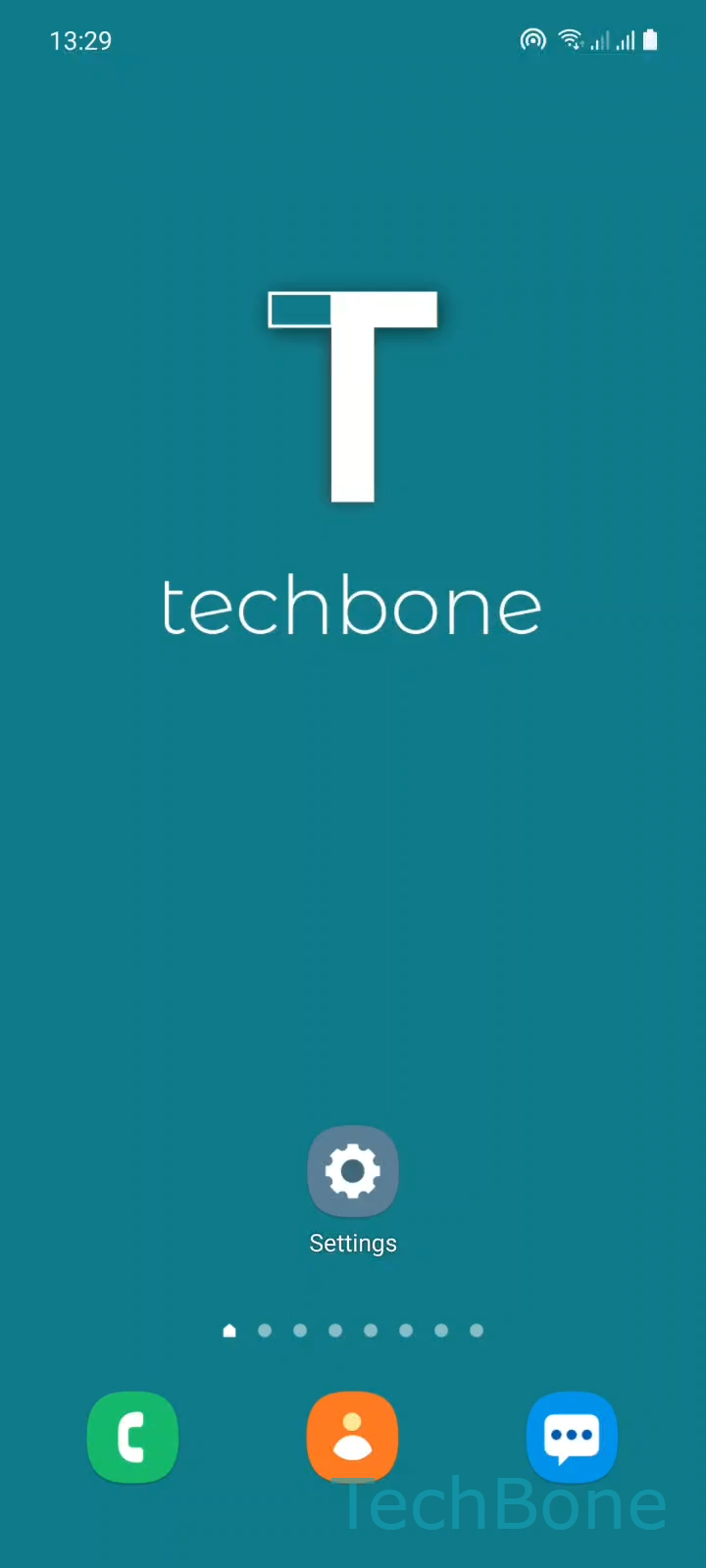
Step 1 of 8: Tap on **Settings**

1

Tap on Settings

Live simulator

Android 11 · One UI 3
Change Mobile Hotspot Wi-Fi Band – One UI 3: step 1 – Tap on Settings
Tap on Settings
1 / 8

Scroll or use the buttons for the next step

Feedback

Was the guide correct?

Help others: confirm the path or report a problem.

75

Confirmations

Forum verified this path

Samsung

Change Mobile Hotspot Wi-Fi Band auf Samsung

A Samsung mobile hotspot broadcasts on a single Wi-Fi channel per band. If many nearby routers or hotspots use the same 2.4 GHz channel, your connected devices compete for airtime and the transfer speed drops.

Switching the hotspot to 5 GHz moves the signal to a less crowded frequency with higher throughput, though the range shrinks compared to 2.4 GHz. Older devices that only support 2.4 GHz will not be able to join once you switch.

To change the band, open SettingsConnectionsMobile Hotspot and TetheringMobile HotspotConfigureBand. Pick 2.4 GHz or 5 GHz preferred and confirm with Save.

If Wi-Fi sharing is turned on, the band option is greyed out. Turn that feature off first, then repeat the steps above.

Pick 5 GHz when your laptop or phone stays close to the hotspot and needs top speed. Stick with 2.4 GHz for older gadgets or when devices are farther away, since that band handles walls and distance better.

Frequently asked questions

This happens when Wi-Fi sharing is active on your Samsung device. Turn Wi-Fi sharing off first, then the Band option under Configure becomes selectable again.

Compatible devices

Tap your device — opens its hub with matching guides.

Android 11 · One UI 3

No compatible devices are listed for this version.