Skip to content
TechBone
Xiaomi

Xiaomi: Add Multiple Apps to a Home Screen Folder

Dragging one app at a time into a folder gets tedious once your home screen fills up with dozens of icons. Xiaomi phones running MIUI let you group several apps into a single folder in one move instead of repeating the drag-and-drop for each icon. If you only know the old hold-and-drag method, sorting a full app drawer can take much longer than it should.

3 min3 steps
Version

Step by step

1 / 3

Step 1 of 3: Tap and hold an **App**

1

Tap and hold an App

Live simulator

Android 11 · MIUI
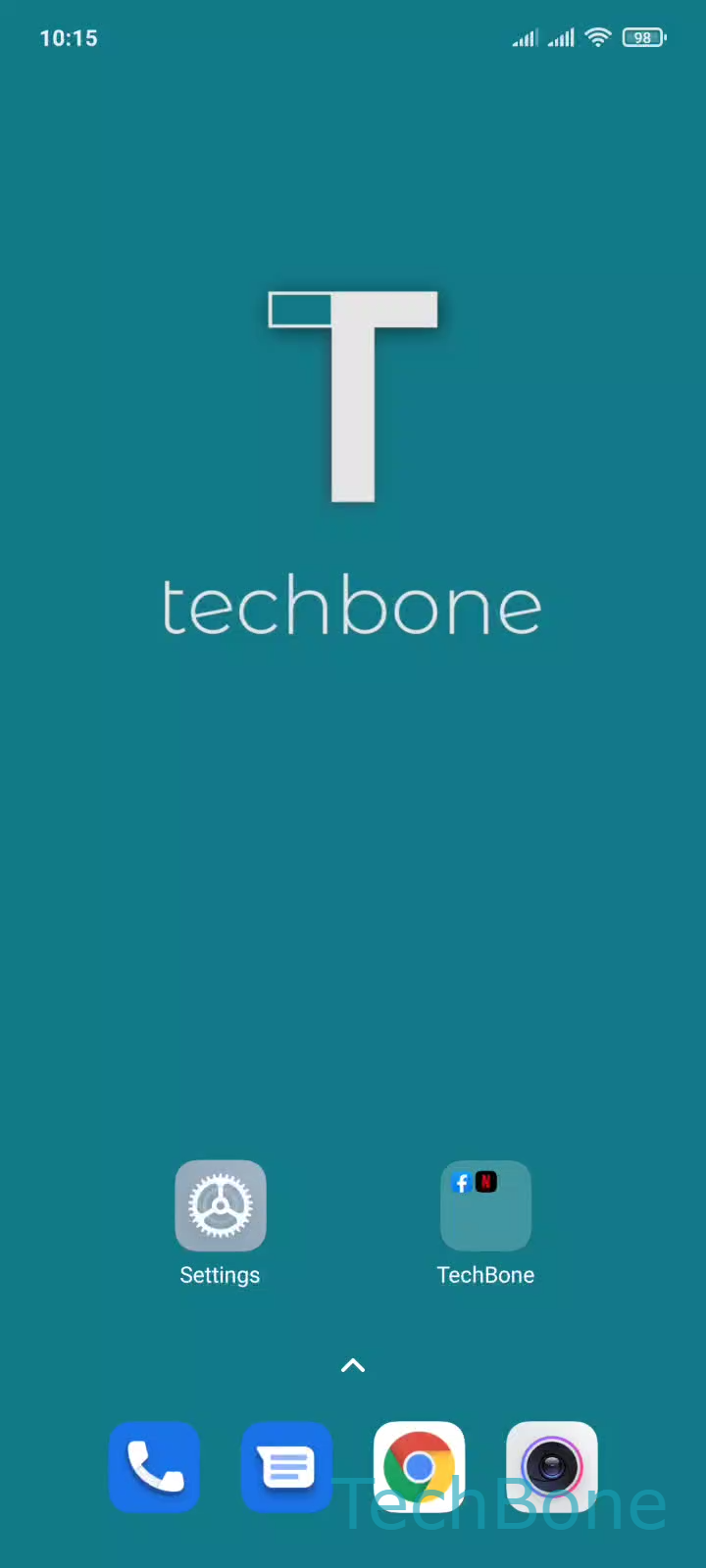
Add Apps to a Folder on the Home Screen – MIUI: step 1 – Tap and hold an App
Tap and hold an App
1 / 3

Scroll or use the buttons for the next step

Feedback

Was the guide correct?

Help others: confirm the path or report a problem.

44

Confirmations

Forum verified this path

Xiaomi

Add Apps to a Folder on the Home Screen auf Xiaomi

MIUI organizes home screen icons the same way Android does, but folder handling has a shortcut most people miss. Instead of moving one app after another, you can select several icons and drop them into the same folder in a single action.

The classic method still works everywhere on MIUI: Tap and hold an AppDrag the App onto a folderRelease the App to move it to the folder. This is fine for one or two apps, but becomes slow once you need to reorganize a whole page of icons.

Why it matters

Folders keep the home screen readable, especially on smaller displays where space per row is limited. Grouping apps by category (banking, social, games) reduces the time spent searching for an icon and keeps frequently used apps within easy reach on the main page.

If an app refuses to move into a folder, check first whether it sits in a locked or system folder area, since some preinstalled folders restrict manual changes. In that case, create a new folder instead of forcing an existing one.

Frequently asked questions

Yes. Long-press an app until the icons start to wiggle, then tap the additional apps you want to move. All selected apps drop into the target folder together once you release them, which is faster than repeating Tap and hold an AppDrag the App onto a folder for each one.