
Xiaomi
Create a Folder on the Home Screen auf Xiaomi
MIUI does not have a dedicated menu option for creating folders. Instead, the system relies on a drag gesture directly on the home screen, the same logic used by most Android interfaces and desktop operating systems.
To group apps, you need at least two icons on the same home screen page. One app has to be dragged onto the other, and MIUI automatically wraps both into a new folder as soon as they overlap.
How the folder gesture works
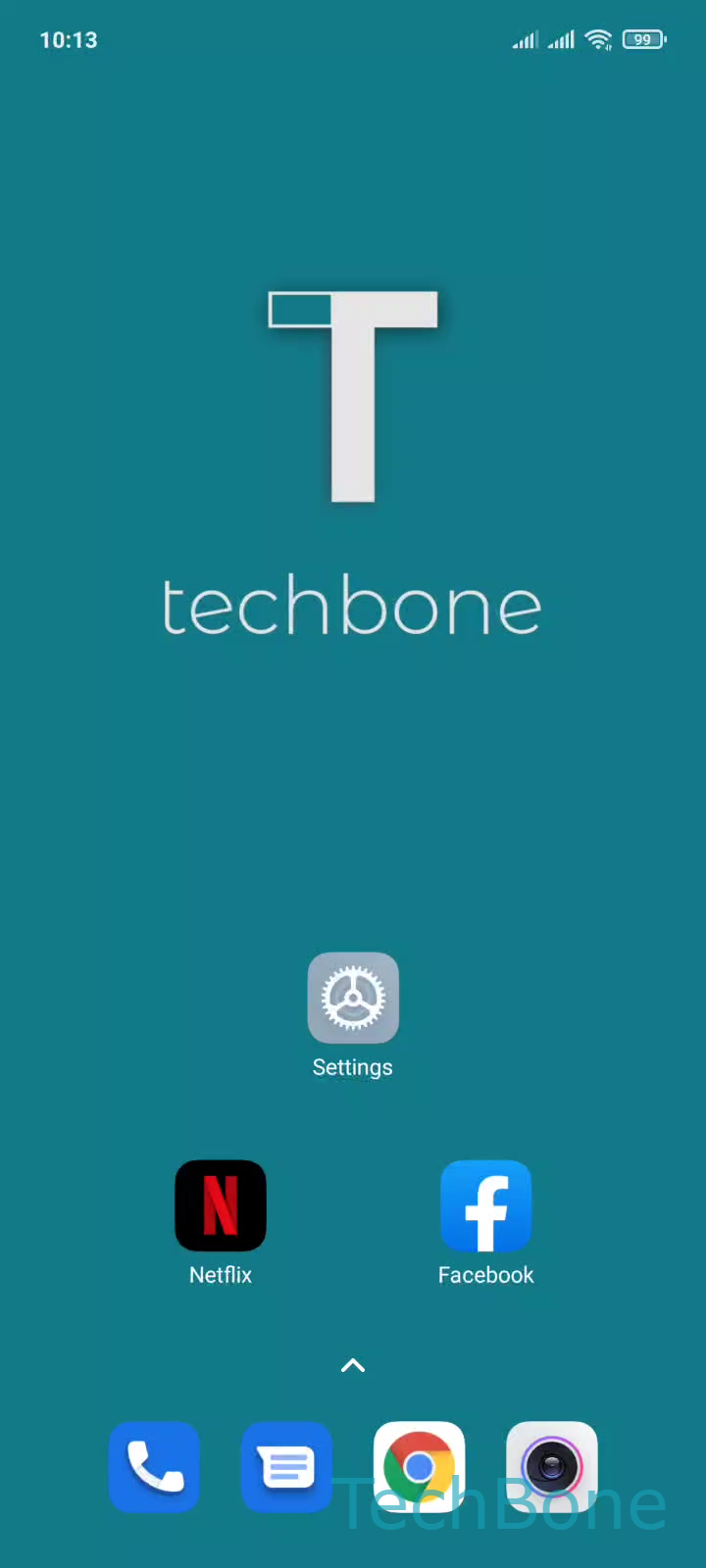
Tap and hold an App ➔ Drag the App onto another ➔ Release the App to create a folder
Hold your finger on the first app icon until it detaches slightly from the grid. Then drag it directly on top of a second app icon and lift your finger. MIUI merges both icons into a folder and shows a small preview thumbnail on the home screen.
If the icon snaps back to its original spot instead of forming a folder, the drag likely ended slightly off target. Try holding the icon a bit longer before moving it, and release only once the second app is clearly highlighted underneath.
This method works the same way regardless of how many apps are already on that home screen page, as long as two icons can be dragged onto each other at once.