Skip to content
TechBone
Xiaomi

Xiaomi: Set a Custom Notification Sound for Notifications

If you pick a full song as your Xiaomi notification tone, only the first few seconds usually play before the sound gets cut off or overlaps with the next alert. MIUI lets you use almost any audio file stored on your phone as a notification sound, no matter which folder it sits in, but long tracks feel out of place for a quick alert. Trimming the file first keeps notifications short and easy to recognize.

6 min7 steps
Version

Step by step

1 / 7

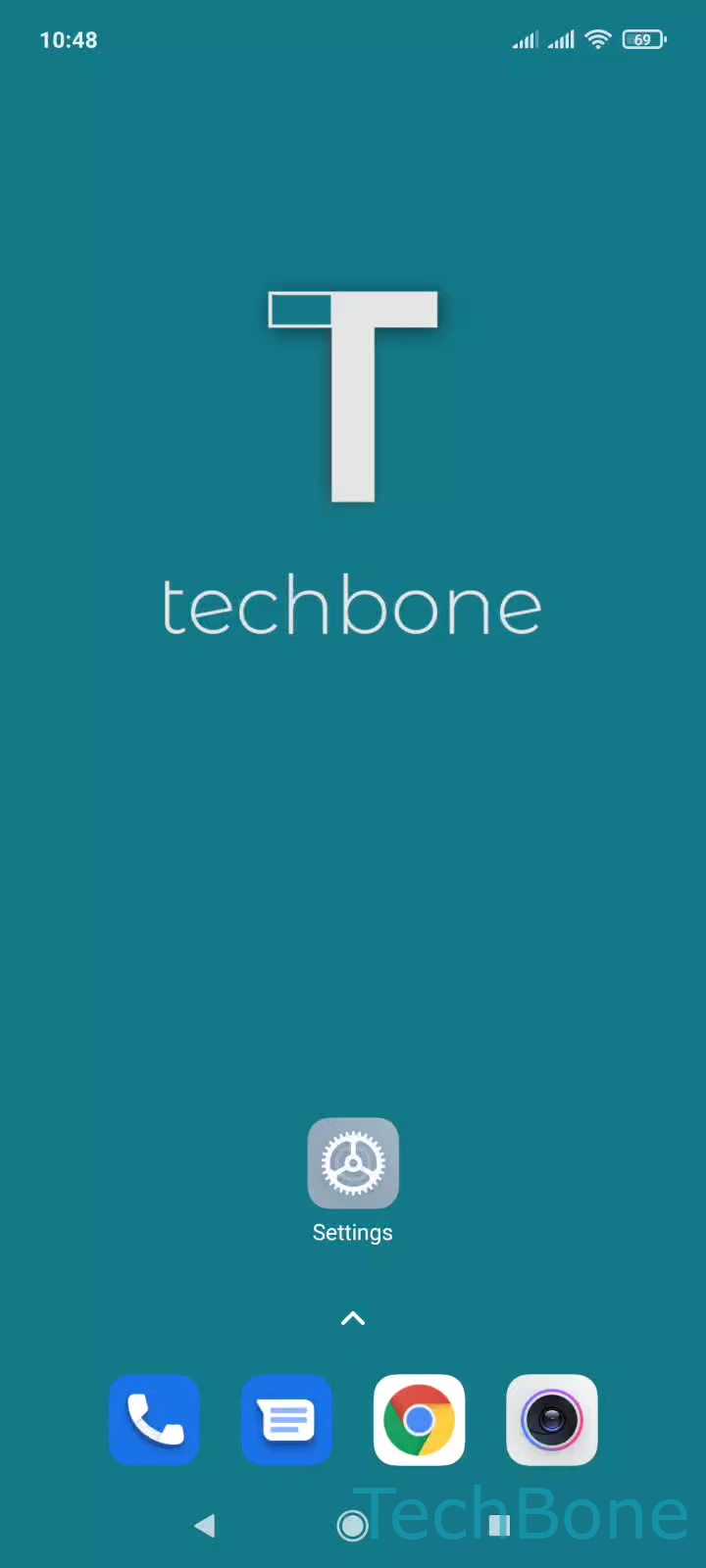
Step 1 of 7: Tap on **Settings**

1

Tap on Settings

Live simulator

Android 11 · MIUI
Set a Custom Notification Sound – MIUI: step 1 – Tap on Settings
Tap on Settings
1 / 7

Scroll or use the buttons for the next step

Feedback

Was the guide correct?

Help others: confirm the path or report a problem.

46

Confirmations

Forum verified this path

Xiaomi

Set a Custom Notification Sound auf Xiaomi

MIUI does not limit notification tones to the built-in ringtone list. Any audio file saved on your phone, in any folder, can be assigned as a notification sound, which is useful if you want a short clip instead of a generic system tone.

To set it up, go to SettingsSound & vibrationNotificationsAll ringtones. From there tap Choose local ringtoneFile Manager, then browse to the audio file you want and confirm with OK.

The file length matters here. If you select a full song, MIUI will still play it from the start, and a long intro can make the notification feel delayed or get interrupted by the next alert before it finishes. A clip of one to three seconds works best for quick recognition.

If the sound does not show up as expected afterward, check that the file format is supported (MP3, OGG, and WAV usually work) and that it is not stored in a hidden or app-restricted folder. For per-app tones instead of a global notification sound, use the individual app notification settings rather than this system-wide menu.

Frequently asked questions

Yes. Open the specific app's notification settings on your phone, usually reachable from the app info page, and look for a sound option there. That setting overrides the global tone chosen under SettingsSound & vibrationNotifications for that app only.