
Skip to content
TechBone
Xiaomi

Xiaomi: Remove Added Games from Home Screen

Every game you add to Game Turbo also drops a matching icon on your home screen, even when you only wanted quick access from inside the app itself. Over time these duplicate icons pile up next to your regular apps and make the home screen feel cluttered. Xiaomi has a dedicated Game Turbo setting for this, but it is easy to miss.

4 min5 steps
VersionAndroid 11 · MIUI

Step by step

1 / 5

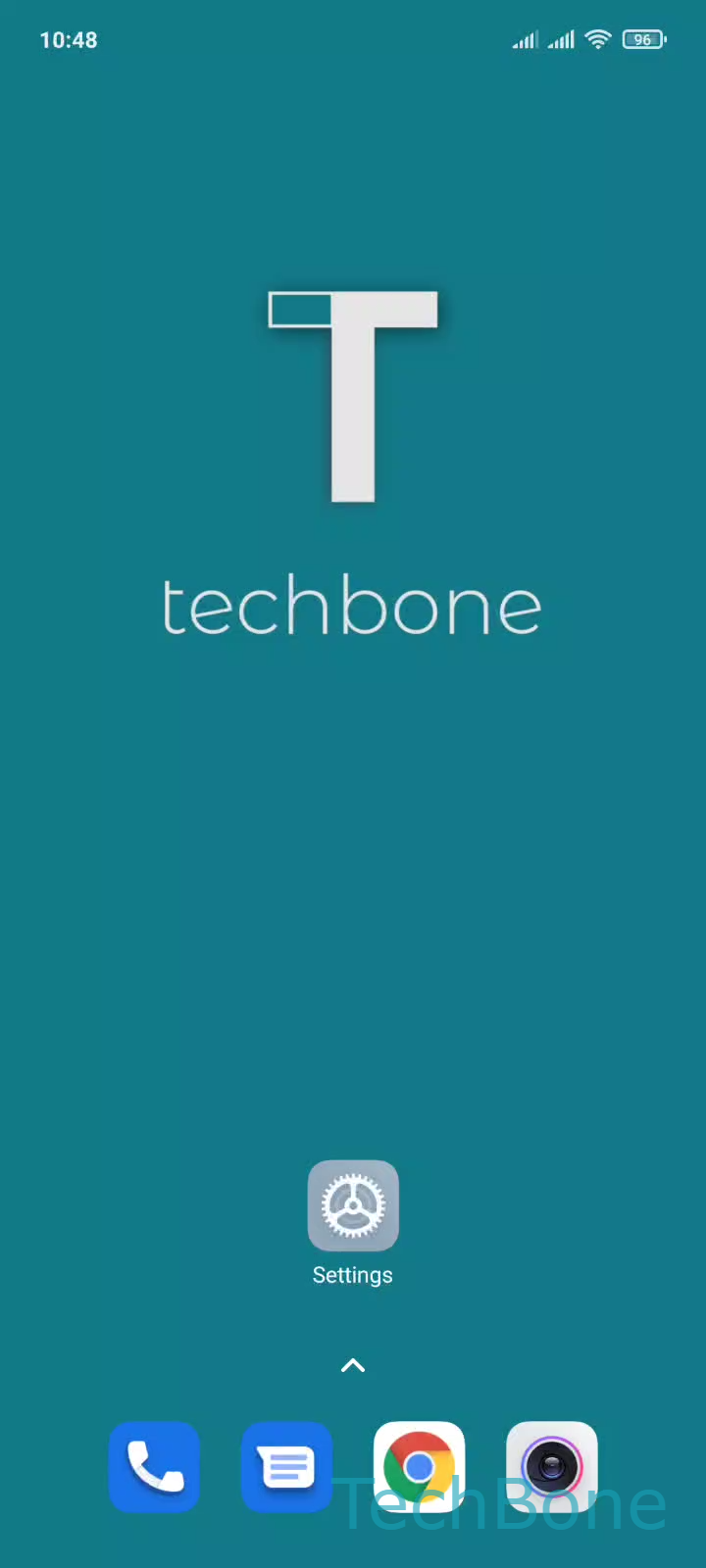
Step 1 of 5: Tap on **Settings**

1

Tap on Settings

Live simulator

Android 11 · MIUI
Remove Added Games from Home Screen – MIUI: step 1 – Tap on Settings
Tap on Settings
1 / 5

Scroll or use the buttons for the next step

Feedback

Was the guide correct?

Help others: confirm the path or report a problem.

25

Confirmations

Forum verified this path

Xiaomi

Remove Added Games from Home Screen auf Xiaomi

When you add a game to Game Turbo on a Xiaomi phone, MIUI automatically creates a second icon for it on the home screen. This happens so the game can launch directly through Game Turbo's performance features, but it also means the same app appears twice in your app grid: once as the regular icon and once as the Game Turbo shortcut.

If you organize your games mainly inside Game Turbo and do not need a separate home screen icon, you can turn this behavior off with a single toggle.

Go to Tap on SettingsTap on Special featuresTap on Game TurboTap on SettingsEnable or disable Remove added games from Home screen.

Enabling this option hides the Game Turbo shortcut for every game you have added, leaving only the original app icon in place. Disabling it brings the extra icon back for newly added games. This setting only affects the Game Turbo shortcut icon; it does not uninstall or hide the game app itself.

Frequently asked questions

No. The Remove added games from Home screen toggle only removes the extra Game Turbo shortcut icon. The game app itself stays installed and its regular icon remains untouched.