
Xiaomi
Resize a Home Screen Widget auf Xiaomi
Widgets on MIUI can often be resized directly on the home screen, but the option only appears if the widget itself was built to support flexible dimensions. Weather, calendar, or notes widgets usually allow free resizing, while some app-specific widgets only offer one fixed size.
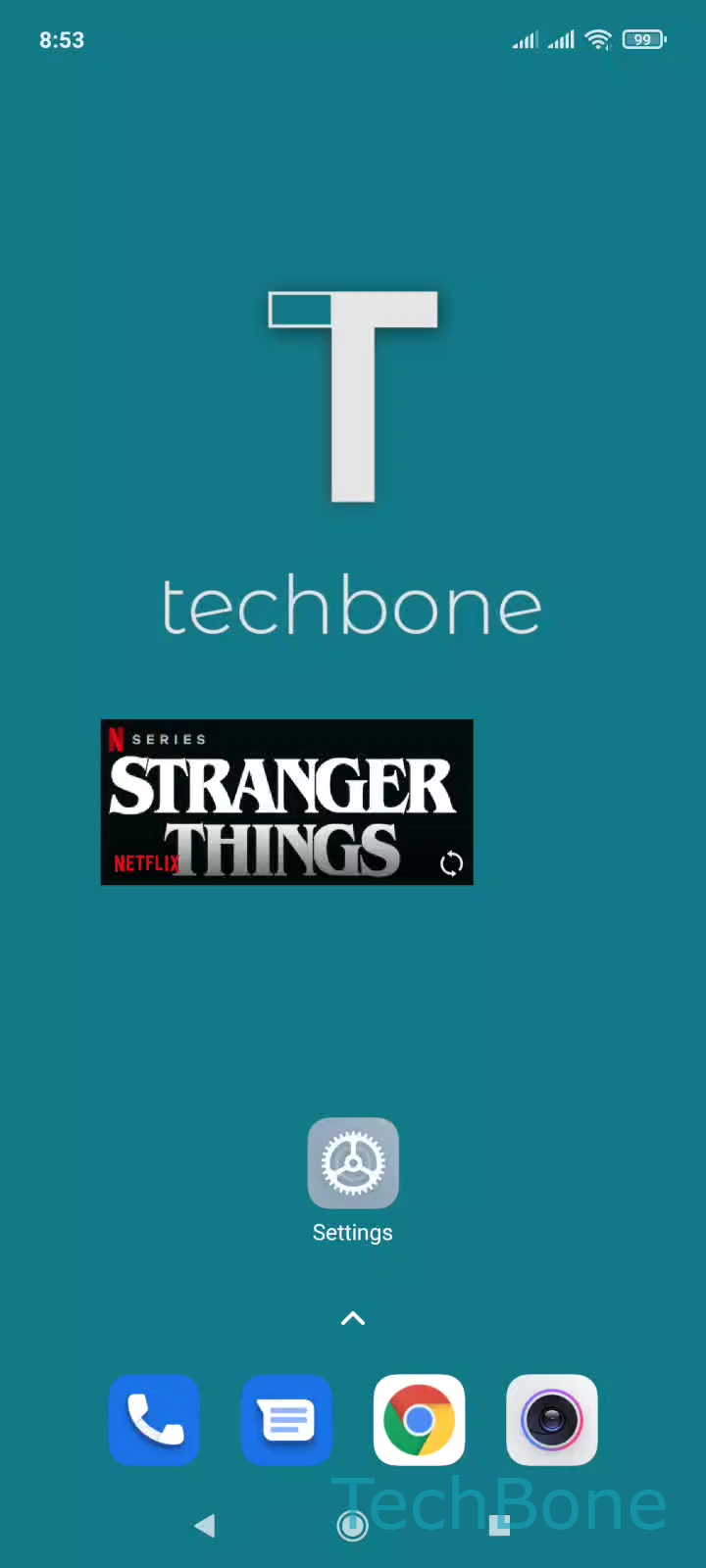
To resize a widget, press and hold it until small size handles appear on its borders. This is different from moving a widget, which only needs a short drag without holding first.
Menu path to resize a widget
Tap and hold a Widget ➔ Drag the borders to resize the Widget ➔ Tap a free area on home screen to finish
While dragging, MIUI snaps the widget to the underlying home screen grid, so you cannot end up with an odd in-between size. If no handles appear after holding the widget, that widget does not support resizing at all, and the only option is removing it and adding a different widget size from the widget picker if one exists.
If a widget looks cut off or blank after resizing, tap a free area to exit edit mode, then check if the content adjusts after a few seconds. Some widgets need to refresh their layout once before displaying correctly at the new size.