Skip to content
TechBone
Android

Android: Set the Default USB Configuration

When you plug your Android phone into a PC or laptop, it always starts in charge-only mode until you tap the notification and pick a different USB mode by hand. If you connect the same phone to the same computer every day for file transfer, tethering, or MIDI, that extra tap gets tedious fast. The 'Default USB configuration' option in developer options lets you preset what should happen automatically.

4 min5 steps
Version

Step by step

1 / 5

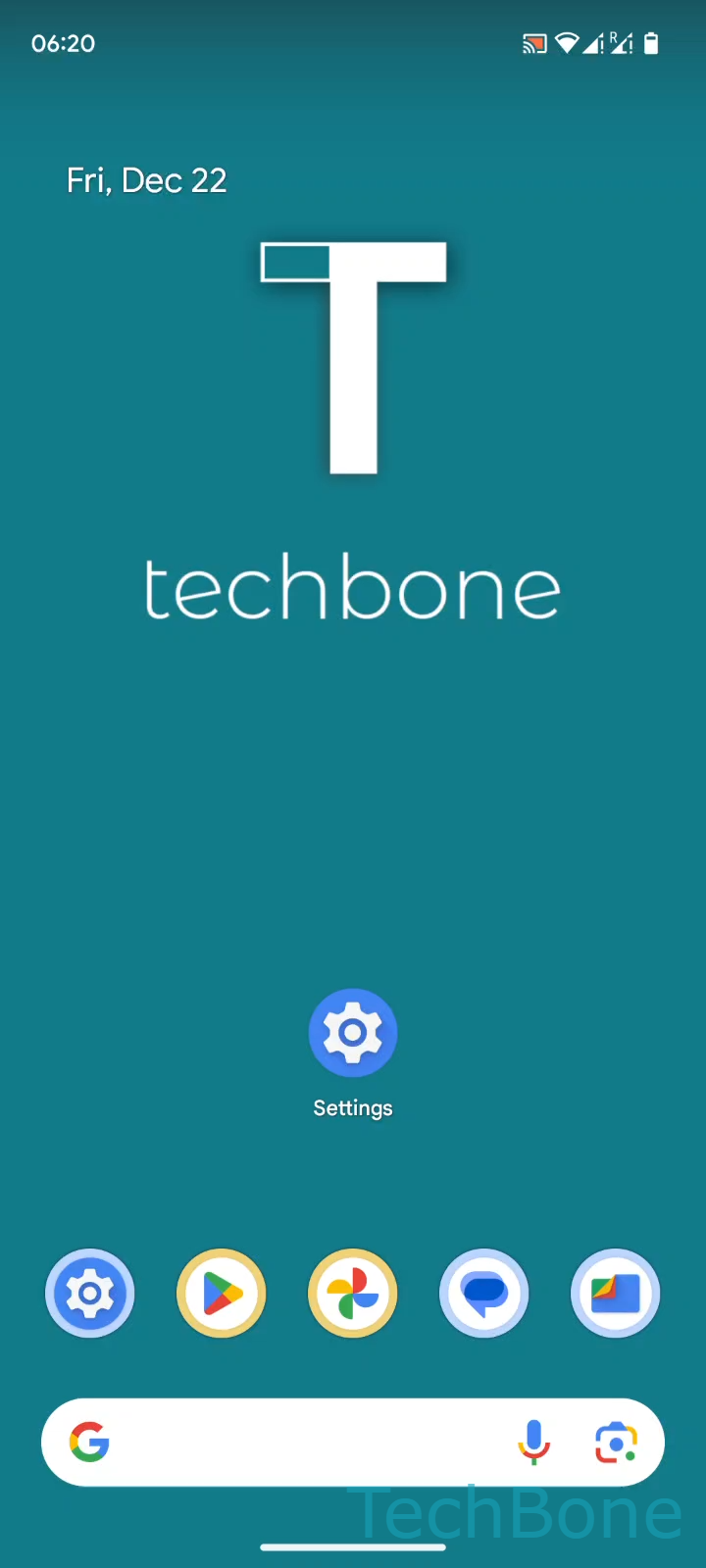
Step 1 of 5: Tap on **Settings**

1

Tap on Settings

Live simulator

Android 14 · Android 14
Set Default USB Configuration – Android 14: step 1 – Tap on Settings
Tap on Settings
1 / 5

Scroll or use the buttons for the next step

Feedback

Was the guide correct?

Help others: confirm the path or report a problem.

105

Confirmations

Forum verified this path

Android

Set Default USB Configuration auf Android

By default, Android treats every USB connection as charge-only until you open the notification shade and switch to a different mode by hand. That extra step becomes annoying once you plug the same phone into the same PC or laptop for file transfer, tethering, or MIDI on a regular basis.

The behavior is controlled by a single setting in the developer options, hidden from most users because it is meant for advanced configuration. Once enabled, it lets you decide what the phone should do the moment a cable is connected, without confirming it every time.

To change it, open SettingsSystemDeveloper optionsDefault USB configuration. Tap it and set the default USB configuration to the mode you use most, for example File Transfer, MIDI, PTP, or charge-only.

This setting only changes the automatic behavior. You can still switch modes manually from the notification for a single session if you need something different just once.

Frequently asked questions

Once you set a default USB configuration under Developer optionsDefault USB configuration, Android applies that mode automatically and no longer prompts you on every connection. You still get the notification if you tap it and switch modes manually for that session.