Skip to content
TechBone
Android

Android: Enable the Large Mouse Pointer

Connect a mouse to your Android phone and the pointer that shows up is often tiny against a busy home screen or app grid. Tapping the right icon turns into guesswork, especially on smaller displays or in bright light. Android has a built-in option to make that pointer bigger without changing how the mouse itself moves.

3 min4 steps
Version

Step by step

1 / 4

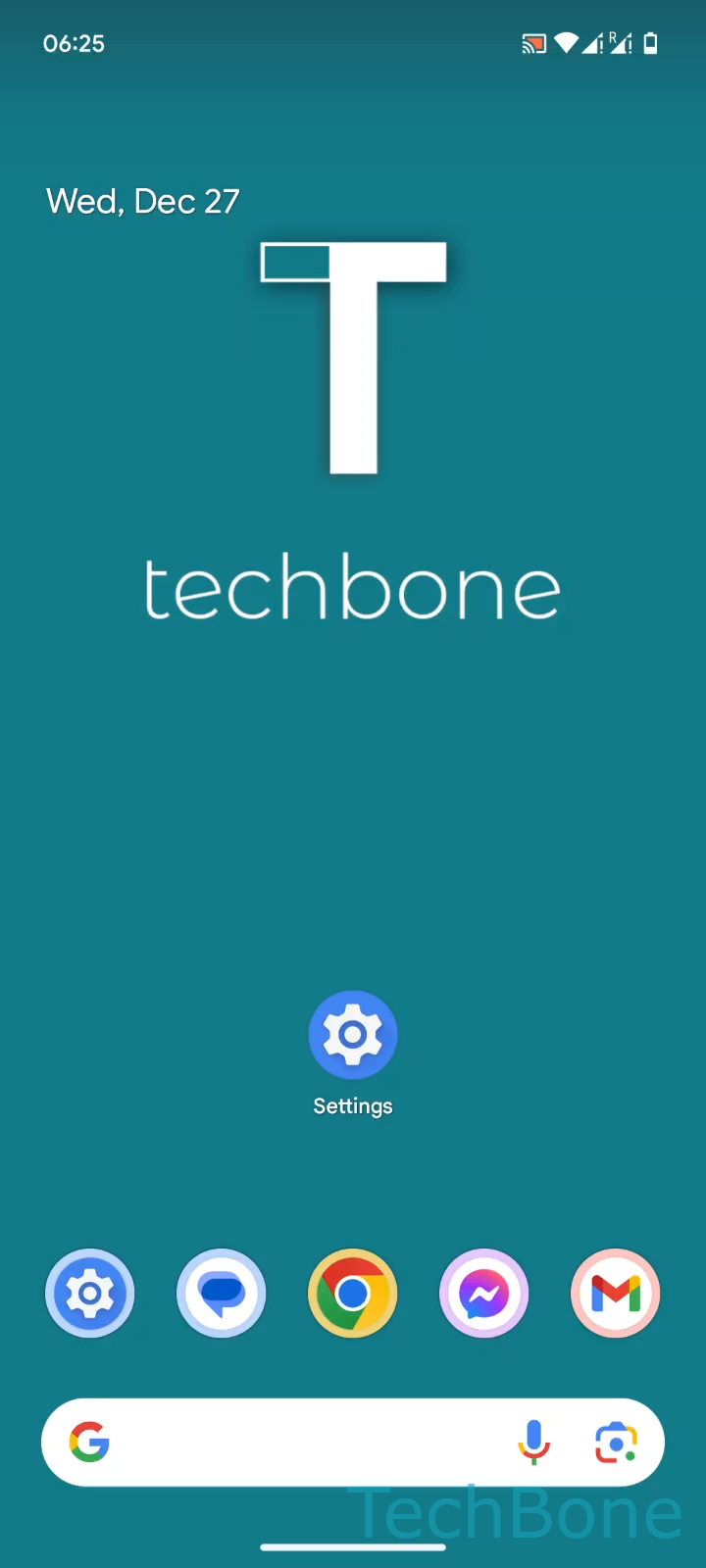
Step 1 of 4: Tap on **Settings**

1

Tap on Settings

Live simulator

Android 14 · Android 14
Turn On/Off Large Mouse Pointer – Android 14: step 1 – Tap on Settings
Tap on Settings
1 / 4

Scroll or use the buttons for the next step

Feedback

Was the guide correct?

Help others: confirm the path or report a problem.

68

Confirmations

Forum verified this path

Android

Turn On/Off Large Mouse Pointer auf Android

When you plug an external mouse into an Android phone, the system draws a small pointer that mirrors what you would see on a desktop. On a phone screen that pointer can be hard to spot, especially on high-resolution displays or when several icons sit close together.

The Large mouse pointer setting scales up that cursor so it stays visible without slowing down tracking speed or changing click behavior. It only affects the visual size of the pointer, not how fast it moves or how sensitive taps are.

To turn it on or off, go to Tap on SettingsTap on AccessibilityTap on Color and motionEnable or disable Large mouse pointer. The toggle applies instantly, so you can check the result as soon as you move the connected mouse.

This option only matters while a mouse is attached. If you mainly use touch input, leave it off, since it has no effect on finger gestures or on-screen navigation.

Frequently asked questions

No. The Large mouse pointer toggle only changes the visual size of the cursor. Pointer speed is a separate setting inside the same Accessibility menu.