

Android
Resize a Widget auf Android
Widget sizing on Android depends on how the app developer built the widget. Some widgets ship with a single fixed layout, so no resize handles appear no matter how long you tap and hold. Others are built with flexible grid support, letting you stretch or shrink them across home screen columns and rows.
To check whether a widget can be resized, it needs to be placed on the home screen first. The system will not show resize borders on a widget still sitting in the widget picker.
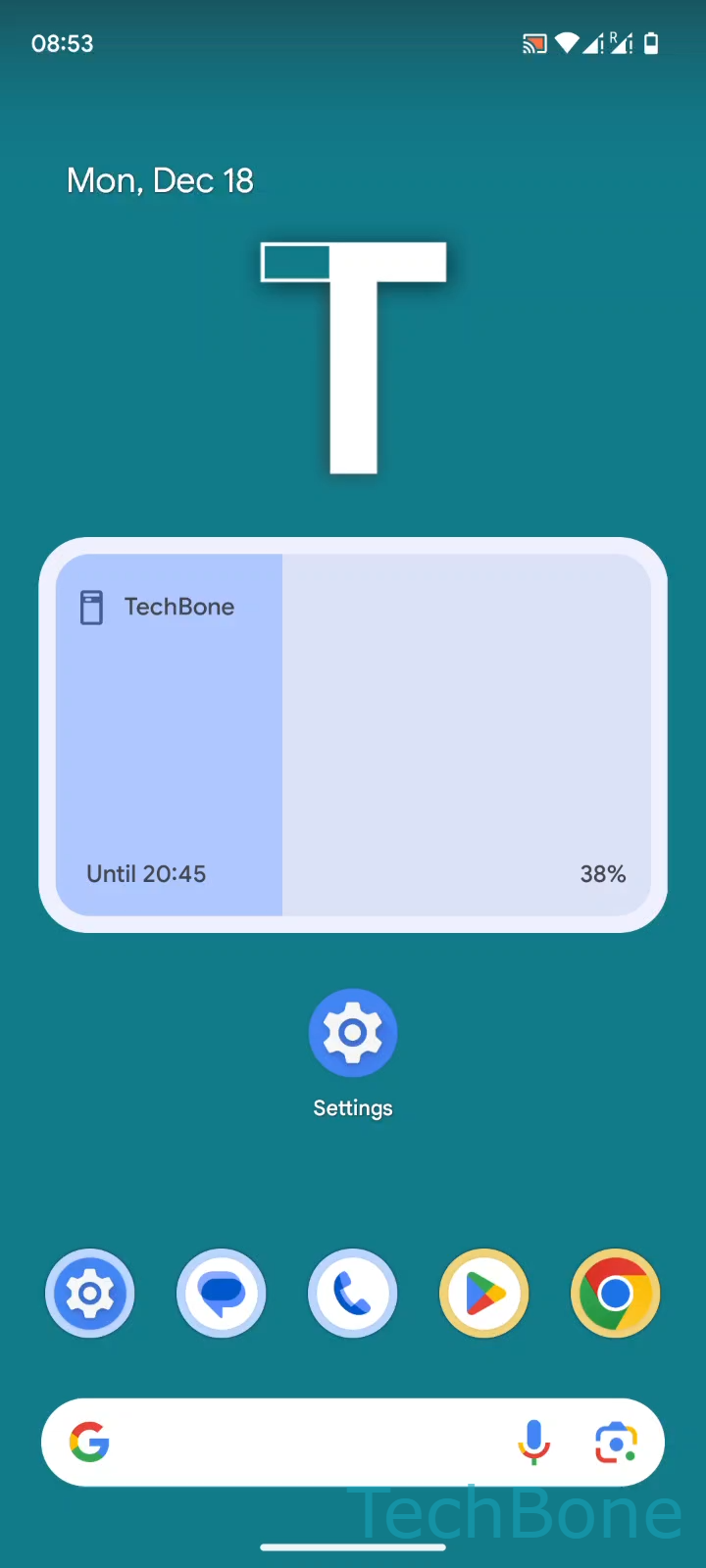
Once placed, Tap and hold a Widget ➔ Drag the borders to resize the Widget ➔ Tap on an empty space to finish. Markers appear around the widget edges when resizing is supported. If no markers show up, the widget only supports its default size.
Resizing changes how much information a widget displays, not how it functions. A weather widget stretched taller might show a forecast list instead of just today's temperature. Shrinking a widget can hide labels or buttons if there is not enough space left for them.
If a widget still looks unchanged after resizing, remove it and add it again from the widget picker. Some launchers cache the old layout until the widget is placed fresh.