
OnePlus
Change Lock Screen Clock Style auf OnePlus
The lock screen clock on OnePlus phones is not fixed to one look. OxygenOS ships several clock faces, some digital, some analog, and a few that add a date line below the time. If your current clock feels plain or you want the date visible without unlocking the phone, you can pick a different style from the Customization settings.
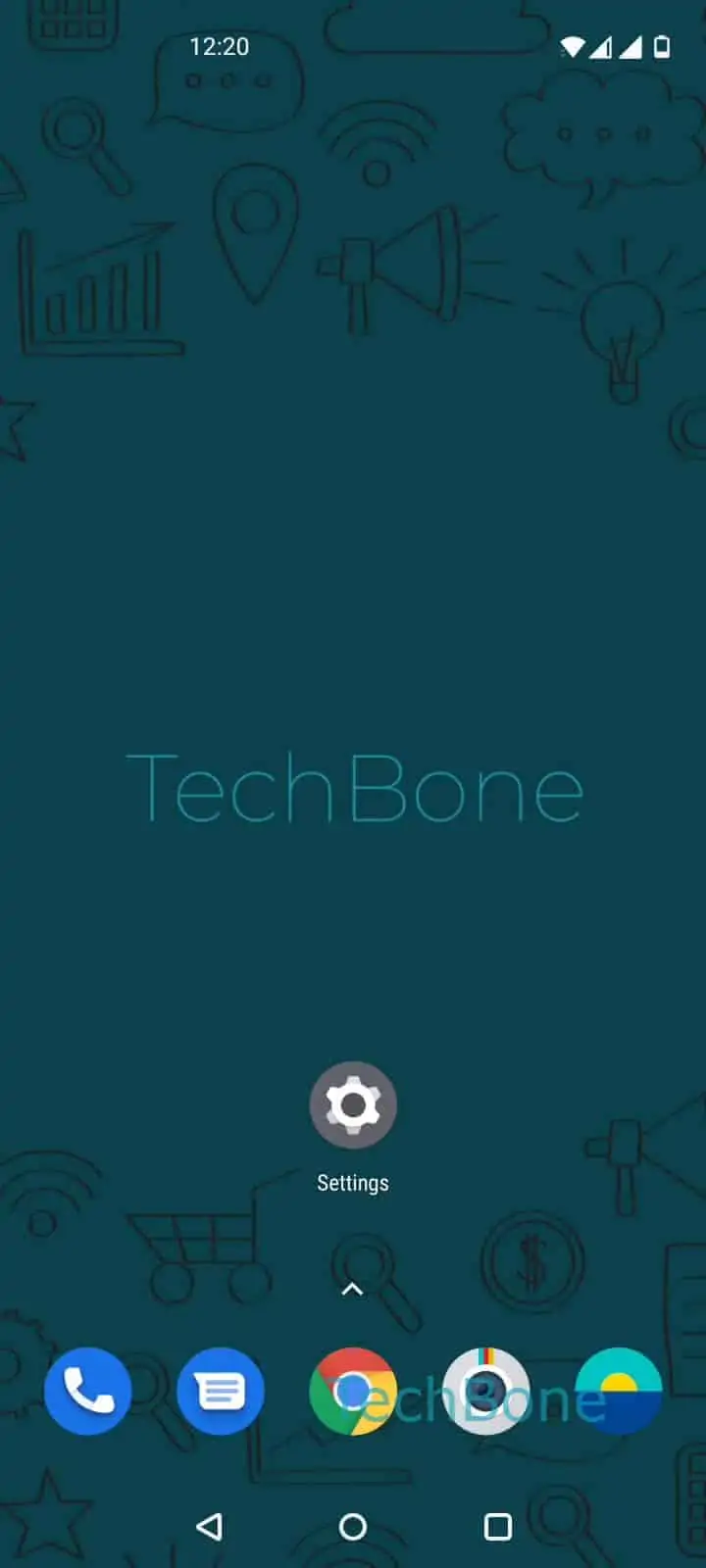
To change it, open Open the Settings ➔ Tap on Customization ➔ Tap on Clock style. From there, Swipe left or right to browse the clock styles to see the available faces, including options with a date display. Once you find one you like, Select a clock style and confirm with Tap on Save.
The change applies immediately to the lock screen and, on most versions, to the always-on display as well. If a style you picked does not show the date, that particular face is digits-only and you need to pick one of the variants that includes a date line. Switching styles does not affect notifications, wallpaper, or unlock security settings, so you can try different looks without changing anything else.