Skip to content
TechBone
Oppo

Oppo: Switch Between 12- and 24-Hour Time Format

If your Oppo phone shows the time in 24-hour format but you expect a 12-hour clock with AM and PM, that is the default ColorOS behavior, not a bug. Some apps and widgets even keep displaying 24-hour time after you change the system clock, which confuses a lot of users. The fix sits in the date and time settings, separate from the region or language options.

3 min4 steps
Version

Step by step

1 / 4

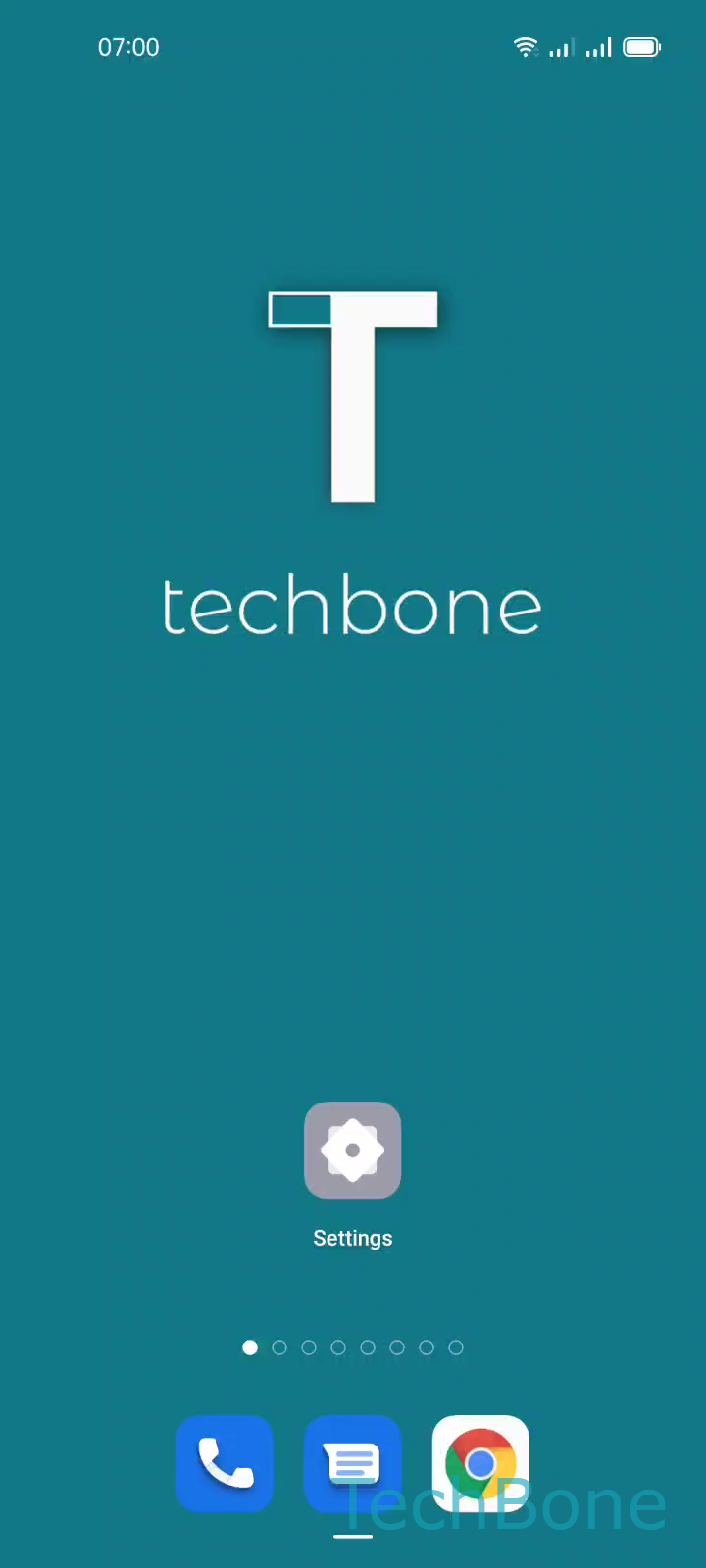
Step 1 of 4: Tap on **Settings**

1

Tap on Settings

Live simulator

Android 11 · Coloros 11
Switch Between 12- and 24-Hour Time Format – Coloros 11: step 1 – Tap on Settings
Tap on Settings
1 / 4

Scroll or use the buttons for the next step

Feedback

Was the guide correct?

Help others: confirm the path or report a problem.

59

Confirmations

Forum verified this path

Oppo

Switch Between 12- and 24-Hour Time Format auf Oppo

Oppo phones running ColorOS set the clock to 24-hour format by default, regardless of the region you selected during setup. This is a system-wide clock setting, not something tied to your keyboard language or SIM region, which is why changing those does not affect the time display.

The setting lives under SettingsAdditional settingsDate & timeEnable or disable 24-hour format. Toggling this option switches the format instantly across the status bar, lock screen clock, and most system apps like Clock and Calendar.

Some third-party apps and widgets read their own time format setting instead of the system one. If a specific app still shows the wrong format after you change the system setting, check that app's own display options before assuming the phone setting failed.

Automatic date and time can also override manual changes if your carrier or network pushes a different format. If the toggle keeps resetting after a restart, disable automatic time first, then set the format manually.

Frequently asked questions

Some apps use their own internal clock setting instead of the system format. Check the app's own settings menu for a separate time display option before assuming the system change under SettingsAdditional settingsDate & time did not apply.