Skip to content
TechBone
Oppo

Oppo: Set Action Time for Pop-up Notifications

If a pop-up notification disappears before you can react, or stays on screen longer than needed, the display duration set by the app is the reason. On Oppo phones, each app decides how long its pop-up window stays visible unless you override this with a fixed action time. This becomes noticeable with quick system alerts or app confirmations that flash by too fast to read.

4 min5 steps
VersionAndroid 11 · Coloros 11

Step by step

1 / 5

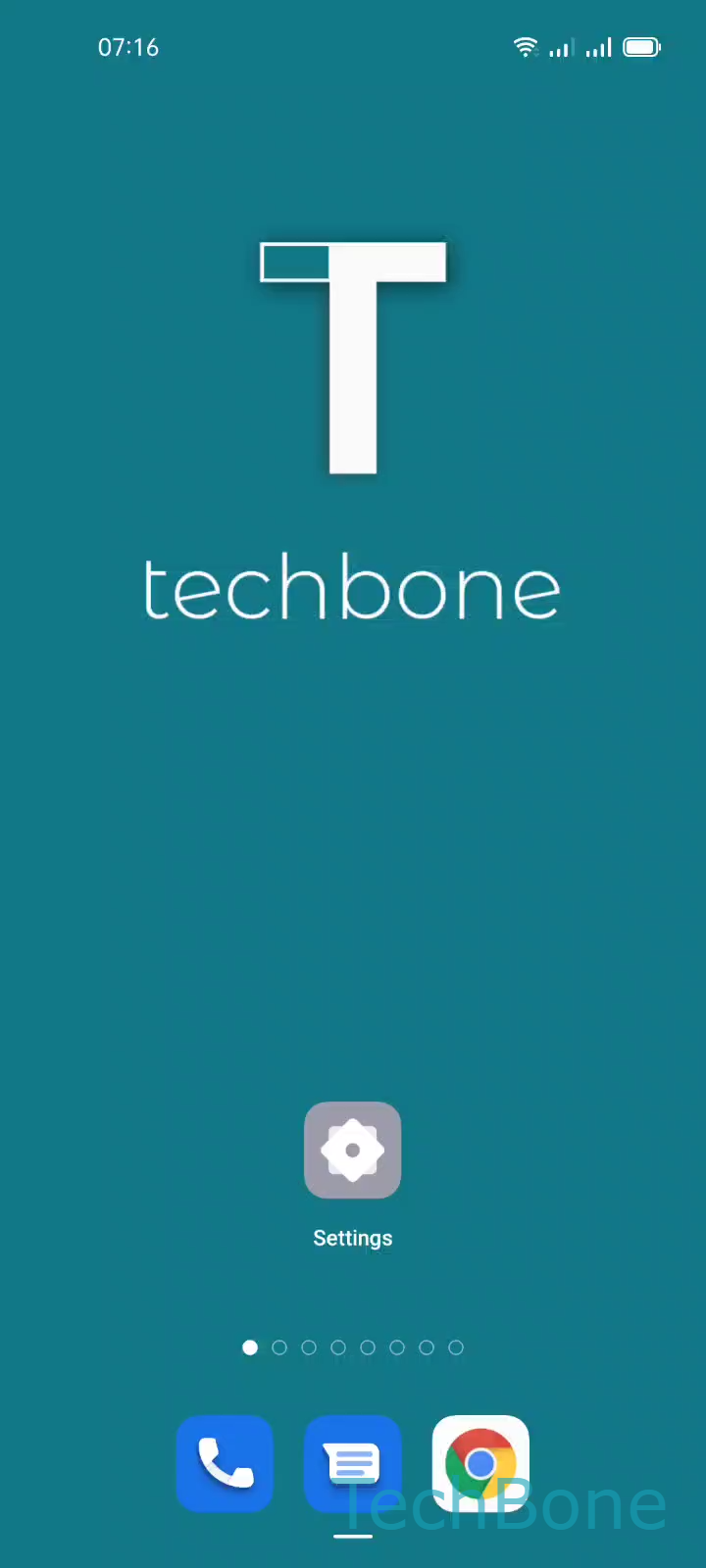
Step 1 of 5: Tap on **Settings**

1

Tap on Settings

Live simulator

Android 11 · Coloros 11
Set Pop-up Window Display Duration – Coloros 11: step 1 – Tap on Settings
Tap on Settings
1 / 5

Scroll or use the buttons for the next step

Feedback

Was the guide correct?

Help others: confirm the path or report a problem.

101

Confirmations

Forum verified this path

Oppo

Set Pop-up Window Display Duration auf Oppo

Pop-up windows on Oppo phones normally stay visible for a length of time chosen by the app that triggered them. This means some notifications disappear almost instantly, while others stick around longer than necessary and cover parts of the screen.

ColorOS lets you replace this app-controlled behavior with a fixed action time. Once set, every pop-up notification respects the same duration, regardless of which app triggered it.

To change the setting, open SettingsAdditional settingsAccessibilityTime to take actionChoose an Option.

You can pick between 10 seconds, 30 seconds, 1 minute, or 2 minutes. Choose a shorter duration if pop-ups feel intrusive, or a longer one if you need more time to read and react to the message before it closes.

This setting only affects the display duration of pop-up windows. It does not change which notifications appear or how apps generate them.

Frequently asked questions

Yes. Once you pick a duration under Time to take action, it applies globally to pop-up windows across the system, not just to a single app.