Skip to content
TechBone
Oppo

Oppo: Turn Auto Brightness On or Off

If your screen keeps getting too dark in bright rooms or too bright at night, the light sensor behind Auto brightness might be misreading your surroundings. Auto brightness is supposed to save battery and reduce eye strain by adjusting the screen on its own, but a dirty sensor, a case covering it, or a stuck setting can throw that off. Once you know where the switch lives, fixing it takes seconds.

3 min3 steps
Version

Step by step

1 / 3

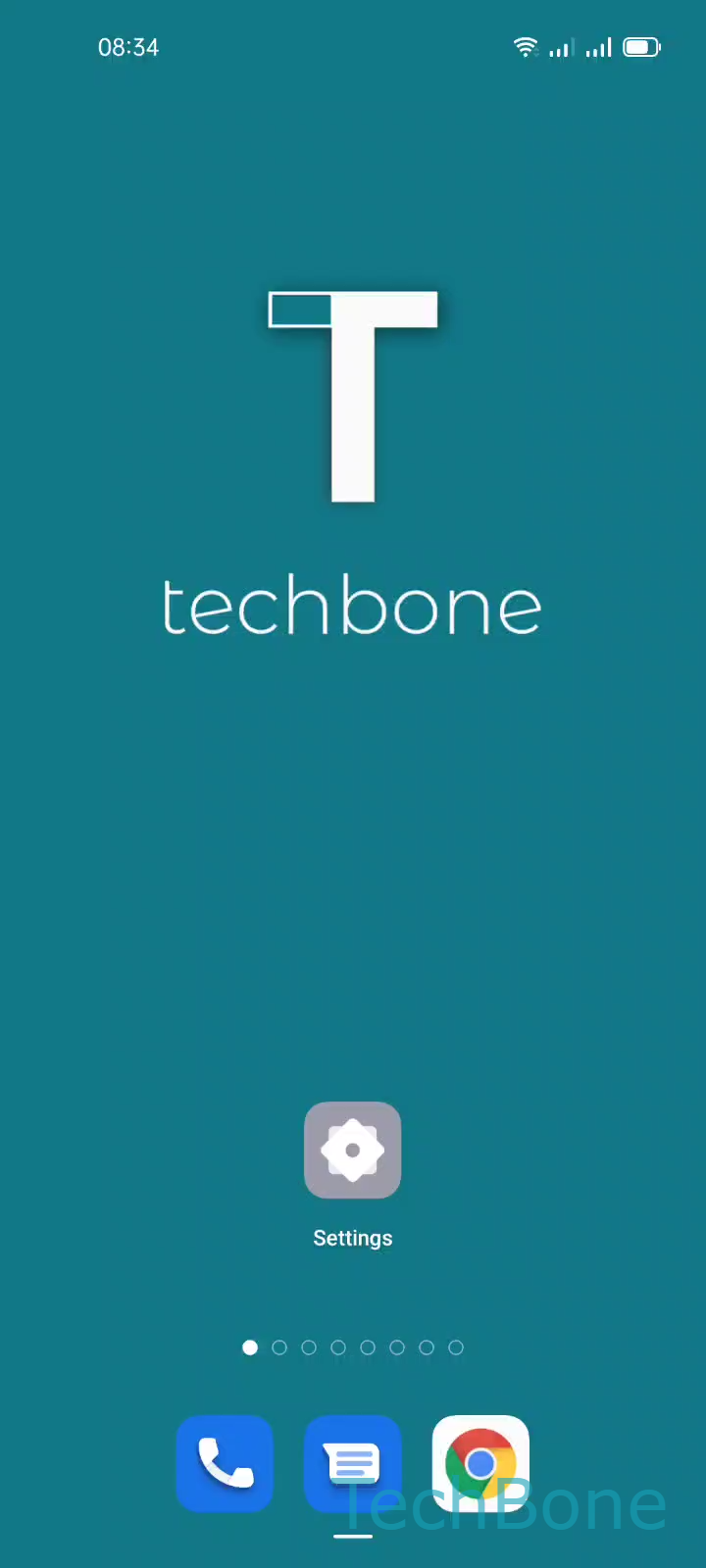
Step 1 of 3: Tap on **Settings**

1

Tap on Settings

Live simulator

Android 11 · Coloros 11
Turn Auto Brightness On or Off – Coloros 11: step 1 – Tap on Settings
Tap on Settings
1 / 3

Scroll or use the buttons for the next step

Feedback

Was the guide correct?

Help others: confirm the path or report a problem.

59

Confirmations

Forum verified this path

Oppo

Turn Auto Brightness On or Off auf Oppo

Auto brightness on Oppo phones uses a light sensor near the front camera to read the ambient light around you and adjust the screen automatically. The goal is fewer manual adjustments, less eye strain, and better battery life, since the display only uses as much brightness as needed.

Sometimes the sensor gets it wrong. A screen protector, a thick case edge, or a smudge over the sensor can block accurate readings, leading to a screen that stays dim indoors or overshoots in direct sunlight. In these cases, turning the feature off and setting brightness manually gives you more predictable results.

To change the setting, go to Tap on SettingsTap on Display & brightnessEnable or disable Auto brightness. The same toggle is also available directly from the quick settings panel, so you do not always need to open the full settings menu.

Keep Auto brightness on if you move between rooms or outdoor and indoor light often. Turn it off if you need a fixed brightness level for reading, gaming, or matching a specific screen mode.

Frequently asked questions

This usually points to a blocked or dirty light sensor near the front camera. Clean the sensor area and check that your screen protector or case is not covering it, then reopen Tap on SettingsTap on Display & brightness to confirm Auto brightness is still enabled.