Skip to content
TechBone
Oppo

Oppo: Show an Alternate Calendar Alongside the Standard Calendar

Dates in the Calendar app only show up in the Gregorian format, even though you need a Chinese, Hebrew, or Hijri reference for religious or cultural events. This happens because the alternate calendar option is turned off by default and depends on Google Calendar being installed. Without it, Coloros only displays the classic calendar view.

5 min6 steps
VersionAndroid 11 · Coloros 11

Step by step

1 / 6

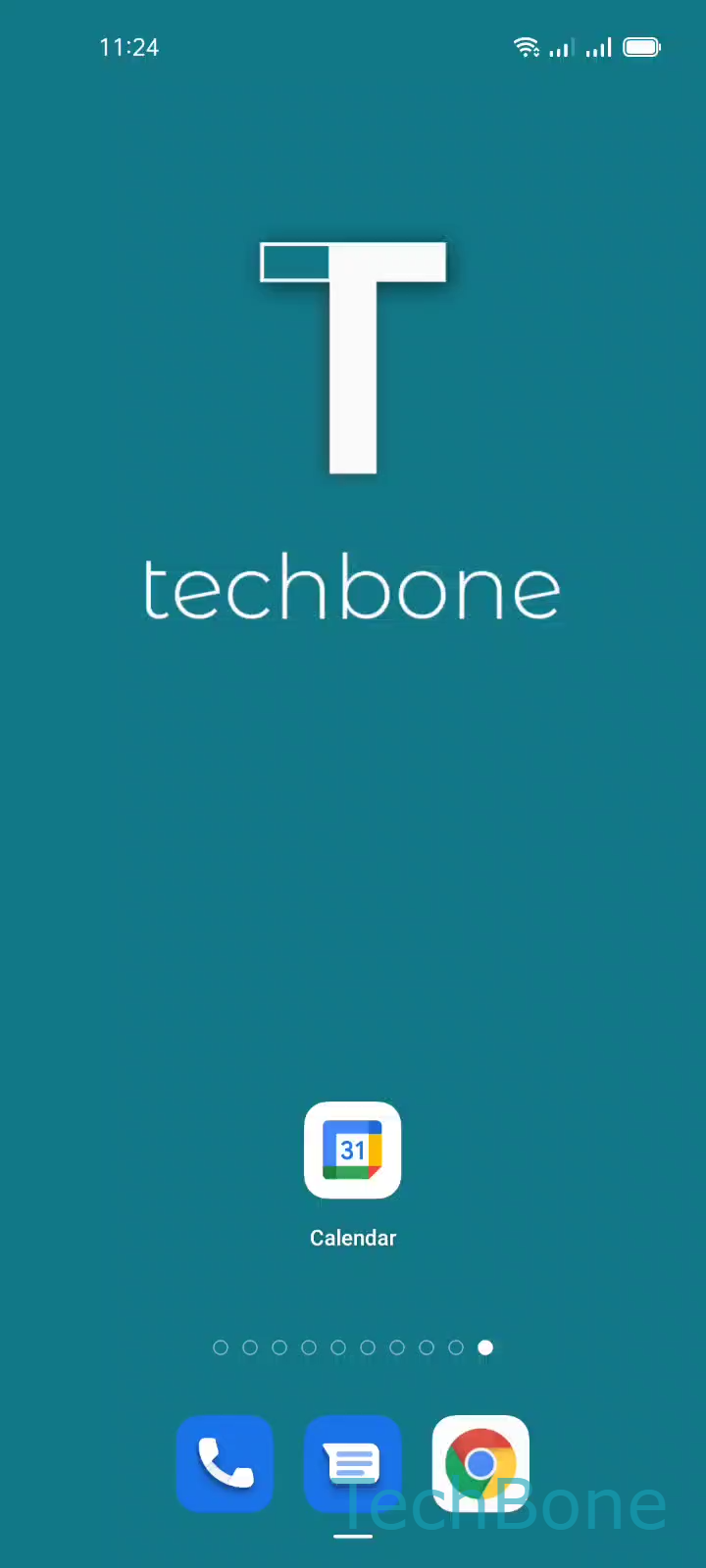
Step 1 of 6: Tap on **Calendar**

1

Tap on Calendar

Live simulator

Android 11 · Coloros 11
Set an Alternate Calendar for Dates – Coloros 11: step 1 – Tap on Calendar
Tap on Calendar
1 / 6

Scroll or use the buttons for the next step

Feedback

Was the guide correct?

Help others: confirm the path or report a problem.

71

Confirmations

Forum verified this path

Oppo

Set an Alternate Calendar for Dates auf Oppo

The alternate calendar feature lets you display a second date system next to the standard Gregorian calendar on your Oppo phone. This is useful for tracking Chinese, Hebrew, or Hijri dates without switching apps.

The option only appears if Google Calendar is installed. If you cannot find the setting described below, install Google Calendar first and restart the Calendar app.

To activate it, go to Tap on CalendarOpen the MenuTap on SettingsTap on GeneralTap on Alternate calendarChoose an Option.

Available options typically include the Chinese calendar, Simplified Chinese calendar, Traditional Hebrew calendar, Hijri calendar, and Civil Hijri calendar. Pick the one you need and the app adds it as a secondary date reference in day and month views.

If dates still look wrong after switching, double check your region and language settings, since some alternate calendars depend on the system locale.

Frequently asked questions

This setting only appears when Google Calendar is installed on the phone. Install it from the Play Store, reopen Calendar, then check MenuSettingsGeneral again.