Skip to content
TechBone
Oppo

Oppo: Switch Personal Hotspot to the 5 GHz Band

If your Oppo hotspot feels slow or drops connections when several devices join, it is probably still running on the 2.4 GHz frequency. Many Oppo phones can broadcast on 5 GHz instead, which gives connected laptops and tablets more bandwidth over shorter range. The switch has to be made manually, since the hotspot defaults to 2.4 GHz every time.

5 min6 steps
Version

Step by step

1 / 6

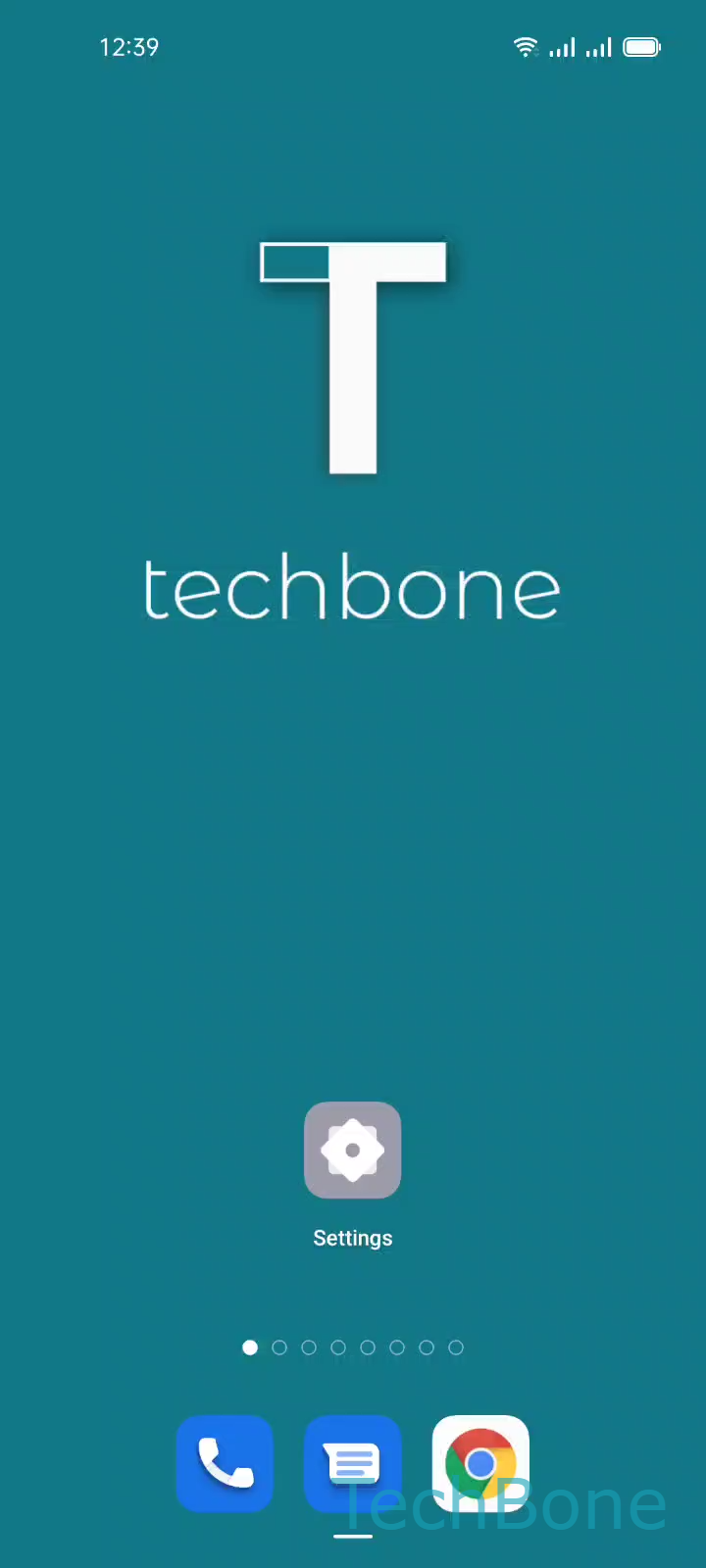
Step 1 of 6: Tap on **Settings**

1

Tap on Settings

Live simulator

Android 11 · Coloros 11
Change Personal Hotspot AP Band (2.4 GHz / 5 GHz) – Coloros 11: step 1 – Tap on Settings
Tap on Settings
1 / 6

Scroll or use the buttons for the next step

Feedback

Was the guide correct?

Help others: confirm the path or report a problem.

21

Confirmations

Forum verified this path

Oppo

Change Personal Hotspot AP Band (2.4 GHz / 5 GHz) auf Oppo

Oppo phones start Personal hotspot on the 2.4 GHz band by default. This frequency reaches further and works with almost every device, but it gets crowded fast when neighboring routers or smart home gadgets share the same channels.

If your phone and the devices connecting to it support 5 GHz, switching the AP band gives you higher throughput and fewer dropped packets. The tradeoff is a shorter effective range, so 5 GHz works best when the connected devices stay close to your phone.

To change it, open SettingsConnection & sharingPersonal hotspotPersonal hotspot settingsAP Band, then choose 2.4 GHz Band or 5 GHz Band.

Devices already connected will drop out briefly and need to rejoin the hotspot after the band changes, since it counts as a new network configuration. If a device does not reconnect, check whether it actually supports 5 GHz Wi-Fi before assuming the hotspot is broken.

Frequently asked questions

Switching between 2.4 GHz Band and 5 GHz Band restarts the hotspot with new network parameters. Reconnect manually by selecting the hotspot again in the Wi-Fi list of the other device.