Skip to content
TechBone
Oppo

Oppo: Change the Privacy Password in Coloros

Switching from a PIN to a pattern for your Oppo privacy password, or just unsure which type you originally picked? The privacy password guards hidden files and cloned apps separately from your screen lock, so updating it means confirming the current one before you can set a new type.

3 min4 steps
VersionAndroid 11 · Coloros 11

Step by step

1 / 4

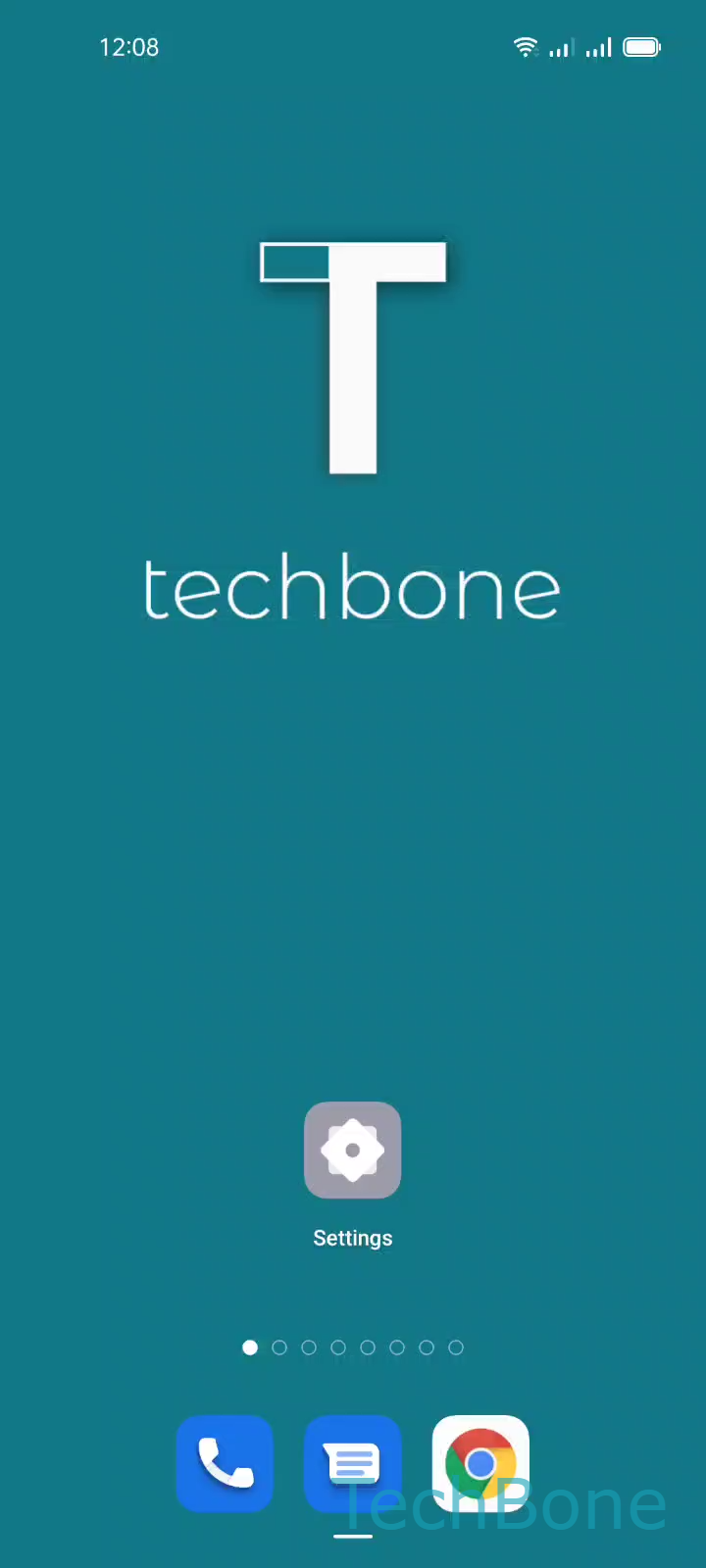
Step 1 of 4: Tap on **Settings**

1

Tap on Settings

Live simulator

Android 11 · Coloros 11
Change Privacy Password – Coloros 11: step 1 – Tap on Settings
Tap on Settings
1 / 4

Scroll or use the buttons for the next step

Feedback

Was the guide correct?

Help others: confirm the path or report a problem.

27

Confirmations

Forum verified this path

Oppo

Change Privacy Password auf Oppo

The privacy password on Oppo phones works independently from the screen lock. It protects features like hidden files, the private safe, or cloned apps, and it can use a different pattern, PIN, or password than the one you use to unlock the phone.

To change it, go to SettingsPassword & biometricsPrivacy passwordChange password. You need to enter the current privacy password first, then pick the new type and confirm it on the following screens.

This setting only changes how you access privacy-protected content. It does not affect your screen lock, fingerprint, or face unlock, and switching password types here will not remove or reset any files stored behind the privacy password.

If you cannot remember the current privacy password at all, changing it through this menu will not work, since it requires the old one for confirmation. In that case you need the recovery option offered on the verification screen instead of the regular change process.

Frequently asked questions

You cannot reach Change password without entering the existing privacy password correctly. Use the recovery link shown on the verification screen instead of trying to reset it through Password & biometrics directly.