Skip to content
TechBone
Oppo

Oppo: Clear App Cache to Fix Storage or App Errors

If an Oppo app keeps loading outdated images, freezes, or your storage fills up faster than expected, a bloated app cache is often the reason. ColorOS stores temporary files like thumbnails and login data so apps open faster, but old or corrupted cache entries can trigger glitches or slow performance. Clearing the cache removes this leftover data without deleting your photos, documents, or app settings.

5 min6 steps
Version

Step by step

1 / 6

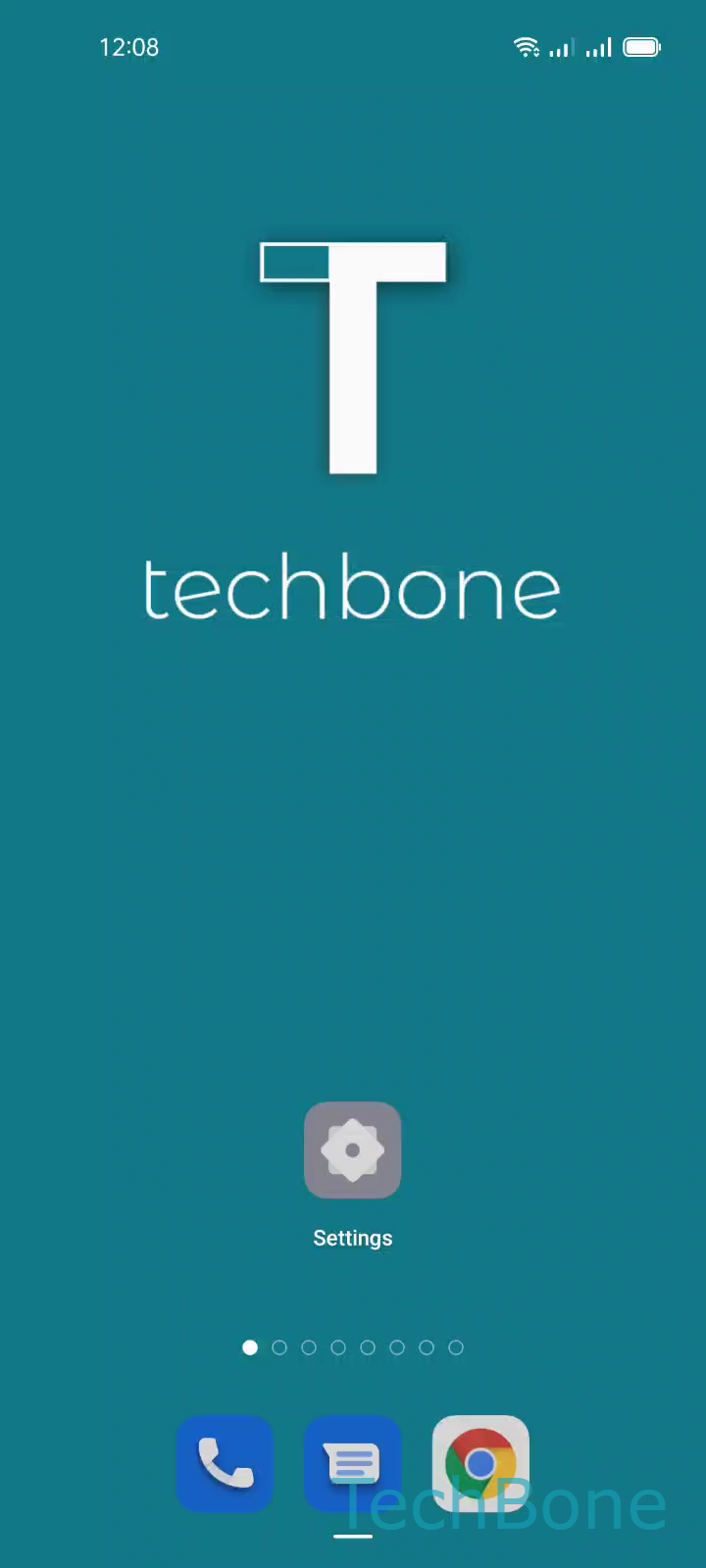
Step 1 of 6: Tap on **Settings**

1

Tap on Settings

Live simulator

Android 11 · Coloros 11
Clear App Cache – Coloros 11: step 1 – Tap on Settings
Tap on Settings
1 / 6

Scroll or use the buttons for the next step

Feedback

Was the guide correct?

Help others: confirm the path or report a problem.

51

Confirmations

Forum verified this path

Oppo

Clear App Cache auf Oppo

The app cache on Oppo devices running ColorOS stores temporary files such as thumbnails, login tokens, and preview data. This speeds up apps because they do not have to reload the same content from the internet every time.

Over time this cache can grow large or contain outdated information. That leads to apps showing old content, crashing unexpectedly, or your internal storage filling up faster than it should.

Clearing the cache removes only this temporary data. Your account logins across most apps, your files, and your personal settings stay untouched, so you rarely need to sign in again afterward.

To clear the cache for a specific app, go to Tap on SettingsTap on App managementTap on App listChoose an AppTap on Storage usageTap on Clear cache.

If the problem continues after clearing the cache, the issue is likely tied to app data or a bug in the app itself rather than temporary files.

Frequently asked questions

No. Cache and app data are separate. Using Tap on Clear cache only removes temporary files, while your logins, settings, and saved content stay in place unless you tap Clear data instead.