Skip to content
TechBone
Oppo

Oppo: Enable or Disable Color Correction

If reds and greens look almost identical on your Oppo display, or if certain interface elements blend together, a color vision difference such as Deuteranomaly, Protanomaly or Tritanomaly might be affecting how you read the screen. ColorOS includes a built-in correction tool that shifts on-screen colors to make these differences less noticeable, but it only works once the right mode is selected. Leaving it off or set to the wrong mode means icons, charts and notifications can stay hard to distinguish.

6 min7 steps
Version

Step by step

1 / 7

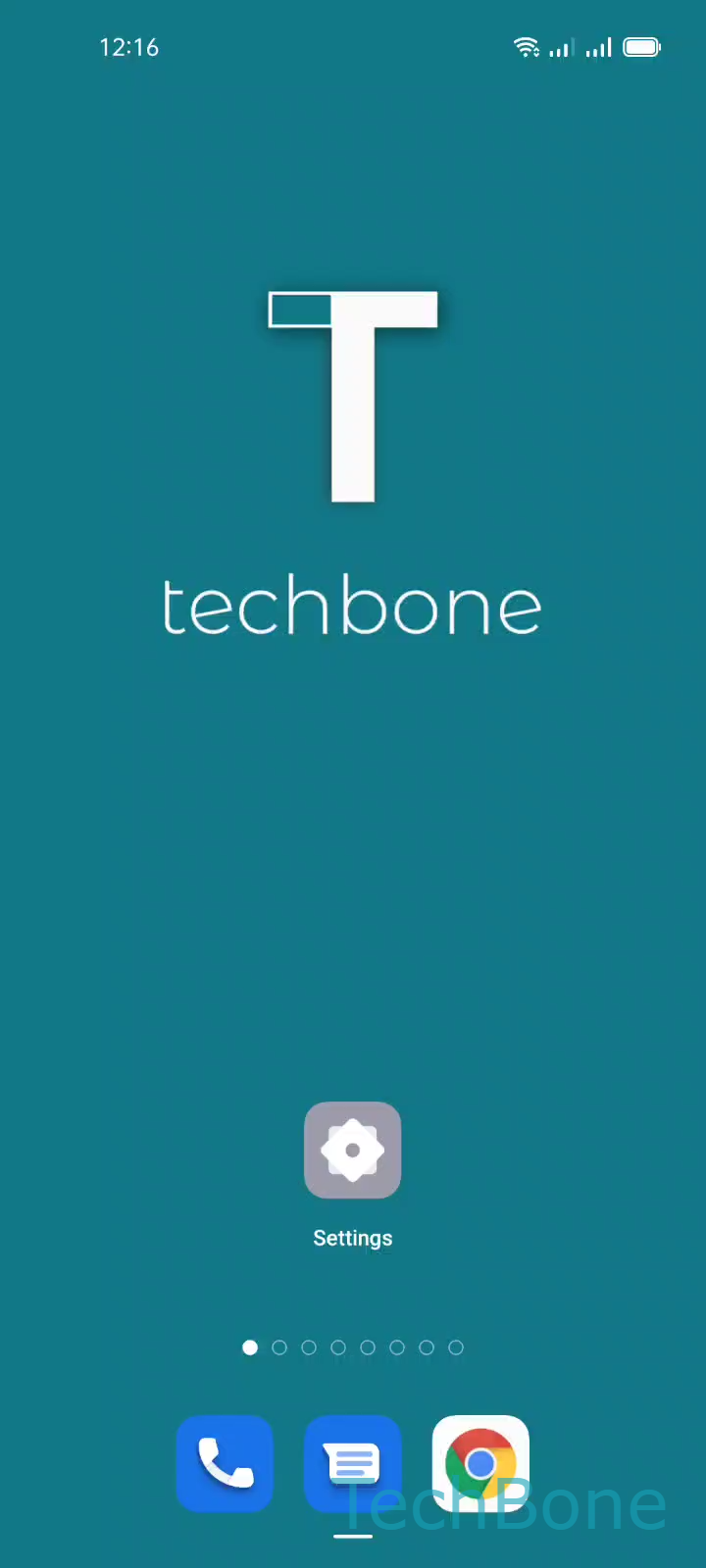
Step 1 of 7: Tap on **Settings**

1

Tap on Settings

Live simulator

Android 11 · Coloros 11
Turn Color Correction On or Off – Coloros 11: step 1 – Tap on Settings
Tap on Settings
1 / 7

Scroll or use the buttons for the next step

Feedback

Was the guide correct?

Help others: confirm the path or report a problem.

62

Confirmations

Forum verified this path

Oppo

Turn Color Correction On or Off auf Oppo

Color Correction on Oppo devices running ColorOS adjusts the color palette shown across menus, apps and notifications. It is built for people with color vision differences, including Deuteranomaly, Protanomaly and Tritanomaly, and it works system-wide once activated.

The feature sits inside the accessibility settings rather than the display settings, which is why many users struggle to find it. To turn it on or off, go to SettingsAdditional settingsAccessibilityColor Correction. A switch on this screen enables or disables the entire function.

Below the switch, tap Correction mode to choose which type of color adjustment fits your vision. Selecting the wrong mode can make colors look more distorted rather than clearer, so it is worth testing each option against something familiar, like a photo gallery or a colorful app icon.

If icons and text are only hard to read because of low contrast rather than color confusion, a display or font setting adjustment usually helps more than Color Correction. This feature is meant specifically for color perception differences, not general visibility issues.

Frequently asked questions

ColorOS offers separate modes tuned for Deuteranomaly, Protanomaly and Tritanomaly. You select the matching one under SettingsAdditional settingsAccessibilityColor CorrectionCorrection mode.