Skip to content
TechBone
Oppo

Oppo: Connect to a Wi-Fi Network

If your Oppo phone stays offline or keeps asking for a network key you never typed, the Wi-Fi connection was never completed. Coloros scans for nearby networks automatically once Wi-Fi is switched on, but tapping the wrong network name or mistyping the password stops the connection right before it finishes.

3 min4 steps
Version

Step by step

1 / 4

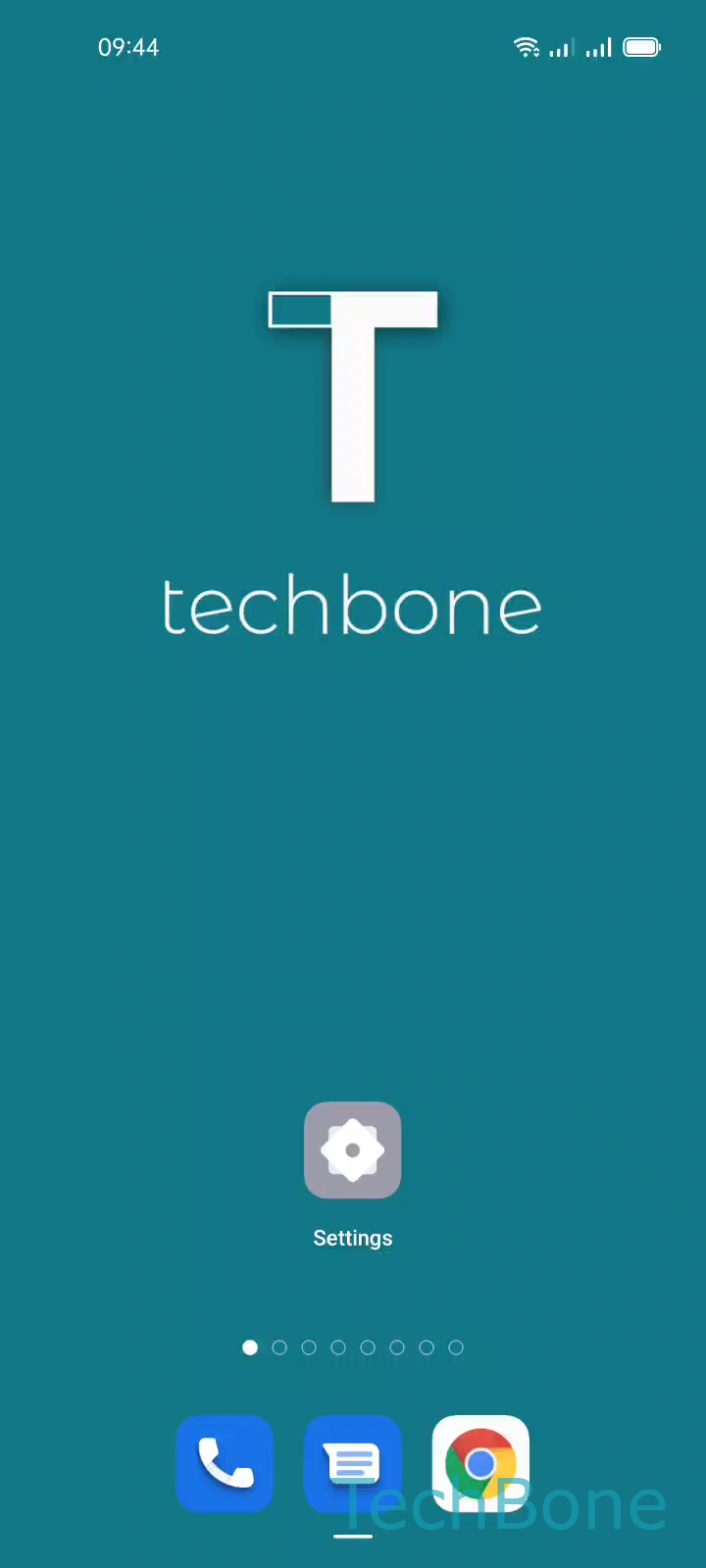
Step 1 of 4: Tap on **Settings**

1

Tap on Settings

Live simulator

Android 11 · Coloros 11
Connect to a Wi-Fi Network – Coloros 11: step 1 – Tap on Settings
Tap on Settings
1 / 4

Scroll or use the buttons for the next step

Feedback

Was the guide correct?

Help others: confirm the path or report a problem.

91

Confirmations

Forum verified this path

Oppo

Connect to a Wi-Fi Network auf Oppo

Wi-Fi on Oppo phones runs through Coloros, the interface built on Android. Once you switch Wi-Fi on, the phone lists every network within range automatically, but it cannot join one until you confirm the correct network name and, if the router requires it, the password.

The most common reason a connection fails is a typo in the password field or tapping a network with a similar name to the one you actually want. Router security settings that hide the network name (SSID) can also stop it from showing up in the list at all.

To connect, follow this path:

Tap on SettingsTap on Wi-FiChoose a Wi-Fi networkEnter the Password and tap Confirm

After you confirm, the phone stores the network and reconnects automatically whenever it is in range, unless you manually forget it later. If the internet still does not load after a successful connection, the problem usually sits with the router or your provider, not with the phone's Wi-Fi settings.

Frequently asked questions

The router might have SSID broadcasting disabled, which hides the network from the list under SettingsWi-Fi. In that case you need to add it manually using the network name and security type instead of picking it from the list.