Skip to content
TechBone
Oppo

Oppo: Add a New Event in Calendar

The Calendar app on Oppo smartphones lets you create events, but also goals, reminders, and tasks from the same menu. Each entry type asks for different fields, so picking the wrong one can mean missing a location box, a due date, or a reminder toggle later.

5 min6 steps
VersionAndroid 11 · Coloros 11

Step by step

1 / 6

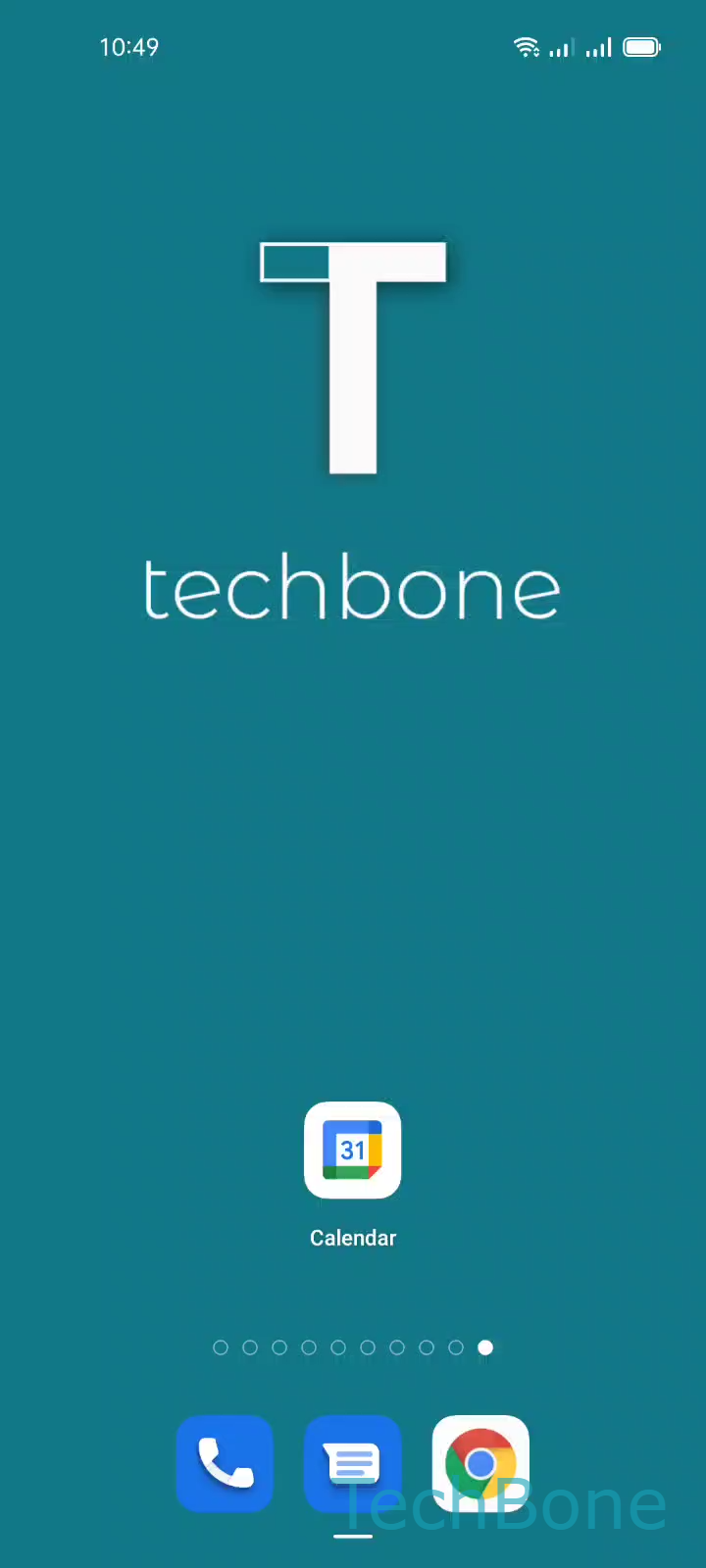
Step 1 of 6: Tap on **Calendar**

1

Tap on Calendar

Live simulator

Android 11 · Coloros 11
Create an Event in Calendar – Coloros 11: step 1 – Tap on Calendar
Tap on Calendar
1 / 6

Scroll or use the buttons for the next step

Feedback

Was the guide correct?

Help others: confirm the path or report a problem.

40

Confirmations

Forum verified this path

Oppo

Create an Event in Calendar auf Oppo

The Calendar app on Oppo phones bundles several entry types under one Add button: events, goals, reminders, and tasks.

Picking the wrong type is the most common reason a location field, due date, or reminder toggle seems to be missing after saving.

Steps to add an event

Open Tap on CalendarTap on AddChoose an Option. Selecting Event here shows the fields you need, unlike Task or Reminder.

Next, Add a Title so the entry is easy to find later. Then use Set other Options to set the date, time, location, and any notification.

Finish with Tap on Save. If the event does not appear where expected, check whether it was accidentally created as a task or goal instead.

Reminders that never trigger usually point to a notification toggle left off inside Set other Options, not a system-wide setting.

Frequently asked questions

An event has a fixed date, time, and optional location. A task is a to-do item you can mark done, a reminder is a simple alert without extra fields, and a goal repeats over a period you define. Select the right type under Choose an Option before adding a title.