Skip to content
TechBone
Oppo

Oppo: Change Default Event Duration in Calendar

If every new calendar entry on your Oppo phone comes out as a full hour, even for a quick call reminder, the default event length in Google Calendar is set too long. This gets worse when several accounts are linked, since each one can carry its own default. Manually shortening every single event afterward wastes time and gets annoying fast.

6 min7 steps
VersionAndroid 11 · Coloros 11

Step by step

1 / 7

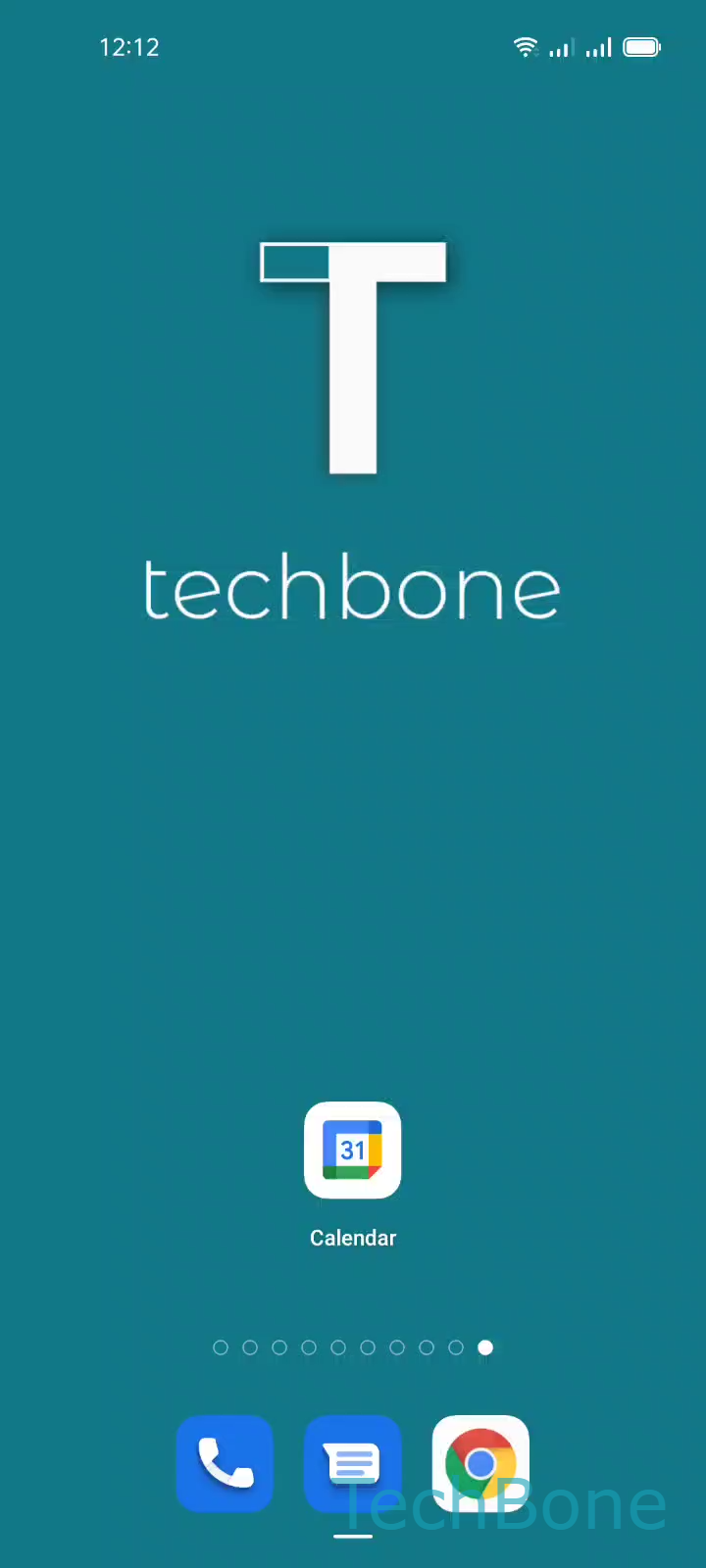
Step 1 of 7: Tap on **Calendar**

1

Tap on Calendar

Live simulator

Android 11 · Coloros 11
Change Default Event Duration in Calendar – Coloros 11: step 1 – Tap on Calendar
Tap on Calendar
1 / 7

Scroll or use the buttons for the next step

Feedback

Was the guide correct?

Help others: confirm the path or report a problem.

88

Confirmations

Forum verified this path

Oppo

Change Default Event Duration in Calendar auf Oppo

New events in the Google Calendar app on Oppo phones usually get a fixed default length, often one full hour, even when you only add a short reminder or a quick call. This setting lives inside the calendar app itself, not in the ColorOS system settings, which is why changing display or notification options never affects it.

If several accounts are linked to your calendar, such as a private and a work Google account, each one keeps its own default duration. Fixing the setting for one account will not automatically change it for the others.

To adjust it, open Tap on CalendarOpen the MenuTap on SettingsTap on GeneralTap on Default event duration. From there, Choose an Account if more than one is linked, then Choose an Option for the new default length.

This only changes newly created events going forward. Existing entries in your calendar keep their original duration and need to be edited individually if they are wrong.

Frequently asked questions

No. Adjusting Default event duration only applies to events you add after the change. Existing entries stay at whatever length they had before.