
Skip to content
TechBone
Oppo

Oppo: Turn Off Developer Options

Once you have finished testing apps or checking performance settings, Developer options often stay active on your Oppo phone without you noticing. That leaves toggles like USB debugging and mock locations exposed, which is a real risk if someone else picks up your device. Switching the menu off brings the settings list back to its standard, secure state.

4 min5 steps
Version

Step by step

1 / 5

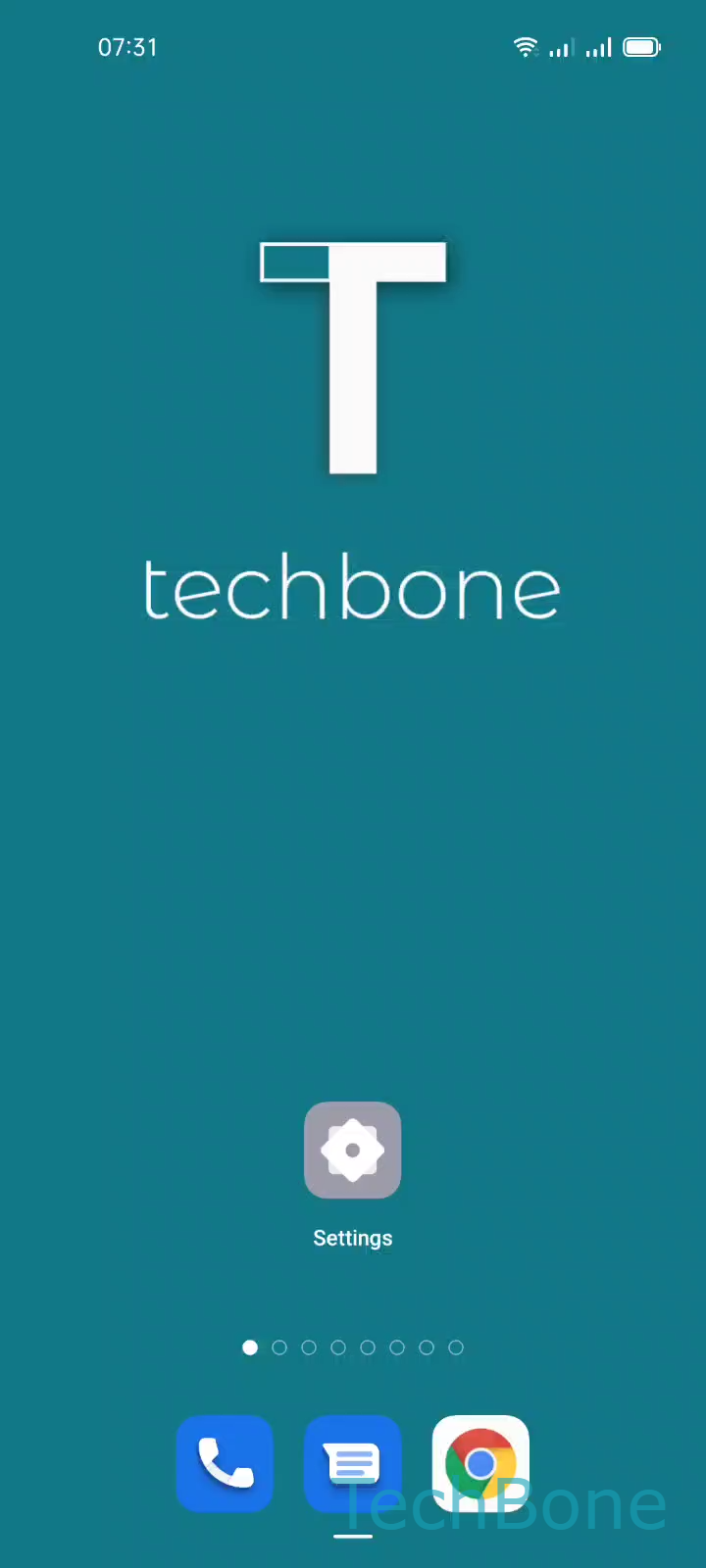
Step 1 of 5: Tap on **Settings**

1

Tap on Settings

Live simulator

Android 11 · Coloros 11
Turn Off Developer Options – Coloros 11: step 1 – Tap on Settings
Tap on Settings
1 / 5

Scroll or use the buttons for the next step

Feedback

Was the guide correct?

Help others: confirm the path or report a problem.

16

Confirmations

Forum verified this path

Oppo

Turn Off Developer Options auf Oppo

Developer options give access to advanced controls such as USB debugging, animation scaling and mock location, which are meant for testing rather than daily use.

On Coloros this menu stays visible under Additional settings until you disable it yourself. Leaving it active means anyone with your phone in hand could change system-level behavior or enable debugging access without you noticing.

To remove it from the settings list, go to Tap on SettingsTap on Additional settingsTap on Developer optionsTurn Off Developer optionsTap on Back.

This only resets the toggle. It does not uninstall apps or erase personal data. If you decide you need the menu again later, the same settings path will let you find it once it is re-enabled through the system.

Frequently asked questions

Yes. Disabling the menu through Tap on Developer optionsTurn Off Developer options clears active debugging authorizations, so connected computers will need to be trusted again if you re-enable it later.