
Oppo
Auto-Hide Virtual Navigation Buttons auf Oppo
The navigation bar keeps taking up space in full-screen apps because ColorOS shows the virtual buttons by default, even when an app would benefit from more room. The system does not hide them automatically unless you turn on a dedicated option for it.
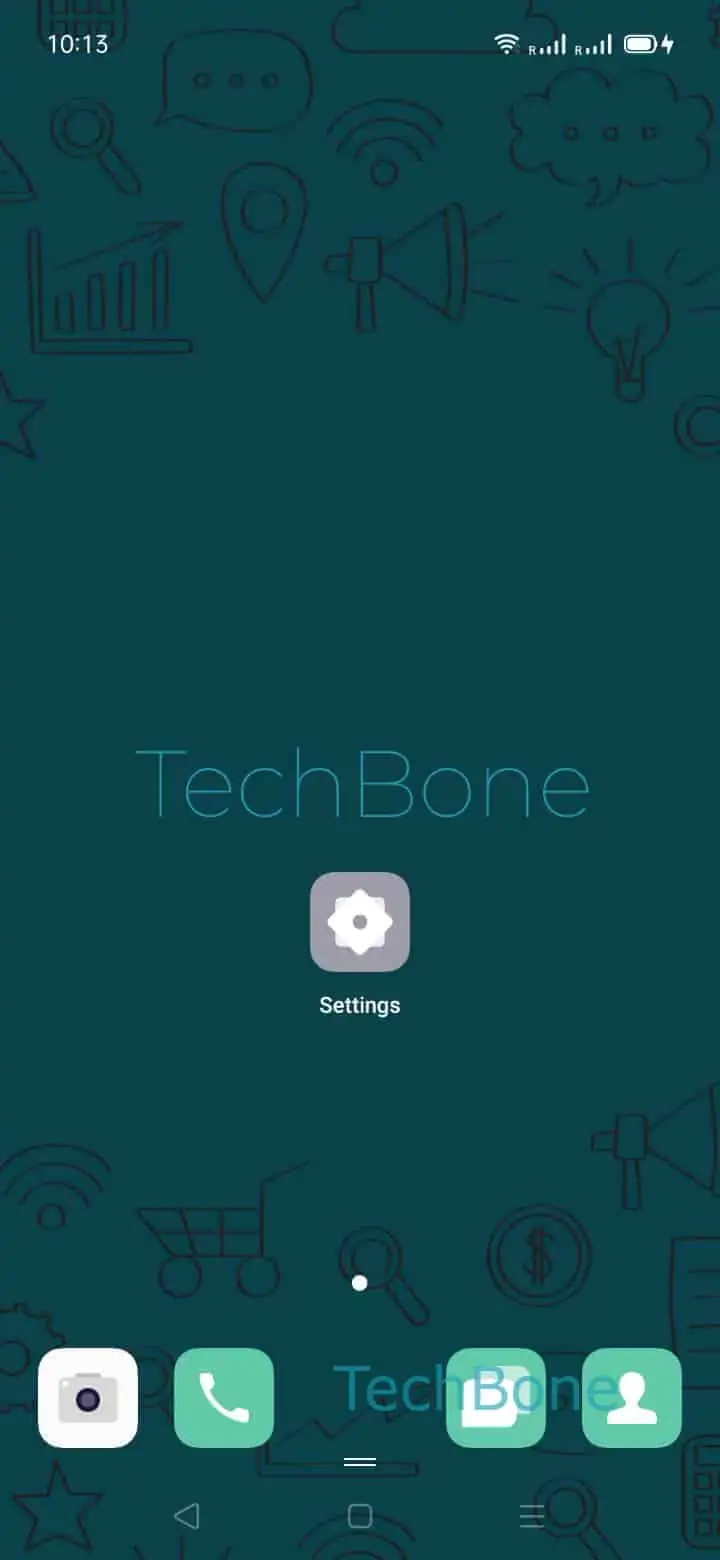
Enable this under Settings ➔ Convenience tools ➔ Navigation buttons ➔ Enable Auto hide virtual buttons. Once active, a small arrow icon replaces the full button row at the edge of the screen.
Tap that arrow to hide the bar completely while inside an app, and tap it again to bring the buttons back whenever you need them. The hidden state applies per app session, so the bar returns as soon as you go back to the home screen or switch to another app.
If you already use gesture navigation instead of the on-screen buttons, this setting has no effect, since there is no bar left to hide. Switch to gesture navigation first if you want the bottom edge free at all times without tapping an icon.