Skip to content
TechBone
Oppo

Oppo: Auto-Hide the Navigation Bar in Apps

When you open a game or video player on your Oppo phone, the navigation bar stays fixed along the bottom edge and eats into the display. This happens because the option that lets you hide the on-screen buttons is switched off by default. Until it is turned on, the bar only ever disappears if the app itself forces full-screen mode.

3 min4 steps
VersionAndroid 10 · Coloros

Step by step

1 / 4

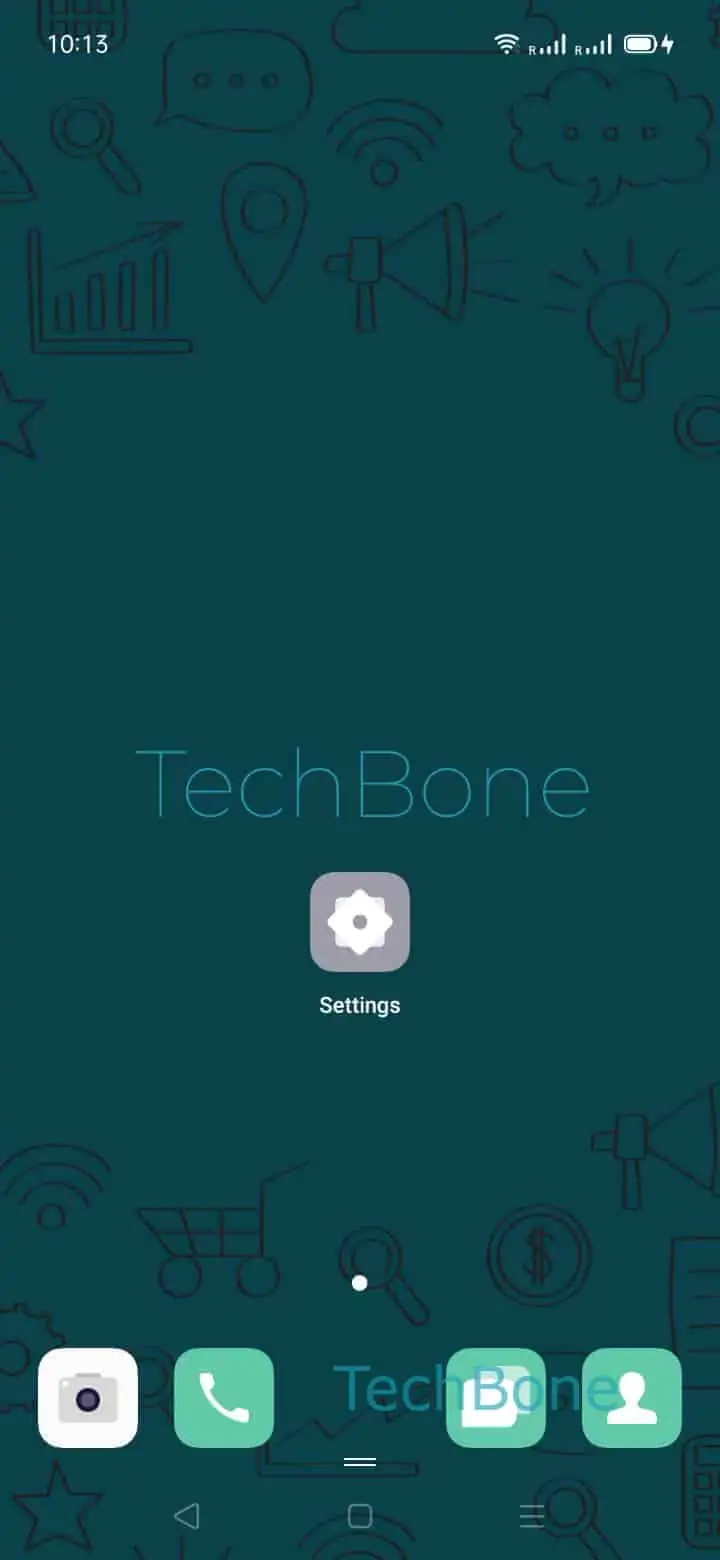
Step 1 of 4: Open the **Settings**

1

Open the Settings

Live simulator

Android 10 · Coloros
Auto-Hide Virtual Navigation Buttons – Coloros: step 1 – Open the Settings
Open the Settings
1 / 4

Scroll or use the buttons for the next step

Feedback

Was the guide correct?

Help others: confirm the path or report a problem.

17

Confirmations

Forum verified this path

Oppo

Auto-Hide Virtual Navigation Buttons auf Oppo

The navigation bar keeps taking up space in full-screen apps because ColorOS shows the virtual buttons by default, even when an app would benefit from more room. The system does not hide them automatically unless you turn on a dedicated option for it.

Enable this under SettingsConvenience toolsNavigation buttonsEnable Auto hide virtual buttons. Once active, a small arrow icon replaces the full button row at the edge of the screen.

Tap that arrow to hide the bar completely while inside an app, and tap it again to bring the buttons back whenever you need them. The hidden state applies per app session, so the bar returns as soon as you go back to the home screen or switch to another app.

If you already use gesture navigation instead of the on-screen buttons, this setting has no effect, since there is no bar left to hide. Switch to gesture navigation first if you want the bottom edge free at all times without tapping an icon.

Frequently asked questions

The option only adds a hide icon to the bar. You still tap it inside each app, because Auto hide virtual buttons does not remember the hidden state across app switches.