
Oppo
Turn Off TalkBack (Accessibility) auf Oppo
TalkBack is Oppo's built-in screen reader, part of the accessibility framework in Coloros. Once it is active, every screen turns into a selection-and-confirmation interface: a single tap highlights an app or menu entry with a green outline and reads its name aloud, while a second tap on the same spot actually opens it.
This double-tap logic replaces the normal single-tap control system-wide, including inside the Settings app itself. That is why tapping the TalkBack toggle once does nothing - the tap only selects it, it does not switch it off.
To disable TalkBack, follow the same select-then-confirm pattern all the way to the Stop control:
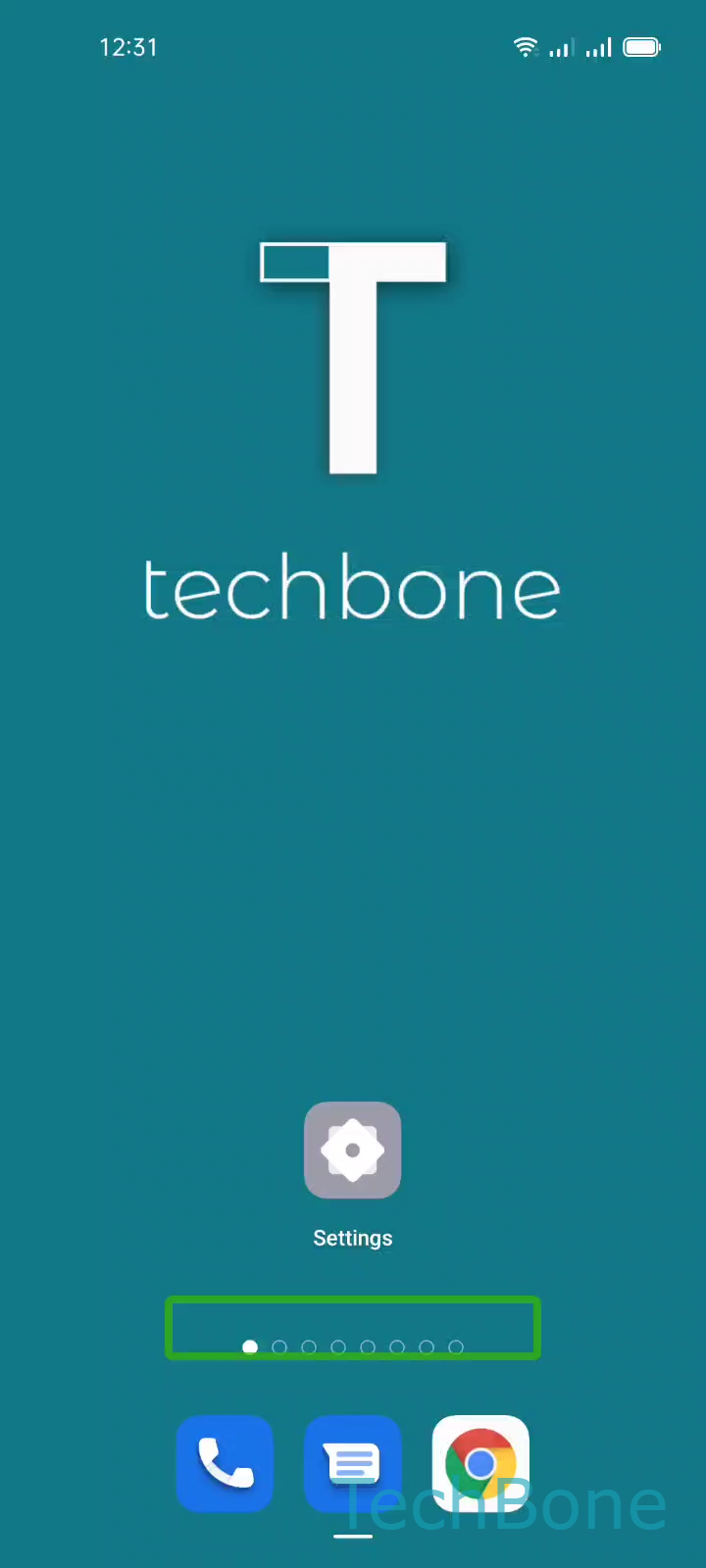
Tap on Settings ➔ Tap twice on Settings ➔ Swipe with two fingers to scroll ➔ Tap on Additional settings ➔ Tap twice on Additional settings ➔ Tap on Accessibility ➔ Tap twice on Accessibility ➔ Tap on Talkback ➔ Tap twice on TalkBack ➔ Tap on TalkBack (Button) ➔ Tap twice on TalkBack (Button) ➔ Tap on Stop ➔ Tap twice on Stop
Every tap in this chain needs the confirming second tap right after it, otherwise you only move the selection outline further instead of triggering the action. Scrolling changes too: use two fingers to move down the Settings list instead of a normal swipe. If TalkBack turned on unexpectedly through a volume-key shortcut, disabling that shortcut afterward in Accessibility settings stops it from restarting the same way.