Skip to content
TechBone
Oppo

Oppo: Turn Keyboard Sound On or Off

Typing without any click sound, or suddenly hearing it after a system update, can be confusing since Oppo phones don't have a dedicated keyboard sound toggle inside ColorOS itself. The setting actually lives inside the Gboard app that most Oppo devices use by default. On many devices this sound is turned off from the start, leaving you unsure where to look for it.

5 min6 steps
Version

Step by step

1 / 6

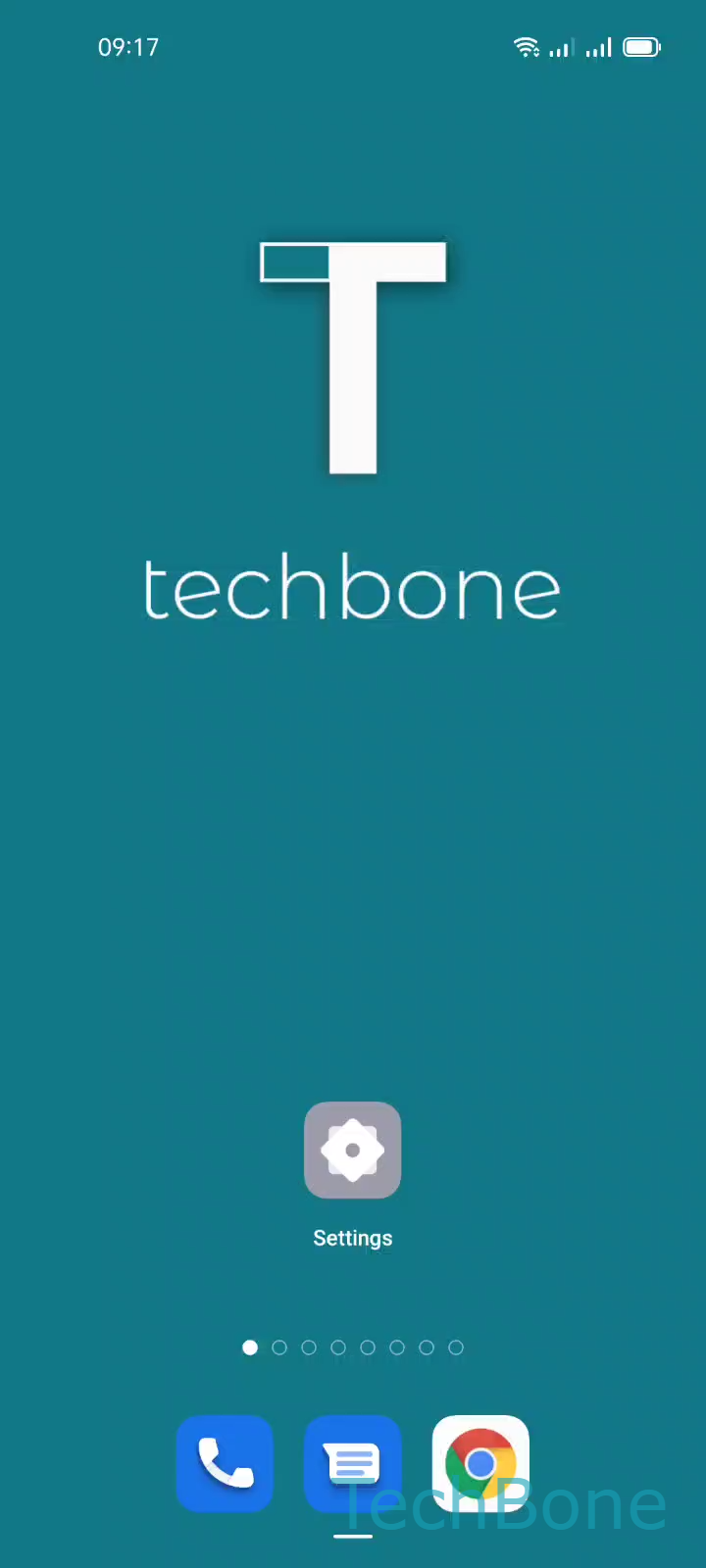
Step 1 of 6: Tap on **Settings**

1

Tap on Settings

Live simulator

Android 11 · Coloros 11
Turn Keyboard Sound On or Off – Coloros 11: step 1 – Tap on Settings
Tap on Settings
1 / 6

Scroll or use the buttons for the next step

Feedback

Was the guide correct?

Help others: confirm the path or report a problem.

24

Confirmations

Forum verified this path

Oppo

Turn Keyboard Sound On or Off auf Oppo

Oppo does not include a global keyboard sound switch inside ColorOS. The company relies on Google's Gboard app as the default keyboard on most models, and that app controls its own key-press sound independently of the system settings.

By default, Gboard ships with the click sound disabled, so a silent keyboard after setup or a reset is normal behavior, not a bug.

To change it, open SettingsAdditional settingsKeyboard & input methodGboardPreferences, then enable or disable Sound on keypress.

This toggle sits next to vibration feedback options, so check those separately if you only want sound without haptics, or the reverse.

If you use a different keyboard app instead of Gboard, look for the same sound option inside that app's own settings menu, since ColorOS does not enforce it at the system level.

Frequently asked questions

ColorOS delegates key-press sound control to the keyboard app itself. Since most Oppo phones run Gboard, the toggle sits inside GboardPreferences instead of a system sound menu.