Skip to content
TechBone
Oppo

Oppo: Turn On or Off the Magnification Accessibility Feature

If text and icons on your Oppo phone are too small to read comfortably, the built-in magnification tool works like a digital magnifying glass. A triple tap on the screen opens a zoom window that you control with a two-finger pinch. The feature covers the entire display except the keyboard and navigation bar, and many users cannot find where to switch it on or off.

4 min5 steps
Version

Step by step

1 / 5

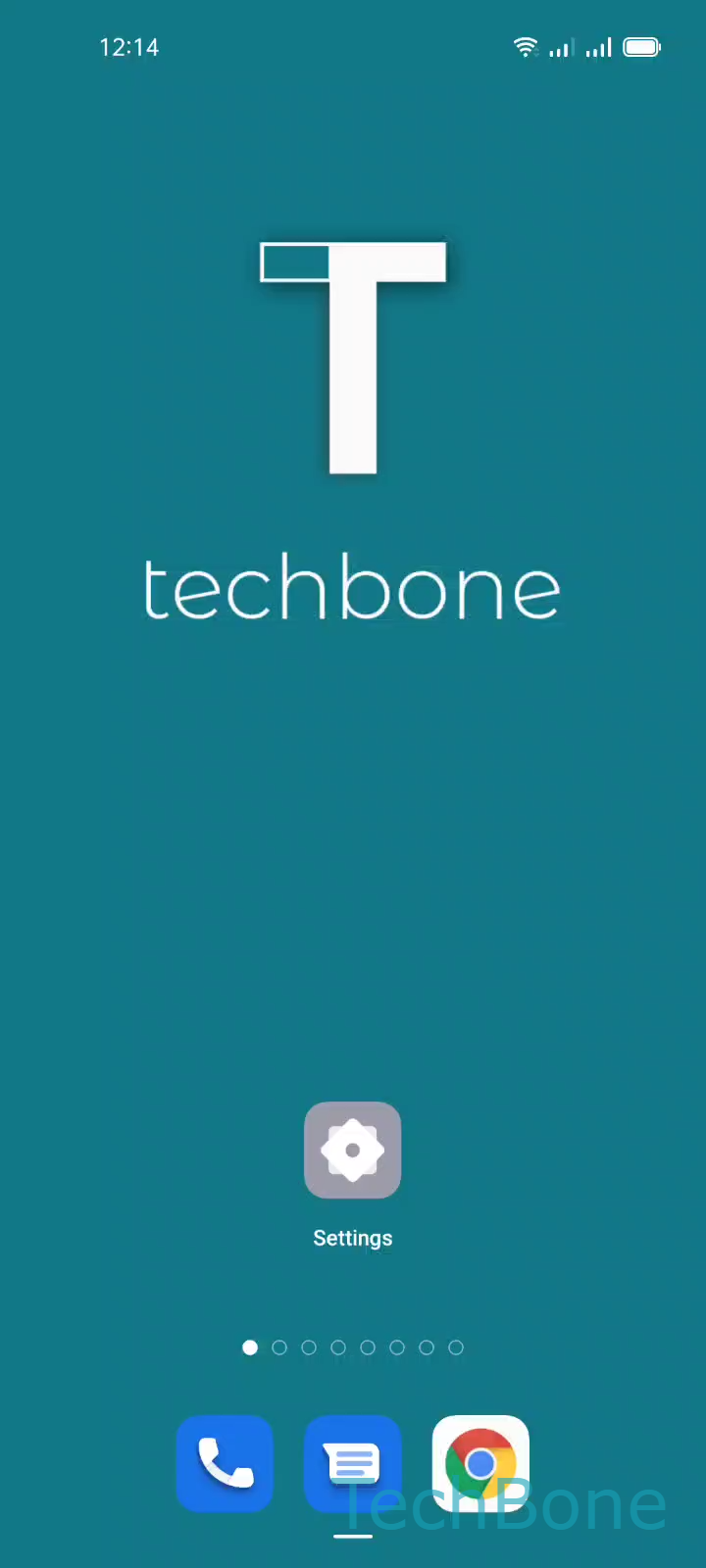
Step 1 of 5: Tap on **Settings**

1

Tap on Settings

Live simulator

Android 11 · Coloros 11
Turn On/Off Magnification (Accessibility) – Coloros 11: step 1 – Tap on Settings
Tap on Settings
1 / 5

Scroll or use the buttons for the next step

Feedback

Was the guide correct?

Help others: confirm the path or report a problem.

44

Confirmations

Forum verified this path

Oppo

Turn On/Off Magnification (Accessibility) auf Oppo

Small icons and hard-to-read text on an Oppo phone often come down to display scaling, but ColorOS also includes a dedicated magnification tool built for exactly this situation.

Magnification works like a temporary loupe over your screen. A triple tap on the display opens a zoom window, and a two-finger pinch lets you enlarge or shrink the view without touching your regular display settings.

The tool covers nearly every screen, but it intentionally skips the keyboard and the navigation bar, so you can still type and navigate normally while zoomed in.

To turn it on or off, follow this path: Tap on SettingsTap on Additional settingsTap on AccessibilityTap on MagnificationEnable or disable Magnification.

Once enabled, the triple-tap gesture works almost everywhere except in apps that block accessibility overlays. If the zoom window does not appear after a triple tap, check that no other gesture shortcut is using the same tap pattern, and confirm Magnification is still switched on in Accessibility settings.

Frequently asked questions

Another accessibility shortcut or app might be using the same gesture. Open Tap on SettingsTap on Additional settingsTap on AccessibilityTap on Magnification and confirm the toggle is still enabled.