Skip to content
TechBone
Oppo

Oppo: Move Contacts to Another Google Account

When multiple Google accounts are linked on an Oppo phone, contacts sometimes end up saved under the wrong one, causing missing entries in the app you actually use for calls and messages. This happens because each contact stays tied to the account it was originally created in, even after new accounts get added. Moving a contact to a different account fixes sync and visibility problems without deleting or recreating the entry.

4 min5 steps
VersionAndroid 11 · Coloros 11

Step by step

1 / 5

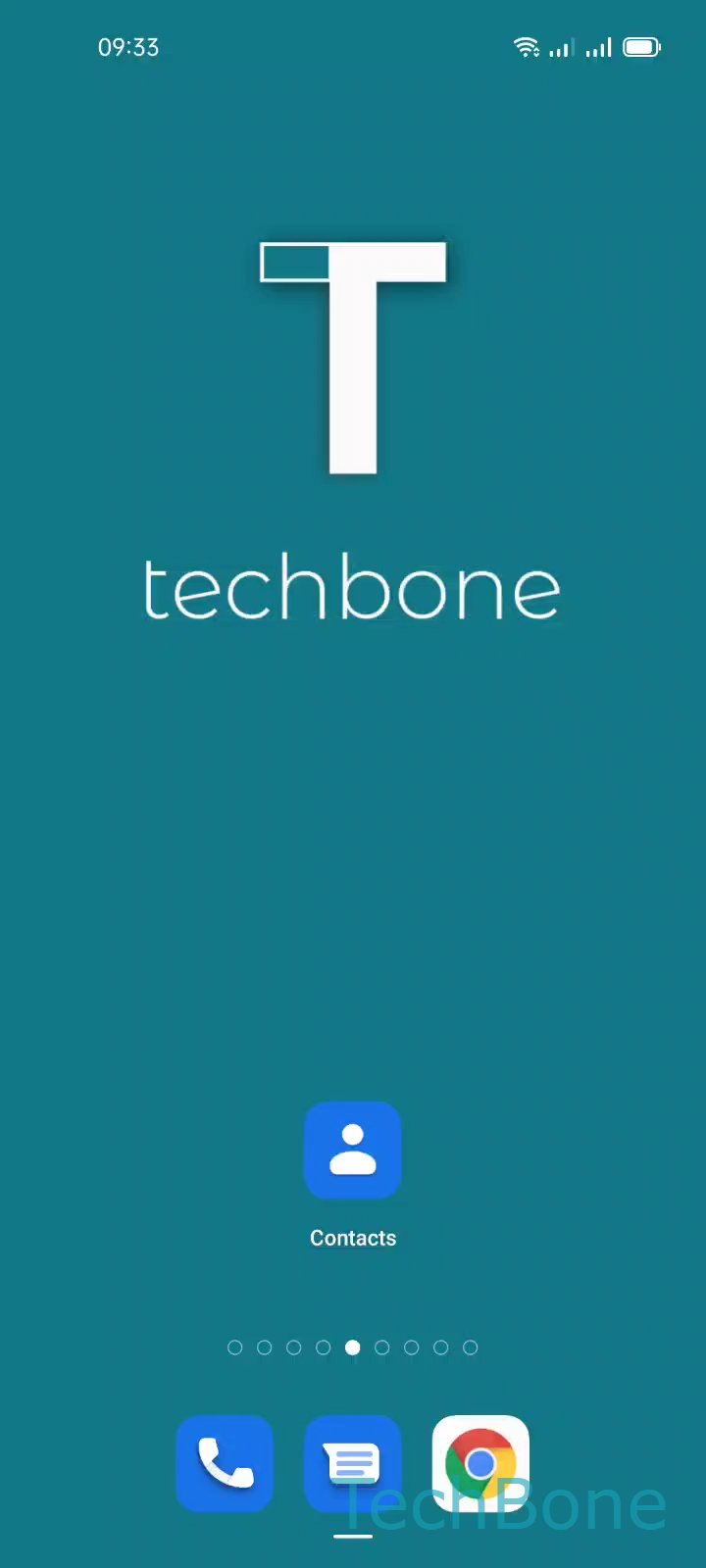
Step 1 of 5: Tap on **Contacts**

1

Tap on Contacts

Live simulator

Android 11 · Coloros 11
Move Contacts to Another Account – Coloros 11: step 1 – Tap on Contacts
Tap on Contacts
1 / 5

Scroll or use the buttons for the next step

Feedback

Was the guide correct?

Help others: confirm the path or report a problem.

25

Confirmations

Forum verified this path

Oppo

Move Contacts to Another Account auf Oppo

On Oppo phones with several linked Google accounts, every contact stays assigned to the account it was originally created in. That single account controls which app or device sees the contact during calls and messages, even if other accounts are active on the same phone.

To reassign a contact, use the following path: Tap on ContactsChoose a ContactOpen the MenuTap on Move to another accountChoose an Account.

The destination list includes every Google account currently signed in and syncing contacts on the device, plus the internal storage option. Internal storage is useful when a contact should stay local and not sync to the cloud at all.

Moving a contact removes it from the source account and places it exclusively in the destination you picked. If the same contact already exists in the target account, expect a duplicate entry rather than an automatic merge, so check for existing matches first. This method only moves one contact at a time, so bulk cleanups across many entries take longer through this menu.

Frequently asked questions

The Move to another account option works per contact. For larger batches, repeat the same steps for each entry, or export the contacts and import them directly into the target account.