
Oppo
Move Widgets on the Home Screen auf Oppo
Widgets on ColorOS behave like larger app icons. A quick tap opens the widget or the app behind it, so moving one to a new position needs a longer press before you drag.
The process is the same one you already use for app shortcuts and folders: press and hold, wait for the home screen to unlock the item for dragging, then move it while still holding your finger down.
Steps to move a widget
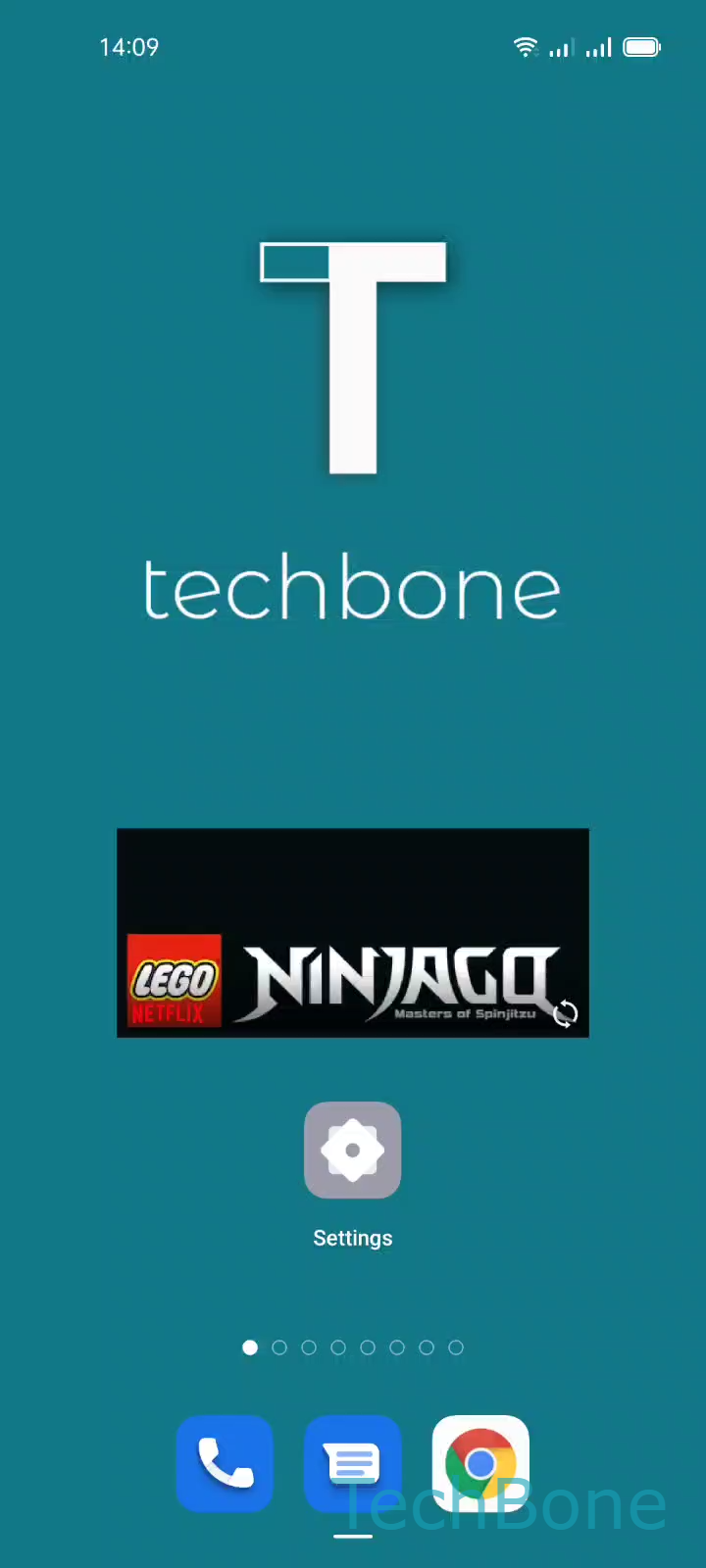
Tap and hold a Widget ➔ Move the Widget to the desired position ➔ Release the Widget to position it
Hold the widget until the home screen grid shifts slightly and the other icons make room. Only then start dragging toward the new spot. If you lift your finger too early, the widget stays where it was and the press only opens it.
Dragging a widget to the edge of the screen during the move usually pushes it onto the next or previous home screen page, so you can also use this to relocate a widget across pages, not just within one.
If a widget will not move at all, check whether the home screen is set to a locked layout in the home screen settings, since a locked layout blocks repositioning for widgets, icons, and folders alike.