
Oppo
Remove a Widget from the Home Screen auf Oppo
Widgets on Coloros behave like oversized shortcuts. They sit on a home screen page and link directly to an app or a live preview, such as weather or calendar data.
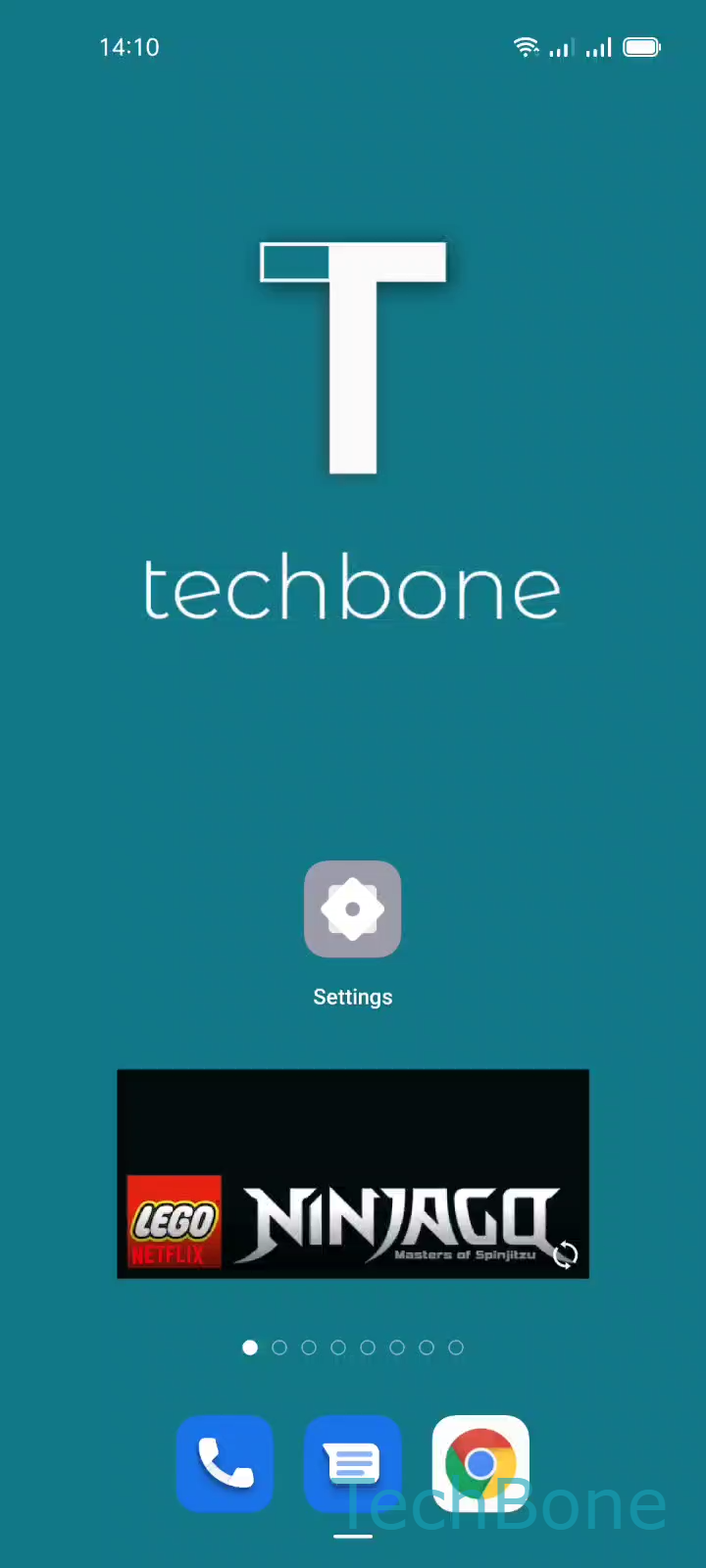
Removing a widget uses the same gesture as removing a normal app icon from the home screen. A long press activates the edit mode for that item, which then shows a remove option instead of opening the app.
How to remove a widget
Press and hold the widget until the edit options appear, then follow this path:
Tap and hold a Widget ➔ Tap on Remove
The widget disappears from the home screen immediately. The app connected to it stays installed, so nothing else changes on the device.
When a widget will not budge
Some Oppo models lock certain widgets in place, usually ones tied to system features or a specific launcher layout. In that case, the long press either does nothing or only opens the app instead of showing edit options.
If that happens, check whether the home screen itself is set to a locked layout, since a locked layout can block editing for every item on the page, not just widgets.