
Oppo
Resize a Widget on the Home Screen auf Oppo
Widgets on Coloros only reveal a resize handle once they are already sitting on the home screen. If you try to stretch a widget while it's still in the widget drawer, nothing happens, because the drawer only shows a fixed preview for each entry.
After you drop the widget on an empty spot, Coloros briefly switches into an edit state on its own. This is the moment where border markers appear around the widget and let you drag the edges. Tap away too quickly and the markers vanish, so you'll need to trigger the edit state again.
How to resize a placed widget
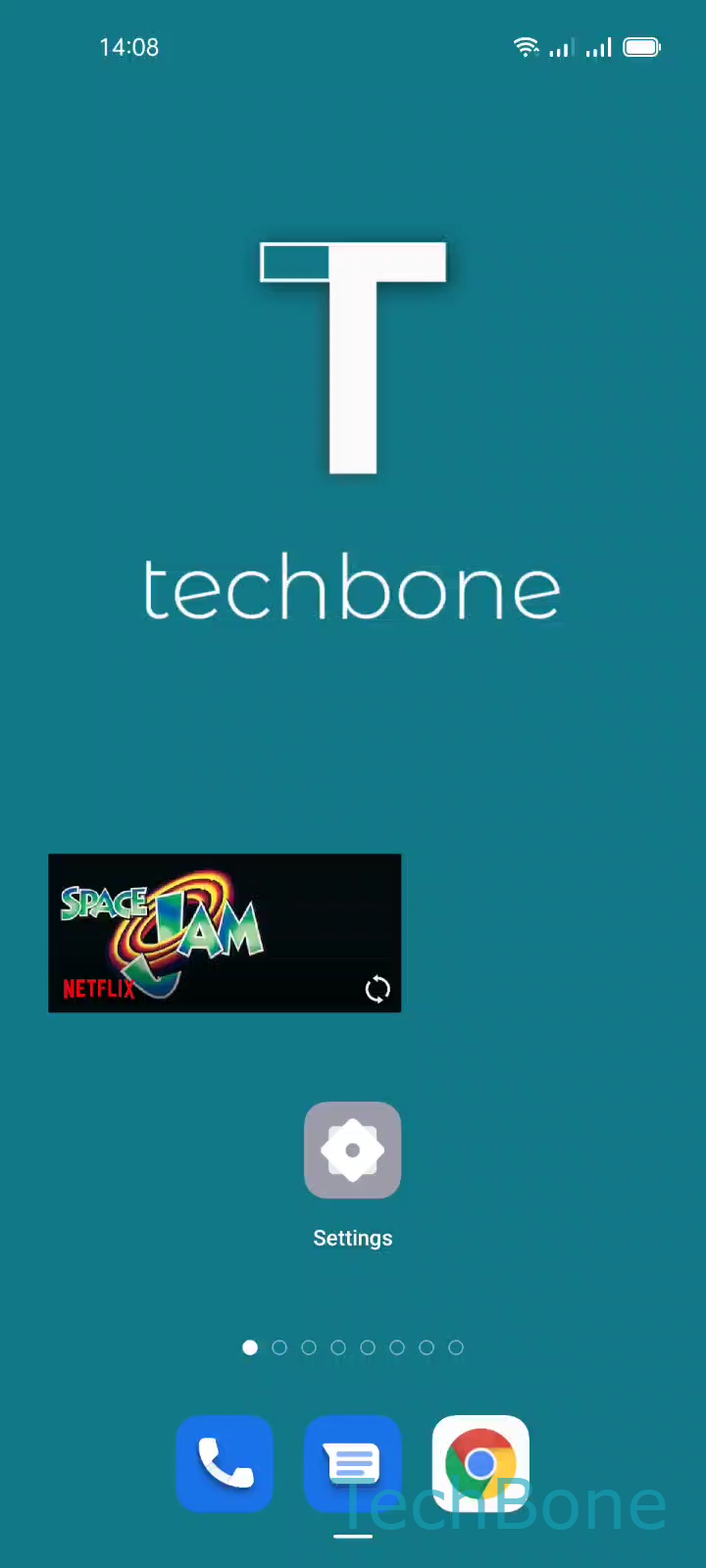
Press and hold the widget until it lifts slightly and a grid outline appears behind it. Then follow Tap and hold a Widget ➔ Drag the Borders to resize the Widget ➔ Tap on a Free area to exit. The grid snaps to fixed size steps, so the widget won't resize smoothly like a cropped photo.
Not every widget supports more than one size. If no border markers show up after you hold it down, the app behind that widget has only shipped a single fixed layout. Removing and re-adding the widget won't change that, because the size limit comes from the app, not from Coloros.