Skip to content
TechBone
Oppo

Oppo: Turn On or Off Select to Speak

When Select to Speak is active, an extra accessibility icon shows up in the navigation bar, and tapping it lets you highlight any text on screen to have it read aloud. It works similar to TalkBack but does not take over your phone's regular touch controls. If that icon suddenly appears or disappears without you doing anything, the setting may have been toggled by accident during a system update or a shared accessibility shortcut.

5 min6 steps
Version

Step by step

1 / 6

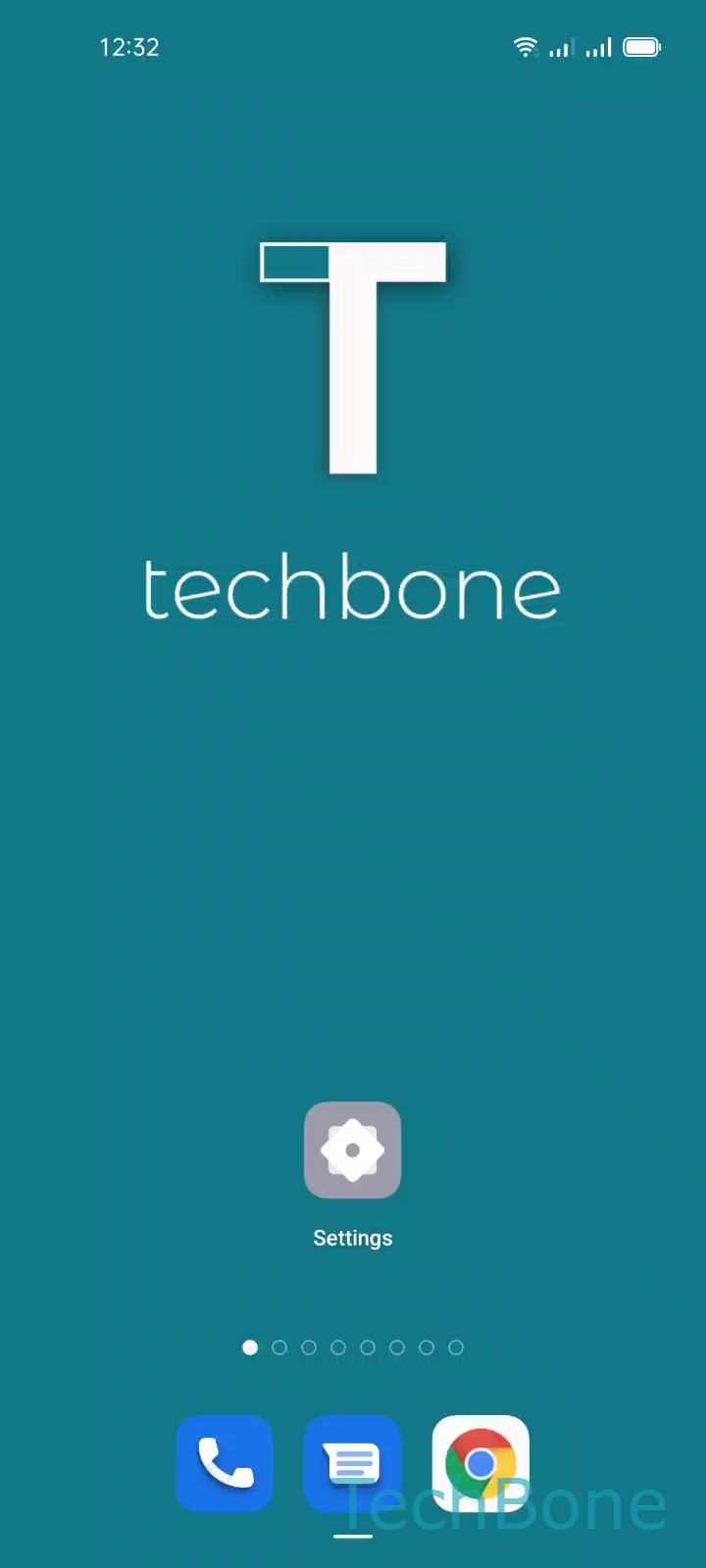
Step 1 of 6: Tap on **Settings**

1

Tap on Settings

Live simulator

Android 11 · Coloros 11
Turn On/Off Select to Speak – Coloros 11: step 1 – Tap on Settings
Tap on Settings
1 / 6

Scroll or use the buttons for the next step

Feedback

Was the guide correct?

Help others: confirm the path or report a problem.

48

Confirmations

Forum verified this path

Oppo

Turn On/Off Select to Speak auf Oppo

Select to Speak is an accessibility feature on Oppo phones running ColorOS. Once enabled, it adds a dedicated icon to the navigation bar. Tapping that icon lets you highlight any text on the screen and have it read out loud, without changing how the rest of your touch controls behave.

This makes it different from TalkBack, which takes over the entire interface and changes standard gestures. Select to Speak only reads what you point at, so it stays out of the way until you actually need it.

To turn it on or off, go to Tap on SettingsTap on Additional settingsTap on AccessibilityTap on Select to Speak. From there, use the toggle to Enable or disable Select to Speak, then confirm with Tap on OK.

If the icon keeps appearing after you disabled it, check whether another accessibility shortcut or a system update reset the toggle. Restarting the phone after disabling it usually clears the icon from the navigation bar for good.

If you only need occasional text-to-speech for specific apps, Select to Speak is often a lighter option than TalkBack, since it will not remap your gestures.

Frequently asked questions

Some ColorOS versions cache the navigation bar layout until the phone restarts. Disable Select to Speak through Tap on SettingsTap on Additional settingsTap on AccessibilityTap on Select to Speak, tap Tap on OK to confirm, then restart the phone to force the icon to disappear.