
Oppo
Send a Photo via Bluetooth auf Oppo
Bluetooth file transfer on Oppo phones running ColorOS depends on an active pairing, but the actual send command sits in the sharing sheet of the Gallery app, not in the Bluetooth settings screen itself. That is why the option is hard to find for anyone expecting a dedicated Bluetooth button inside Photos.
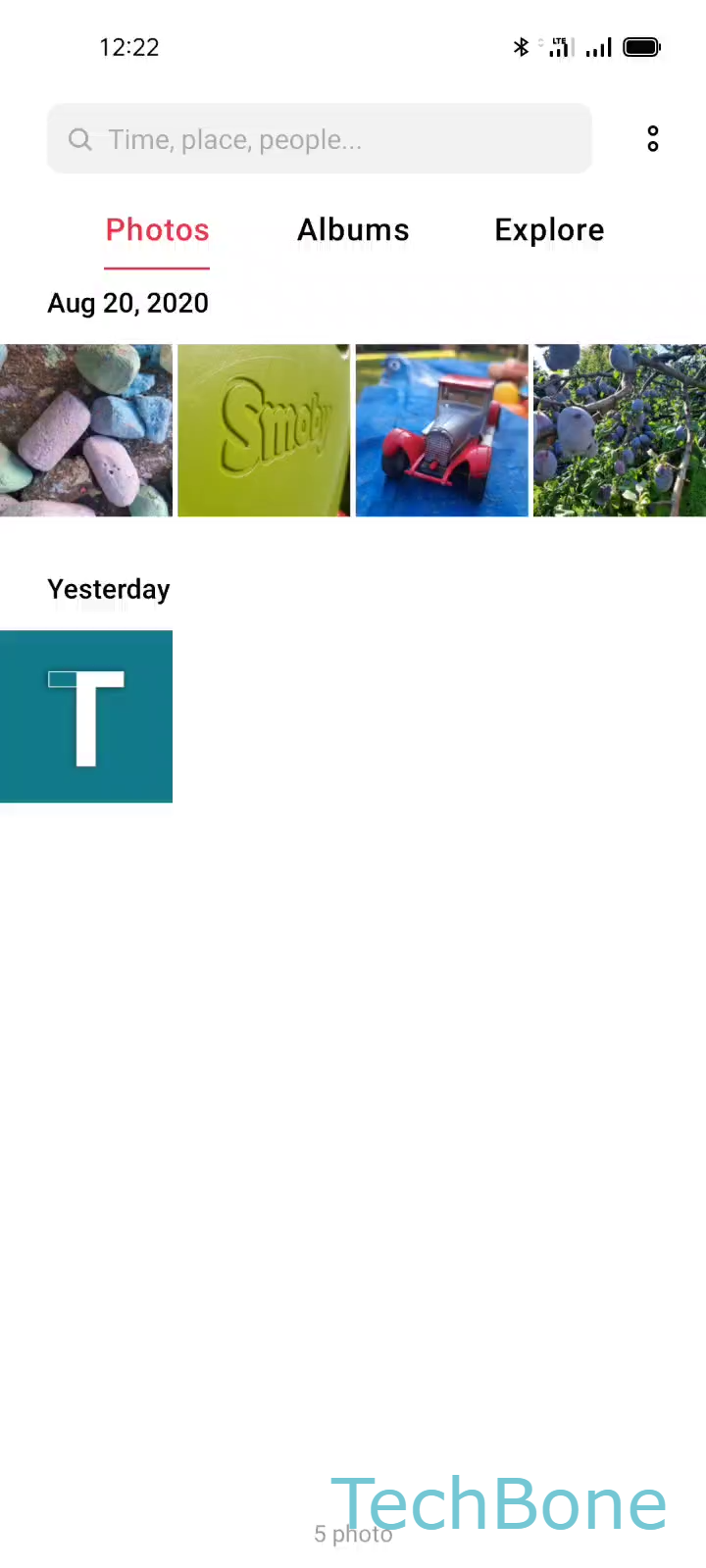
To send a picture, open the photo and follow Select a Photo ➔ Tap on Send ➔ Tap on Bluetooth ➔ Select an Available device. The receiving device needs Bluetooth switched on and must stay within range, otherwise it will not show up in the device list.
The same sharing sheet handles other file types as well, including PDFs, videos, contacts and text documents, since ColorOS uses one universal Send menu across file categories. If the target device does not appear, check that both phones completed pairing beforehand and that Bluetooth visibility is turned on for the receiving side.
Bluetooth transfer works well when Wi-Fi Direct or a cloud share is not an option, though it is noticeably slower for large video files. Keeping two frequently used devices paired saves time on every future transfer.