Skip to content
TechBone
Oppo

Oppo: Show or Hide the Fingerprint Icon When the Screen Is Off

On Oppo phones with an in-display fingerprint sensor, a small icon lights up at the sensor spot even while the screen is off. Some people find this glowing marker distracting at night or suspect it drains battery, and want to turn it off without losing fingerprint unlock. The toggle for this sits inside the screen-off unlock options, separate from the unlock function itself.

4 min5 steps
VersionAndroid 11 · Coloros 11

Step by step

1 / 5

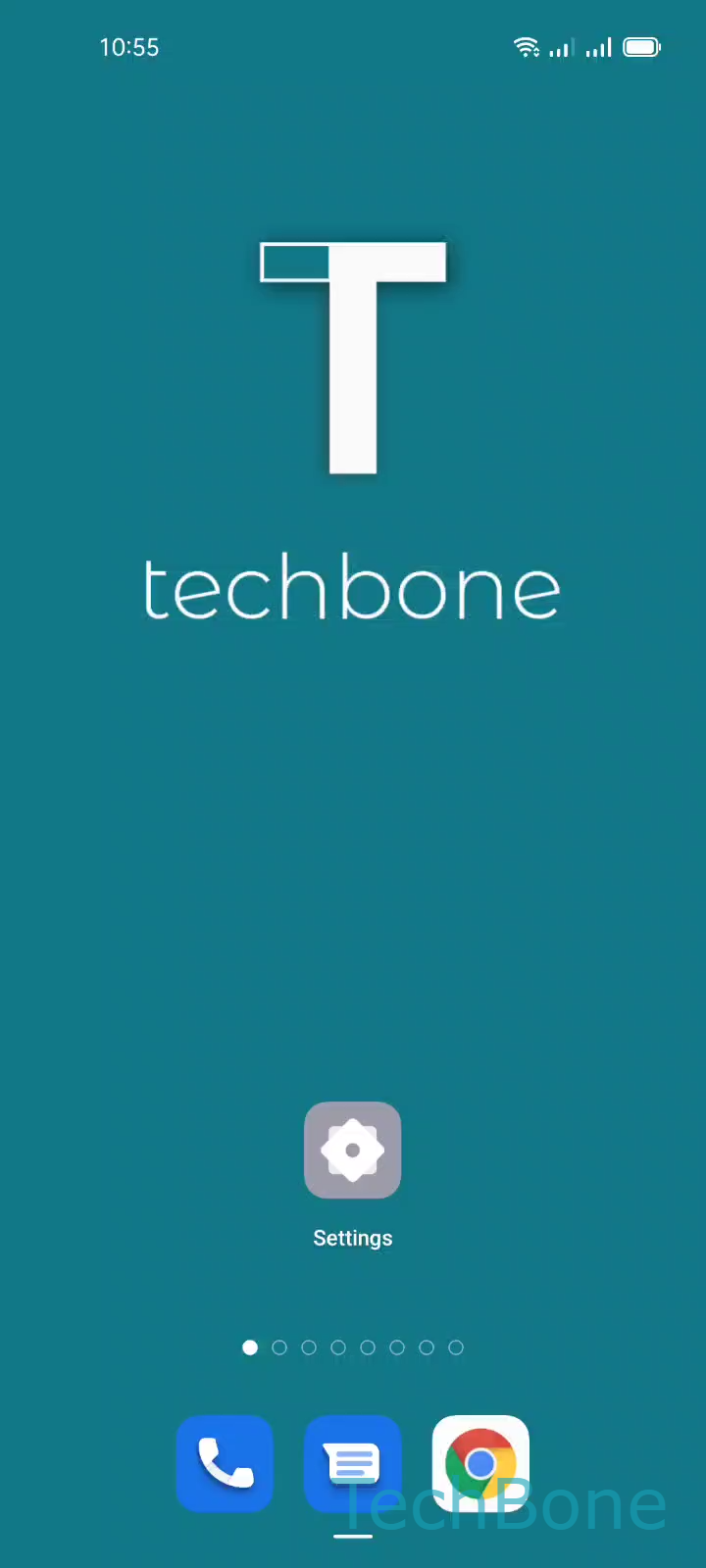
Step 1 of 5: Tap on **Settings**

1

Tap on Settings

Live simulator

Android 11 · Coloros 11
Show or Hide the Fingerprint Icon on the Lock Screen – Coloros 11: step 1 – Tap on Settings
Tap on Settings
1 / 5

Scroll or use the buttons for the next step

Feedback

Was the guide correct?

Help others: confirm the path or report a problem.

69

Confirmations

Forum verified this path

Oppo

Show or Hide the Fingerprint Icon on the Lock Screen auf Oppo

On Oppo phones with an in-display fingerprint sensor, ColorOS shows a small icon at the sensor location whenever the screen is locked and off. This icon marks exactly where to place your finger for a fast unlock, but it also stays visible on an otherwise black screen, which some people find distracting on a nightstand or read as unnecessary battery use.

The icon display is controlled by its own toggle inside the fingerprint settings, separate from the fingerprint unlock function itself. Turning the icon off does not disable screen-off unlock. You can still unlock the phone by touching the sensor area; you just lose the visual guide showing where it sits.

To change this, go to SettingsPassword & biometricsFingerprintScreen-off unlock. There, choose Show fingerprint icon to keep the marker visible, or set it to Off to hide it.

Keep the icon enabled if you often unlock in low light and rely on the visual reference. Hide it if you mainly use another unlock method or prefer the screen fully dark while idle.

Frequently asked questions

No. Hiding the icon only removes the visual marker. You can still unlock by touching the sensor area, since Screen-off unlock stays active independently of the icon setting.