Skip to content
TechBone
Oppo

Oppo: Change the Start of the Week in Calendar App

If your Oppo calendar always opens on the wrong weekday, the region-based Start of the week setting is usually the cause. This throws off the weekly grid in the Calendar app, which gets confusing if you are used to a different day as the first one. You can pick Saturday, Sunday or Monday to match your own routine.

5 min6 steps
VersionAndroid 11 · Coloros 11

Step by step

1 / 6

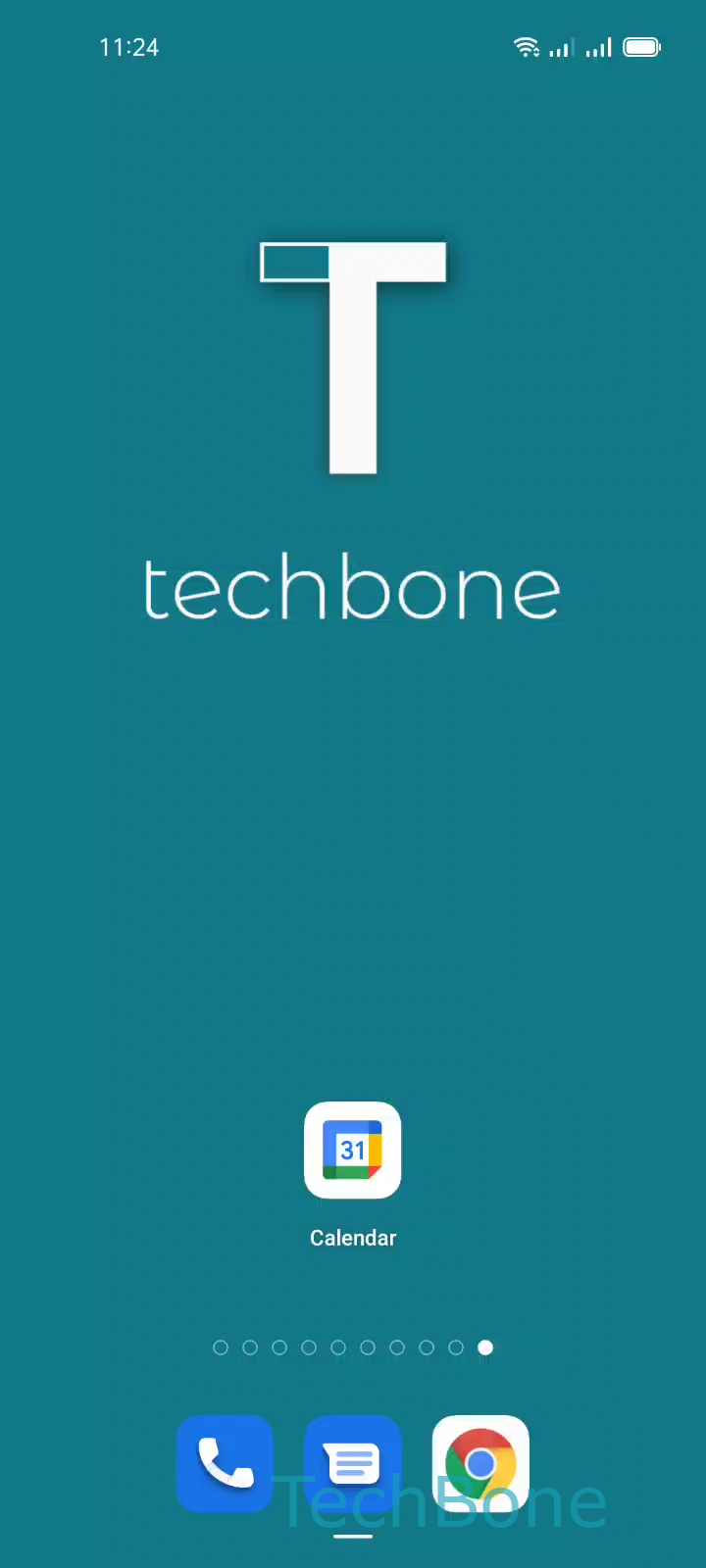
Step 1 of 6: Tap on **Calendar**

1

Tap on Calendar

Live simulator

Android 11 · Coloros 11
Change Start of Week in Calendar – Coloros 11: step 1 – Tap on Calendar
Tap on Calendar
1 / 6

Scroll or use the buttons for the next step

Feedback

Was the guide correct?

Help others: confirm the path or report a problem.

57

Confirmations

Forum verified this path

Oppo

Change Start of Week in Calendar auf Oppo

The Calendar app on Oppo phones picks a default first day of the week based on your region setting. In many countries that means Sunday or Monday, which can feel wrong if you are used to a different convention or just moved between regions.

This setting only changes how the weekly and monthly grid is drawn. It does not touch existing events, reminders or entries synced from other calendar accounts.

To adjust it, open CalendarMenuSettingsGeneralStart of the week. Choose between Saturday, Sunday and Monday.

The change applies right away to the month and week views. If the layout still looks off afterwards, check whether a synced account like Google Calendar applies its own weekday preference, since some apps override local settings during sync.

Frequently asked questions

No, it only changes the visual layout of the Calendar app on your Oppo device. Existing events and sync data stay unaffected.